


Sdl.Desktop.Platform.CommandBars.IActionService

I recently updated to TRADOS STUDIO 2017 from 2015 on Windows 10.

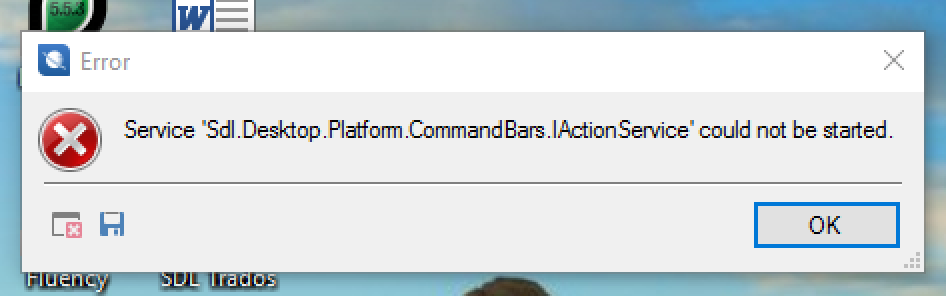
It all worked fine, but now I cannot open it because of the following error: "Service 'Sdl.Desktop.Platform.CommandBars.IActionSerrvice' could not be started"

Does anybody know if this is linked to a plugin problem - I think I may have wrongly installed the migration plugin Sdl.Community.StudioMigrationUtility.Integration.sdlplugin - and whether there is a quick solution rather than uninstalling Studio/licence and reinstalling the whole thing again??


Many thanks.
 

Parents
  • Hi Mike,

    Can't be sure without the error stack to see what's under this error message. But it does look as though you may indeed have installed the same plugin twice, and in two different locations. Make sure you do not have this plugin installed in these folders:

    c:\Users\[USERNAME]\AppData\Roaming\SDL\SDL Trados Studio\14\Plugins\Packages\
    c:\Users\[USERNAME]\AppData\Roaming\SDL\SDL Trados Studio\14\Plugins\Unpacked\

    c:\Users\[USERNAME]\AppData\Local\SDL\SDL Trados Studio\14\Plugins\Packages\
    c:\Users\[USERNAME]\AppData\Local\SDL\SDL Trados Studio\14\Plugins\Unpacked\

    c:\ProgramData\SDL\SDL Trados Studio\14\Plugins\Packages\
    c:\ProgramData\SDL\SDL Trados Studio\14\Plugins\Unpacked\

    So remove all traces of the plugin and the unpacked folder that is created in the unpacked folders when you start Studio and then doubleclick the sdlplugin file you downloaded and try again.

    Regards

    Paul

    Paul Filkin | RWS

    Design your own training!
    You've done the courses and still need to go a little further, or still not clear? 
    Tell us what you need in our Community Solutions Hub

Reply
  • Hi Mike,

    Can't be sure without the error stack to see what's under this error message. But it does look as though you may indeed have installed the same plugin twice, and in two different locations. Make sure you do not have this plugin installed in these folders:

    c:\Users\[USERNAME]\AppData\Roaming\SDL\SDL Trados Studio\14\Plugins\Packages\
    c:\Users\[USERNAME]\AppData\Roaming\SDL\SDL Trados Studio\14\Plugins\Unpacked\

    c:\Users\[USERNAME]\AppData\Local\SDL\SDL Trados Studio\14\Plugins\Packages\
    c:\Users\[USERNAME]\AppData\Local\SDL\SDL Trados Studio\14\Plugins\Unpacked\

    c:\ProgramData\SDL\SDL Trados Studio\14\Plugins\Packages\
    c:\ProgramData\SDL\SDL Trados Studio\14\Plugins\Unpacked\

    So remove all traces of the plugin and the unpacked folder that is created in the unpacked folders when you start Studio and then doubleclick the sdlplugin file you downloaded and try again.

    Regards

    Paul

    Paul Filkin | RWS

    Design your own training!
    You've done the courses and still need to go a little further, or still not clear? 
    Tell us what you need in our Community Solutions Hub

Children