Trados 2017 and 2019 crash with large files

Hello

I am working on a project which includes some very large files > 100,000 words. Working on the smaller files is no problem, but the large cause the program to crash apparently randomly, there are no error messages either from Trados or the OS (Windows 10), the program just disappears . I have the temp file limit set as high as possible. It has even crashed before filling in all the segments from the TM from the previous short session, but usually crashes between about 10 and 30 minutes after restarting the program. As you can imagine, this severely affects my work.

Thank you

Michael

Parents
  • Hi  and 

    Here's how you perform a Windows Repair of Studio (or any other software that is misbehaving)...

    1. Close all SDL applications.
    2. Open the Control Panel:
      • Windows Vista/7Start > Control Panel > Programs > Programs and Features.
      • Windows 8: Right-click on the screen at bottom-left corner and choose Control Panel > Uninstall a Program.
      • Windows 10: Right-click on Start > Control Panel > Select View by: Small Icons > Programs and Features
      • - or type 'Control Panel' in the search line on your bottom Windows toolbar.
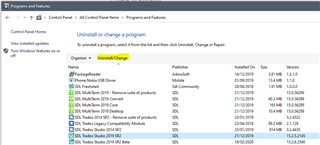
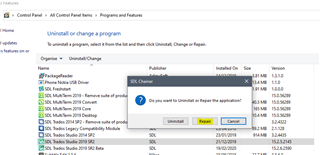
    3. Click/highlight the relevant SDL product from the list (e.g. SDL Trados Studio 2017 SR1) and click 'Repair' or 'Uninstall/Change' (then Yes then Repair) either on the top toolbar or on the right-click dropdown menu.
    4. Restart Studio/MultiTerm.

    Let us know if this helps or not...

    All the best,

    Ali Slight smile

Reply
  • Hi  and 

    Here's how you perform a Windows Repair of Studio (or any other software that is misbehaving)...

    1. Close all SDL applications.
    2. Open the Control Panel:
      • Windows Vista/7Start > Control Panel > Programs > Programs and Features.
      • Windows 8: Right-click on the screen at bottom-left corner and choose Control Panel > Uninstall a Program.
      • Windows 10: Right-click on Start > Control Panel > Select View by: Small Icons > Programs and Features
      • - or type 'Control Panel' in the search line on your bottom Windows toolbar.
    3. Click/highlight the relevant SDL product from the list (e.g. SDL Trados Studio 2017 SR1) and click 'Repair' or 'Uninstall/Change' (then Yes then Repair) either on the top toolbar or on the right-click dropdown menu.
    4. Restart Studio/MultiTerm.

    Let us know if this helps or not...

    All the best,

    Ali Slight smile

Children