
 Translate



Hi everyone,
The issue I am about to describe has been discussed at length many times, but we have not been able to resolve it using any of the existing solutions. I would therefore be very grateful if anyone has encountered the same problem and been able to find a solution.
We are a small translation agency. Most of our work, including all our project management work, which includes Trados, is done via Remote Desktop Service (RDS). The service is supplied by an IT company. We have 1 common server and several user profiles. Each profile has a certain degree of personal settings and disk space, while we all share server-wide disk space, which includes all installed programs (e.g. Trados). Due to this limitation, all matters of program management (such as licence activation, installation, etc.) has to be done via the IT company.
Recently we have upgraded one of our two Studio licences from version 2017 to 2019 and added it to one existing 2019 licence (we thus have 2 active Trados Studio 2019 Network licences). At the same time the IT company removed Trados Studio 2017 from the server. Since the upgrade we noticed that some of the users experience an issue with functionality; namely, icons for Trados-supported files (such as sdltm, sdlxliff, sdlproj, etc.) are not displayed properly and clicking on any file will launch Trados Studio on the start page and not open the desired document. A similar issue has been reported here and here. Furthermore, a double-click on an SDL file followed by a double-click on another SDL file opens two instances of Trados (which occupies both licences or refuses to launch the program in both licences are already in active use). Again, a double-click on a file will launch Trados on the start page and not open the actual file.
See below a photo of User 1, where the functionality is normal compared to User 2 with the issue:
User 1: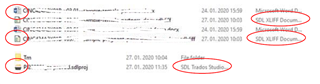 User 2:
According to the log file, the issue seems to be linked with: "WARN [timestamp] CommandBarExtensionRegistry". The full log file is available upon request.
These are the solutions we have tried so far with no success:
1) We checked if Trados is set as the default program for the relevant file extensions - it is.
2) We tried solutions from the two threads linked above: our IT technician made a clean install, deleted all residual files and re-installed Trados Studio 2019.
3) We ran a repair installation as described here.
4) Our IT technician tried deleting all existing user files for User 2 with the issue so that Trados had to be reconfigured for that user.
It seems that for most other users experiencing that issue a clean install worked. In our case, possibly due to our using Remote Desktop Services, the issue seems to lie elsewhere. As said above, only half of our users experience this issue despite the fact that Trados Studio is stored on the same location on the server. It is therefore possible that the issue stems from a faulty user setting and not the program on the macro level.
Help is very much appreciated if anyone has experienced a similar issue or has an idea of what else we could try. Thank you in advance!
Generated Image Alt-Text
[edited by: Trados AI at 8:15 PM (GMT 0) on 28 Feb 2024]


