


Studio 2019 won't launch! I get an error message I simply can't understand. Can anybody help?

HI, 

I have Trados Studio Freelance Plus 2019 on a Win 10 Pro machine. A week ago or so, I downloaded and installed the latest update.

Everything was working fine.

This morning, when I launched Studio, it wasn't long before the following error message (see attached screen capture) popped up:

cannot validate SDL plug-in: Sdl.BestMatchServiceStudiolntegration.Common.LanguageCloudMappingStartup, Sdl.BestMatchServiceStudiolntegration.Common, Version= 15. 1.0.0, Culture= neutral, PublicKeyToken=c28cdb26c445c888:
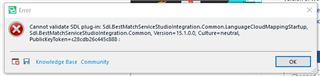
Error message in Trados Studio stating 'cannot validate SDL plug-in: Sdl.BestMatchServiceStudiolntegration.Common.LanguageCloudMappingStartup' with an 'OK' button.

It is major, as I can't use the software at all and to be honest, I don't even understand what it means.

I feel pretty helpless as I don't really know where to start

to try solving this problem.

Any help is welcome.

Christian


Generated Image Alt-Text
[edited by: Trados AI at 9:07 PM (GMT 0) on 28 Feb 2024]
emoji
Parents
  • Take a look here:

    The first suggestion is a Windows Repair then there are further possibilities suggested for resetting Studio... Note if you follow the 'reset' suggestion under Workaround 2, you will lose your custom settings. You can export these before resetting then import them but it is possible that in doing so you may reimport the setting that's causing the problem. so better to do a clean sweep.
    If none of suggestions available via the link above don't help, try reinstalling both Studio and MultiTerm. Download them from your SDL account (no need to release the Studio license when reinstalling on the same machine). Then open them both and allow any updates to download and install.
    If none of the above helps, you can then get free help with installation issues that are preventing you from working, pretty fast:
    Fill in the form here:
    Select 'installation' from the 'Case type' dropdown and give your correct email address so that they can contact you.

    I am sure you'll find a solution among the above!
    All the best,
    Ali Slight smile
Reply
  • Take a look here:

    The first suggestion is a Windows Repair then there are further possibilities suggested for resetting Studio... Note if you follow the 'reset' suggestion under Workaround 2, you will lose your custom settings. You can export these before resetting then import them but it is possible that in doing so you may reimport the setting that's causing the problem. so better to do a clean sweep.
    If none of suggestions available via the link above don't help, try reinstalling both Studio and MultiTerm. Download them from your SDL account (no need to release the Studio license when reinstalling on the same machine). Then open them both and allow any updates to download and install.
    If none of the above helps, you can then get free help with installation issues that are preventing you from working, pretty fast:
    Fill in the form here:
    Select 'installation' from the 'Case type' dropdown and give your correct email address so that they can contact you.

    I am sure you'll find a solution among the above!
    All the best,
    Ali Slight smile
Children