Context menu bug in SDL Studio 2021

In SDL Studio 2021 there is a problem with context menus. You are unable to select context menu options using the Enter key on keyboard. Instead you are forced to use the mouse to select an option.

For me this one of the most frequently used features and inability to use the keyboard significantly reduces efficiency.

Let me demonstrate:

Thank you!

  • I have tried to reproduce this but I can't. The keyboard actions work for me working exactly as you have demonstrated.  I think you need to look at other things such as how your keyboard shortcuts are set up perhaps, or check any external software you might be using that could impact on the use of keyboard controls.

    Paul Filkin | RWS

    Design your own training!
    You've done the courses and still need to go a little further, or still not clear? 
    Tell us what you need in our Community Solutions Hub

  • Hi Paul, you said "The keyboard actions work for me working exactly as you have demonstrated," however what I have demonstrated is how this should NOT work. I am not using any software that "hijacks" the keyboard and overrides shortcuts. Please see how it is supposed to work (on the same computer running SDL 2021) :

    Context menus used to work in all previous versions of SDL Studio exactly how I demonstrated this video (Microsoft Word and any Windows application)

    In SDL Studio 2021, when you press Enter in a context menu the option does NOT get executed. The behaviour is as if context menu is not open at all. In order to execute a selected option you are forced to click it with your mouse.

    incorrect behaviour >> the menu does not disappear, the word does not get corrected, segment is confirmed and cursor is moved to the next segment.

    Instead, when you press Enter, the option should be executed:

    correct behaviour >> word should be corrected, menu should disappear, the cursor should stay in its original position on the word being corrected.

  • I said:

    The keyboard actions work for me working exactly as you have demonstrated

    Not the best English... apologies for that.  I meant that I worked the way you showed, but when I do this it's all fine:

    Paul Filkin | RWS

    Design your own training!
    You've done the courses and still need to go a little further, or still not clear? 
    Tell us what you need in our Community Solutions Hub

  • Thank you Paul, then what do you think is the suspect setting that does this on my PC? I updated to SDL Studio 2021, as far as I can tell no settings are carried over from the previous installation - all settings are read from the new folder "c:\Users\USER_NAME\AppData\Roaming\SDL\SDL Trados Studio\Studio16\"

  • I'm not sure.  Certainly 2021 has changes to keyboard functionality so it makes sense to start by looking at the keyboard shortcuts.  What happens if you go through your keyboard shortcuts and remove everything you don't use?  Maybe that process will help find a clash?  I just tried that myself and it doesn't take too long.

    It might even be a driver that needs updating because 2021 is not the same as 2019.

    Paul Filkin | RWS

    Design your own training!
    You've done the courses and still need to go a little further, or still not clear? 
    Tell us what you need in our Community Solutions Hub

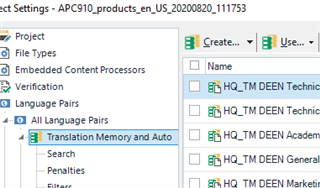
  • I have the same issue with Mariusz after updating to Studio 2021 but in a different place. If you are in the project settings (possibly even in the project template settings), just easier to show:

    Trados Studio project settings window showing Translation Memory and AutoSuggest options with 'Use' menu activated but not responding to arrow keys.

    And you press Alt+U, then the Use menu opens but you can't use the arrow keys to e.g. select DeepL or any of the other options. You have to use the mouse. I noticed this as a result of my autohotkey script that I run for all new projects to add DeepL. Since I've reverted back to TS 2019, it works again; therefore, I don't think it's a computer-related problem.

    Alt+U also affected here:

    Trados Studio verification settings window with 'Use' menu open next to TermBase options, not allowing arrow key navigation.

    emoji


    Generated Image Alt-Text
    [edited by: Trados AI at 10:58 PM (GMT 0) on 28 Feb 2024]
  • Different problem.  For you I think you need to use the tab key first because the navigation pane is active and not the TM pane.  At least that works for me.

    Definitely changed behaviour as this tab wasn't needed in 2019, but I think it's a different problem.

    Paul Filkin | RWS

    Design your own training!
    You've done the courses and still need to go a little further, or still not clear? 
    Tell us what you need in our Community Solutions Hub

  • Thanks, Paul. I tested again since the latest update from this morning and the behavior no longer occurs. It seems to be working as in Studio 2019 again. 

  • Hi Paul, I actually still have not resolved this, i.e. when in context menu "Enter" does not execute the selected option. I tried to remove all the unused shortcuts, but this has had no effect. In the mean time I realised that I need to use a modifier key, namely CTRL+Enter to do what Enter used to do on its own. Any idea what to look for to change this behaviour? In all other applications I am able to activate a context menu with the context menu key (located between right Alt and Ctrl), select a desired  option with arrow keys and then press Enter to execute. In Studio 2021 I need to press CTRL+Enter to execute. Pressing Enter on its own confirms a segment and moves to the next one while context menu remains open. Interestingly enough, when I confirm a few segments in this manner (context menu remains open) and only then press CTRL+Enter, the selected context menu option is executed and cursor returns to the segment where context menu was originally activated.

    I have a few 2021 Pro upgrades to install but I have been holding it off until I resolve this issue. Also I installed 2021 Pro on another computer (uninstalled 2019 first) and exactly the same issue came up.

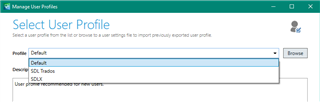
  • Perhaps it's worth checking to see if the default profile you are using is causing some conflict here?  I'm only guessing... but I think the SDLX profile uses "Enter" to confirm a segment:

    Trados Studio 'Manage User Profiles' window showing a dropdown menu with 'Default' and 'SDLX' profiles available for selection.

    Bit of a stretch... but perhaps, if you are using this profile, it's causing this strange behaviour?

    Paul Filkin | RWS

    Design your own training!
    You've done the courses and still need to go a little further, or still not clear? 
    Tell us what you need in our Community Solutions Hub

    emoji


    Generated Image Alt-Text
    [edited by: Trados AI at 10:59 PM (GMT 0) on 28 Feb 2024]