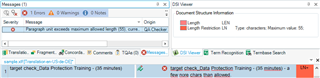
Length limitation in XLF file with HTML Embedded content

Hello,

I have the following XLF file for translation.

/cfs-file/__key/communityserver-discussions-components-files/90/8284.sample.zip

As you can see, each target element has a particular attribute ("length"), which denotes the character limitation for that segment.

XML code snippet showing a 'trans-unit' element with 'source' and 'target' child elements, where the 'target' element has a 'length' attribute.

To handle this file I used 's guide here:  https://multifarious.filkin.com/2014/05/02/xml-length-restrictions/ (solution nr.4).

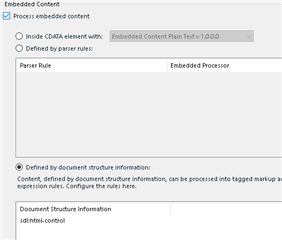
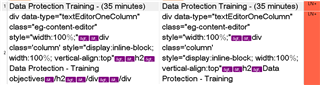
Everything went well, until the moment I enabled the following option because my source file has some HTML control characters:
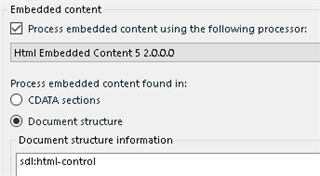
Trados Studio Embedded Content settings window with 'Process embedded content using the following processor: Html Embedded Content 5.20.0.0' checked.

To my understanding, it's not possible to have the embedded content processor enabled and at the same time "play" with the advanced tag settings, is it?
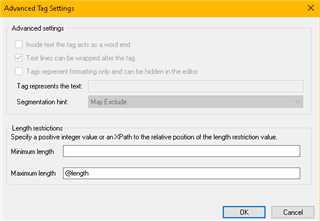
Trados Studio Advanced Tag Settings dialog box with options for text line, tag representation, segmentation hint, and length restriction fields.

If so, is there a way to handle this file properly?

My custom file type is this: /cfs-file/__key/communityserver-discussions-components-files/90/8016.zip

Thanks,

Pavlos

Pavlos Ponos
Localization Engineer

Tell the world.

NLG GmbH
+30.2310.502.192 ext. 6259         
NLGworldwide.com


Generated Image Alt-Text
[edited by: Trados AI at 12:08 AM (GMT 0) on 29 Feb 2024]

emoji
Parents Reply
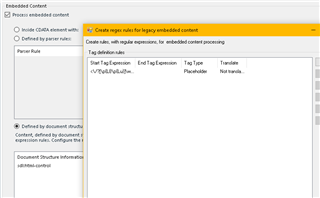
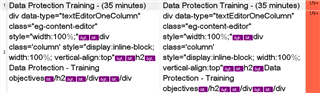
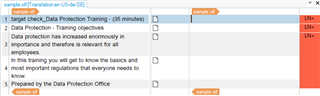
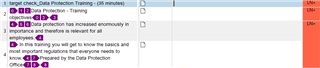
  • Length limitation appears, and so does the HTML control text. Am I missing something?

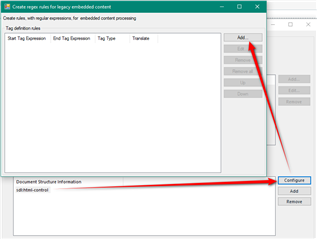
    Did you create your rules by configuring the html-control rule you created?  It's not clear because the UI is awful and is missing any indication that you need to do anything else.  But you now need to click on the rule and then configure:

    Screenshot of Trados Studio showing the 'Create tags rules for legacy embedded content' window with an 'Add' button and a 'Configure' button highlighted, indicating steps to follow.

    Even when you've done this you'll find some other funny's:

    1. when you add the rule there is nowhere to confirm it so you must close it
    2. after closing it there still won't be any evidence that you actually added anything

    So you need faith ;-)  But if you click back on configure you'll see the rules are still there.

    Not great... but perhaps this is what you're missing?

    Paul Filkin | RWS

    Design your own training!
    You've done the courses and still need to go a little further, or still not clear? 
    Tell us what you need in our Community Solutions Hub

    emoji


    Generated Image Alt-Text
    [edited by: Trados AI at 12:08 AM (GMT 0) on 29 Feb 2024]
Children