 Translate



My Trados Studio is not generating the corresponding LIFFT file in the target language. Or, the file is being automatically generated somewhere in my computer where I cannot find it.

RWS Community
My Trados Studio is not generating the corresponding LIFFT file in the target language. Or, the file is being automatically generated somewhere in my computer where I cannot find it.
There isn't a LIFFT file. Fragments are added to your TM as you work.
Paul Filkin | RWS
Design your own training!
You've done the courses and still need to go a little further, or still not clear?
Tell us what you need in our Community Solutions Hub
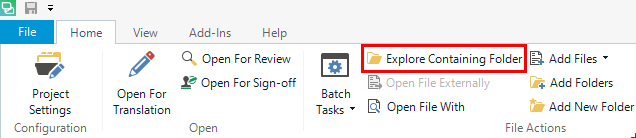
If you mean the generated translated file, the quickest way to access that file is the button Explore Containing folder in the Home tab, Files view:

Hi Jesús, Thank you for your piece of advice. That can help me to have a quick access to my files on my computer, as you said. However, I still do not see generated any file with the document in the target language. There used to be a LIFFT file, generated from the translation. Jerzy says there is no LIFFT file. So, where is the translated document generated? I just do not find more than the original word/PDF document and the sdlproj, with the logo of a little basket, like in previous Trados Studio versions, where, if I click, it takes me back to the Trados Studio tool on my computer..
Quoting Eva Becerra's private message.
I think it's better if you keep posting to the forum here, so anybody will be able to help.
A couple of specific questions:
Also, you need to explicitly generate the target file before seeing it: Select the file in Files view, select Batch tasks in the Home ribbon, then select Generate Target translations and click on the Finish button of the wizard.
Once done, use the button Explore Containing folder button mentioned above to see the target file.

Thank you sooooo much, Jesus!!
I did as you suggested and it worked!!!
Select the file in Files view, select Batch tasks in the Home ribbon, then select Generate Target translations and click on the Finish button of the wizard.
Once done, use the button Explore Containing folder button mentioned above to see the target file.
You are awesome!!!!
Anything I can do for you, please, let me know.
Stay in touch.
Thankfully,
Eva Becerra

