xlf file not recognized

Hi,

I am relatively new to SDL Trados. 

I need to translate a file in xlf format. If I drag it to the Welcome page and click "Create New Project", the file doesn't show up on the Files in Selected Folder. That is, it creates a new project but there's nothing in it. How can I get it to recognize this file?

Thanks,

Daniel

Parents Reply
  • Hi again

    Oh yes I took a few factors for granted given you have just started, so do allow for me to go into some detail

    SDL Trados Studio has the ability to work based on 2 concepts:

    1. Default settings which is where I suggested you start (File - Options)
    2. Project settings

    Initially project settings are based on your default settings. But over time you may end up having "project specific settings" (managed through templates). 

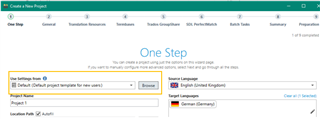
    Purely for information purposes, please see where I highlighted in amber where you confirm  which setting are you using for your project. 

    Trados Studio 'Create a New Project' window with default project template selected and source language set to English (United Kingdom) and target language set to German (Germany).


    Regardless of what you see, it’s clear your project settings are not supporting your document.

    Please see if any of the 3 work for you:

    1. If you see no files listed, try add them manually by clicking on the add file icon

     Trados Studio project files list with no files displayed and an 'Add file' icon highlighted in amber. 

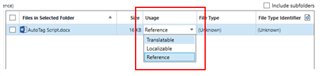
    1. If the file in quested is listed but with a usage marked as Reference, see if you can access a drop down change the files usage to “Translatable”

    Dropdown menu in Trados Studio showing file usage options with 'Reference' selected and 'Translatable' option available.

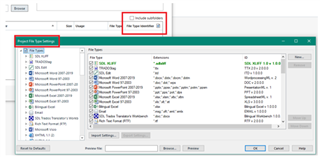
          3. Alternatively review the "Project File Type Settings" which takes you into views you are already familiar with. Difference being they are specific to this “Project”.
          Check to ensure your *.xlf is listed. 

    Trados Studio 'Project File Type Settings' window with a list of file types and 'Include subfolders' option highlighted in amber.

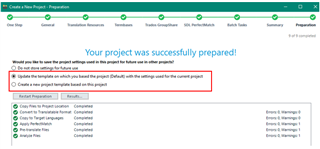
    If any of the 3 work, then please may I recommend you save your efforts to ease future project creation. You do this once your project has been created successfully by either updating the “Project Setting Template” or creating a new Project Template, which you can then reference next time you initiate a project (as seen in amber box)

    Trados Studio notification that the project was successfully prepared with options to update the template or create a new project template highlighted in amber.

    Fingers crossed we get you up and running soon

    Lydia 

    Oana Nagy | QA Engineer | RWS Group

    emoji


    Generated Image Alt-Text
    [edited by: Trados AI at 1:04 AM (GMT 0) on 29 Feb 2024]
Children