Language Switch in a TM

Hello guys ...
Can You help me please?

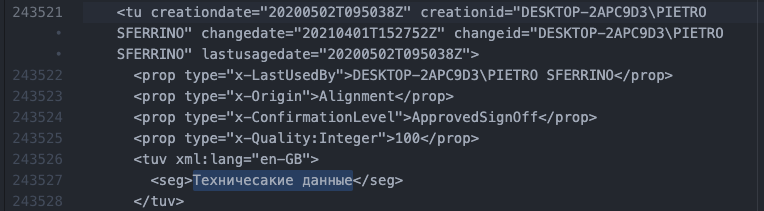
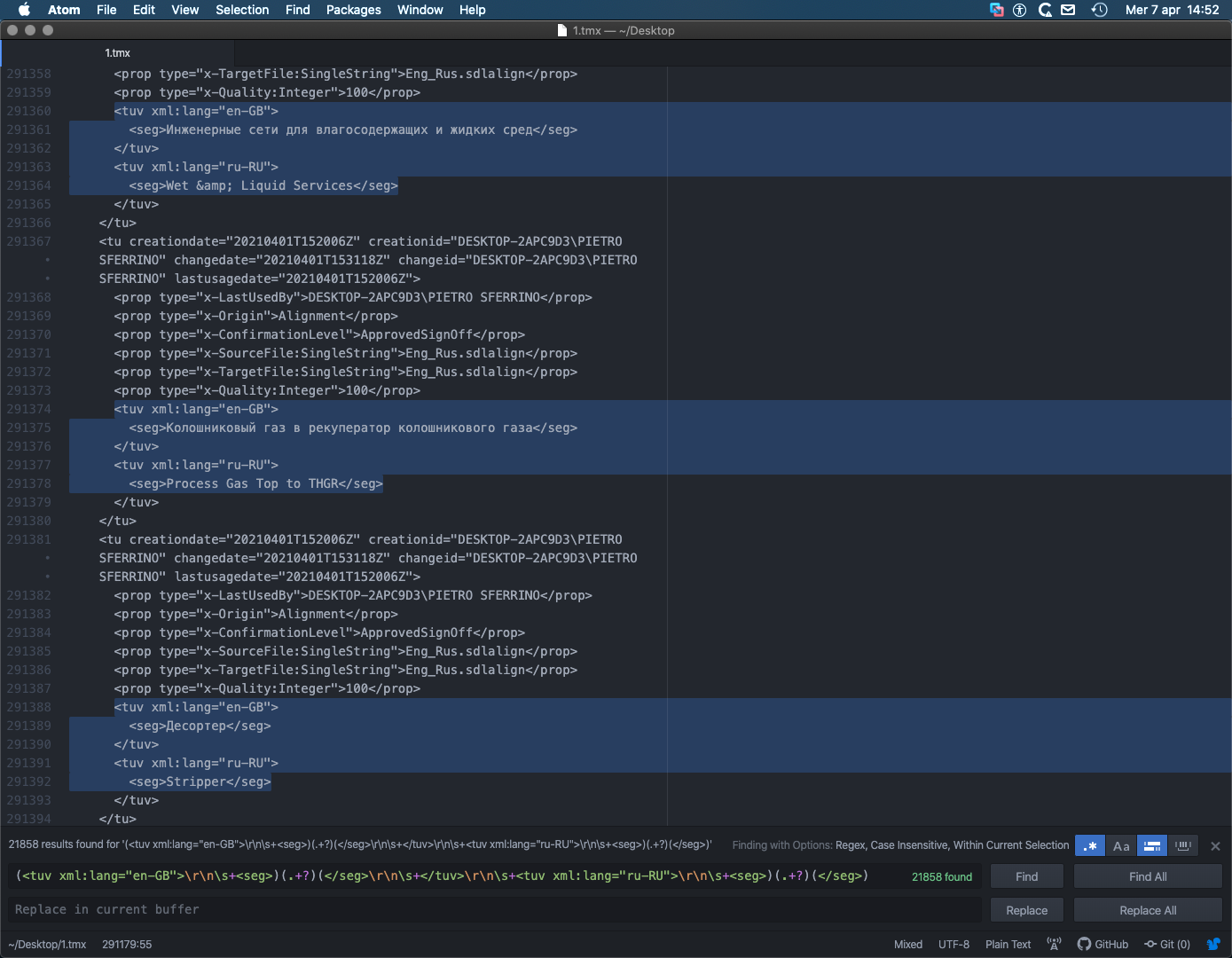
I have got a TM from a collegue of mine, and this TM seems to be from ENG to RUS ... BUT ... at a certain point, Ithe two languages are switched each-other ... I do not know why but, I don't really care ... My point is: can You suggest the correct and better way to do that?

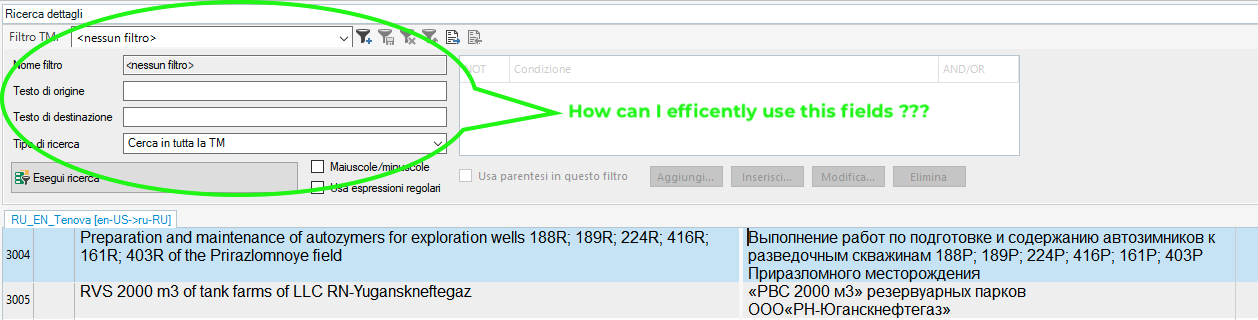
Here is a screenshot ... ... Ok, I forgot to catch the RIGHT part of the screen but, trust me ... in the right-upper part there is Russian, and after that English ...
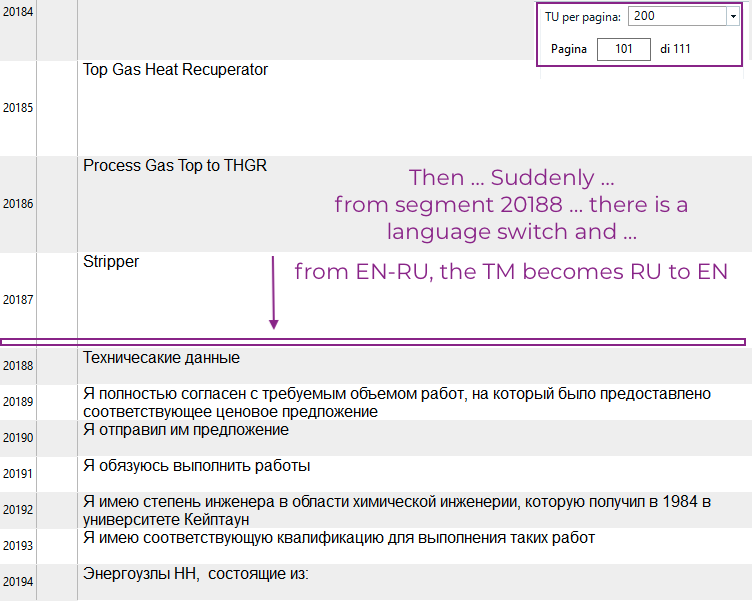
Screenshot of Trados Studio showing a Translation Memory (TM) with a language switch error. English text is labeled as Russian and vice versa starting from segment 20188.


Many thanks.
Pietro


Generated Image Alt-Text
[edited by: Trados AI at 1:58 AM (GMT 0) on 29 Feb 2024]

emoji
Parents
  • I think a bit of regex will make its magic:

    1. In Trados Studio, export the TM to TMX
    2. Install Notepad++ or any decent editor.
    3. Open the TMX with Notepad++. Be patient…
    4. In Notepad++, go to the end of the file and select the wrong text. Find the TU corresponding to the segment 20188 and then select until the end of the file.
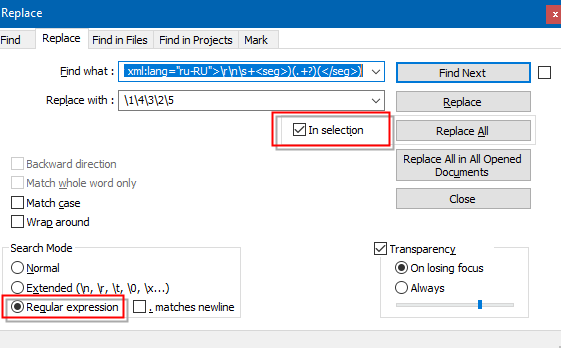
    5. Press CTRL+H to bring the Replace dialog box up.
    6. Tick In selection check box.
    7. In Find what paste this regex:
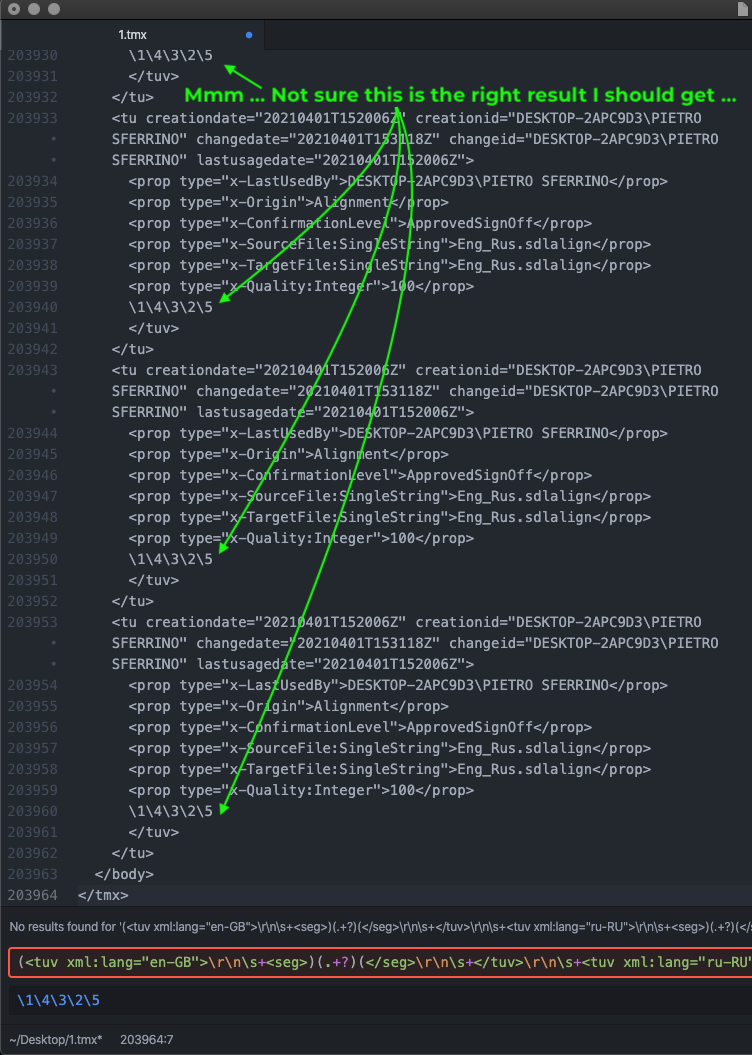
      (<tuv xml:lang="en-US">\r\n\s+<seg>)(.+?)(</seg>\r\n\s+</tuv>\r\n\s+<tuv xml:lang="ru-RU">\r\n\s+<seg>)(.+?)(</seg>)
    8. In Replace with, paste this regex:
      \1\4\3\2\5
    9. Tick the Regular Expression radio button
    10. Press Replace button to replace 1 by 1, or Replace All button to replace all in the selected text.

    Notepad++ Replace dialog box with regex code entered in 'Find what' and 'Replace with' fields. 'In selection' and 'Regular expression' options are checked.

    ☛ You may need to change the language codes (en-US or/and ru-RU) to match the exact language combination of your TM.

    ☛ Don't forget to tick In selection check box or Notepad++ will replace all the TUs.

    Once the replacement is done:

    • save the TMX
    • create a new empty TM in Trados Studio
    • import the TMX to the new TM
    • check it that everything looks good!
    emoji


    Generated Image Alt-Text
    [edited by: Trados AI at 1:58 AM (GMT 0) on 29 Feb 2024]
Reply
  • I think a bit of regex will make its magic:

    1. In Trados Studio, export the TM to TMX
    2. Install Notepad++ or any decent editor.
    3. Open the TMX with Notepad++. Be patient…
    4. In Notepad++, go to the end of the file and select the wrong text. Find the TU corresponding to the segment 20188 and then select until the end of the file.
    5. Press CTRL+H to bring the Replace dialog box up.
    6. Tick In selection check box.
    7. In Find what paste this regex:
      (<tuv xml:lang="en-US">\r\n\s+<seg>)(.+?)(</seg>\r\n\s+</tuv>\r\n\s+<tuv xml:lang="ru-RU">\r\n\s+<seg>)(.+?)(</seg>)
    8. In Replace with, paste this regex:
      \1\4\3\2\5
    9. Tick the Regular Expression radio button
    10. Press Replace button to replace 1 by 1, or Replace All button to replace all in the selected text.

    Notepad++ Replace dialog box with regex code entered in 'Find what' and 'Replace with' fields. 'In selection' and 'Regular expression' options are checked.

    ☛ You may need to change the language codes (en-US or/and ru-RU) to match the exact language combination of your TM.

    ☛ Don't forget to tick In selection check box or Notepad++ will replace all the TUs.

    Once the replacement is done:

    • save the TMX
    • create a new empty TM in Trados Studio
    • import the TMX to the new TM
    • check it that everything looks good!
    emoji


    Generated Image Alt-Text
    [edited by: Trados AI at 1:58 AM (GMT 0) on 29 Feb 2024]
Children