text Size of SDL Professional

I have just installed SDL Professional and find that the text, buttons and everything else is very very small. I am not referring to the source and target text. That text I know how to increase. But the other information is just too small. How does one increase it?

Parents
  • You have a high-resolution screen. Studio is not really designed for such screens. If you cannot live with small buttons (not a big deal, if you ask me), use the settings in Windows to magnify the view. You might also want to check this app: Change Scaling Behaviour - Language Solutions | SDL

    _________________________________________________________

    When asking for help here, please be as accurate as possible. Please always remember to give the exact version of product used and all possible error messages received. The better you describe your problem, the better help you will get.

    Want to learn more about Trados Studio? Visit the Community Hub. Have a good idea to make Trados Studio better? Publish it here.

  • Thanks, Jerzy, for your prompt response. For your information, I am using Windows 10 and my laptop is indeed one of the newer ones with the 11th generation version of i7. So, as a result, I did not seem to find many of the things mentioned in the steps outlined in the Article referenced in your message. I am not too sure why the latest version of SDL would not be addressing these problems associated with installing SDL Professional in newer versions of laptops. This is a bit disappointing to me considering just how expensive this version of SDL Studio is. I really find it very difficult to believe that this will be the reason for my problem with this software in this day and age. I hope someone from SDL will come forward and prove this wrong.

  • Believe it or not, it is. I am using a MS Surface with a quite high resolution screen (12") and have set my Windows 10 not to magnify anything. The icons and text of Studio GUI is tiny, but I do not care. BTW, this applies to all versions of Studio, not only Pro.

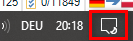
    If you really cannot live with this small icons, you have to use Windows to help you. Go to "All Settings" in Windows by clicking here:

    Close-up of Trados Studio GUI showing tiny icons and text with a red square around Windows scaling settings icon.

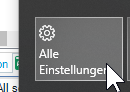
    Then chose this:

    Windows 10 'All Settings' menu with mouse cursor hovering over 'System' option.

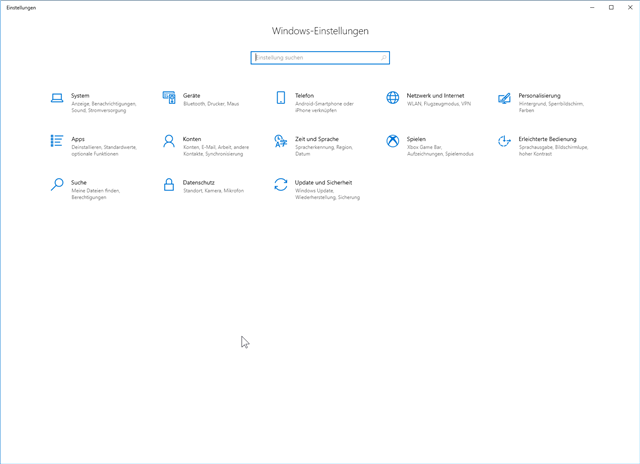
    You should see this:

    Windows 10 System Settings window displaying various options including 'Display', 'Sound', and 'Notifications'.

    Chose System:

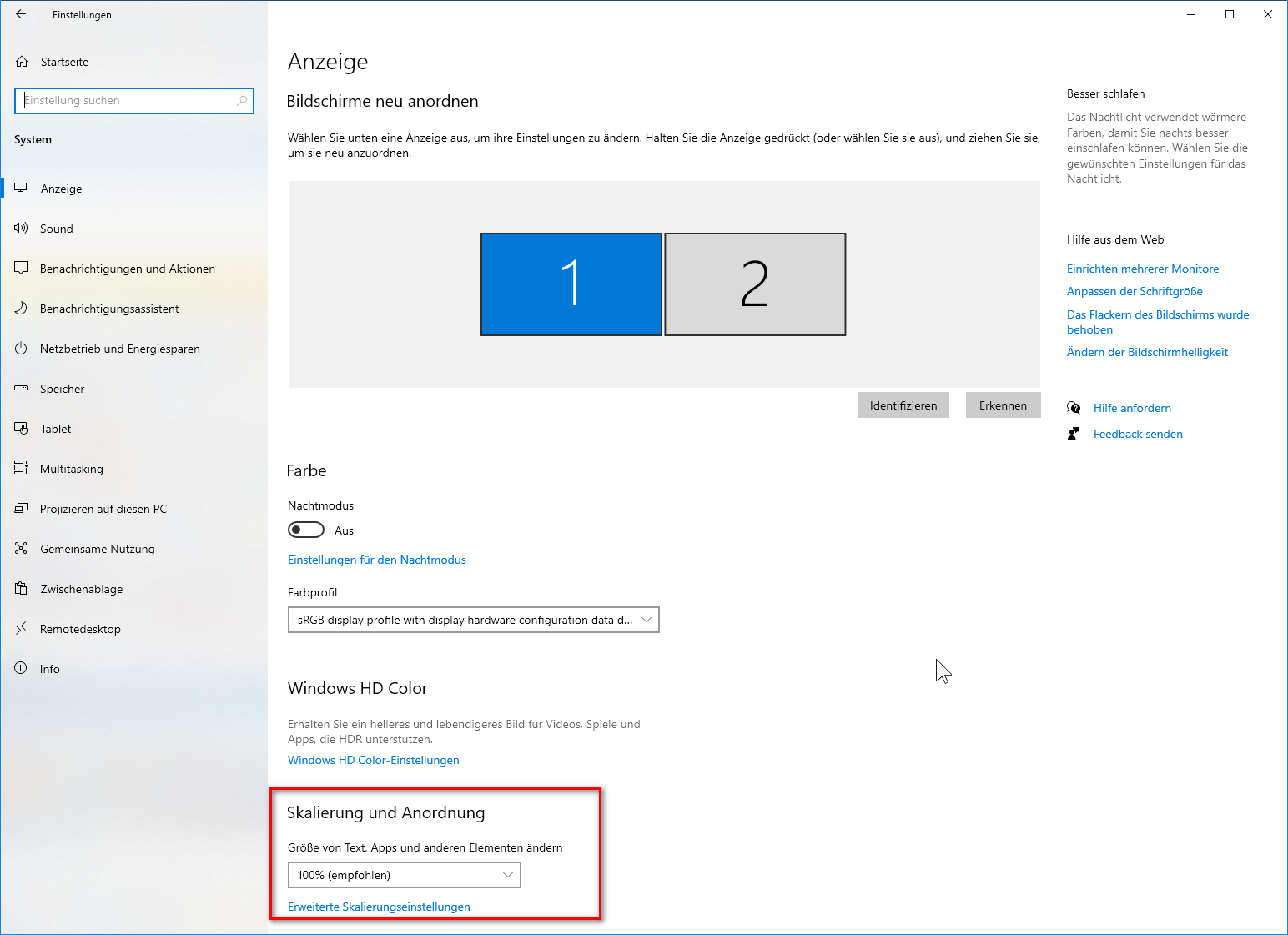
    Windows 10 Display settings with 'Scale and layout' section highlighted, showing options to change the size of text, apps, and other items.

    Use the marked settings to change scaling.

    Or buy a laptop with a screen of maximal Full HD resolution (1920 × 1080 pixel).

    _________________________________________________________

    When asking for help here, please be as accurate as possible. Please always remember to give the exact version of product used and all possible error messages received. The better you describe your problem, the better help you will get.

    Want to learn more about Trados Studio? Visit the Community Hub. Have a good idea to make Trados Studio better? Publish it here.

    emoji


    Generated Image Alt-Text
    [edited by: Trados AI at 2:13 AM (GMT 0) on 29 Feb 2024]
Reply
  • Believe it or not, it is. I am using a MS Surface with a quite high resolution screen (12") and have set my Windows 10 not to magnify anything. The icons and text of Studio GUI is tiny, but I do not care. BTW, this applies to all versions of Studio, not only Pro.

    If you really cannot live with this small icons, you have to use Windows to help you. Go to "All Settings" in Windows by clicking here:

    Close-up of Trados Studio GUI showing tiny icons and text with a red square around Windows scaling settings icon.

    Then chose this:

    Windows 10 'All Settings' menu with mouse cursor hovering over 'System' option.

    You should see this:

    Windows 10 System Settings window displaying various options including 'Display', 'Sound', and 'Notifications'.

    Chose System:

    Windows 10 Display settings with 'Scale and layout' section highlighted, showing options to change the size of text, apps, and other items.

    Use the marked settings to change scaling.

    Or buy a laptop with a screen of maximal Full HD resolution (1920 × 1080 pixel).

    _________________________________________________________

    When asking for help here, please be as accurate as possible. Please always remember to give the exact version of product used and all possible error messages received. The better you describe your problem, the better help you will get.

    Want to learn more about Trados Studio? Visit the Community Hub. Have a good idea to make Trados Studio better? Publish it here.

    emoji


    Generated Image Alt-Text
    [edited by: Trados AI at 2:13 AM (GMT 0) on 29 Feb 2024]
Children