text Size of SDL Professional

I have just installed SDL Professional and find that the text, buttons and everything else is very very small. I am not referring to the source and target text. That text I know how to increase. But the other information is just too small. How does one increase it?

Parents
  • You have a high-resolution screen. Studio is not really designed for such screens. If you cannot live with small buttons (not a big deal, if you ask me), use the settings in Windows to magnify the view. You might also want to check this app: Change Scaling Behaviour - Language Solutions | SDL

    _________________________________________________________

    When asking for help here, please be as accurate as possible. Please always remember to give the exact version of product used and all possible error messages received. The better you describe your problem, the better help you will get.

    Want to learn more about Trados Studio? Visit the Community Hub. Have a good idea to make Trados Studio better? Publish it here.

  • Thanks, Jerzy, for your prompt response. For your information, I am using Windows 10 and my laptop is indeed one of the newer ones with the 11th generation version of i7. So, as a result, I did not seem to find many of the things mentioned in the steps outlined in the Article referenced in your message. I am not too sure why the latest version of SDL would not be addressing these problems associated with installing SDL Professional in newer versions of laptops. This is a bit disappointing to me considering just how expensive this version of SDL Studio is. I really find it very difficult to believe that this will be the reason for my problem with this software in this day and age. I hope someone from SDL will come forward and prove this wrong.

  • Believe it or not, it is. I am using a MS Surface with a quite high resolution screen (12") and have set my Windows 10 not to magnify anything. The icons and text of Studio GUI is tiny, but I do not care. BTW, this applies to all versions of Studio, not only Pro.

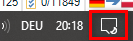
    If you really cannot live with this small icons, you have to use Windows to help you. Go to "All Settings" in Windows by clicking here:

    Close-up of Trados Studio GUI showing tiny icons and text with a red square around Windows scaling settings icon.

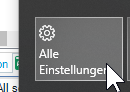
    Then chose this:

    Windows 10 'All Settings' menu with mouse cursor hovering over 'System' option.

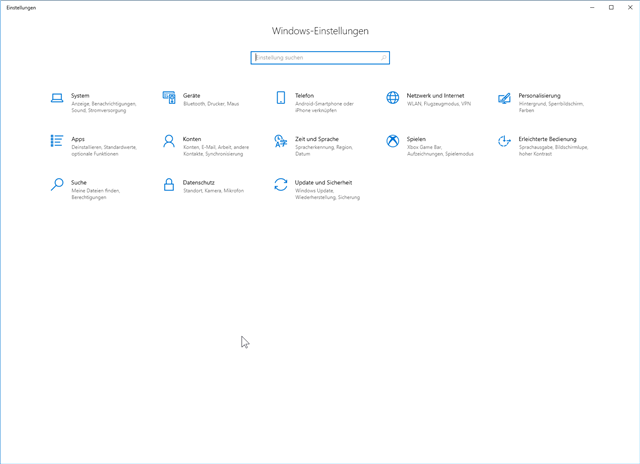
    You should see this:

    Windows 10 System Settings window displaying various options including 'Display', 'Sound', and 'Notifications'.

    Chose System:

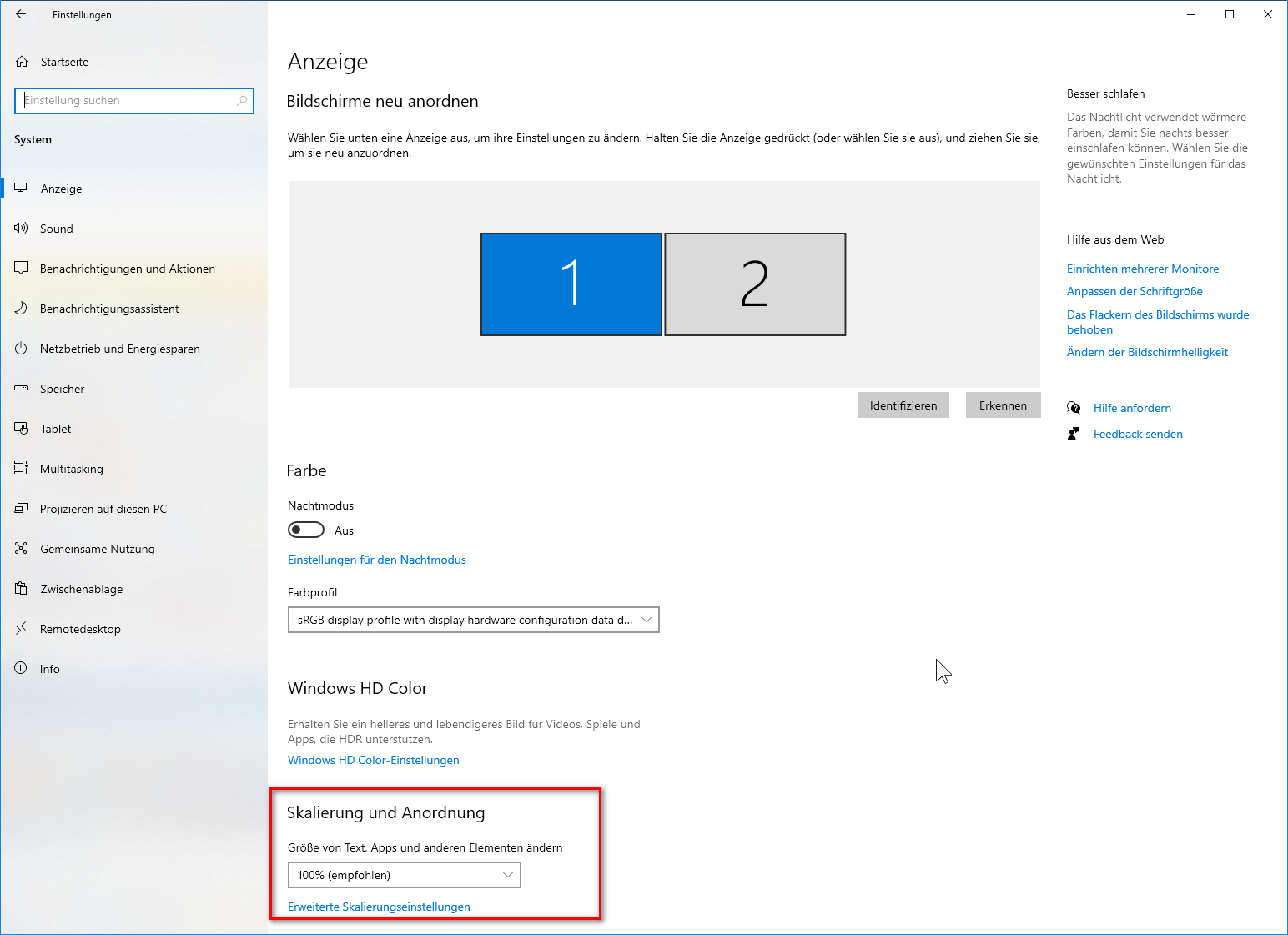
    Windows 10 Display settings with 'Scale and layout' section highlighted, showing options to change the size of text, apps, and other items.

    Use the marked settings to change scaling.

    Or buy a laptop with a screen of maximal Full HD resolution (1920 × 1080 pixel).

    _________________________________________________________

    When asking for help here, please be as accurate as possible. Please always remember to give the exact version of product used and all possible error messages received. The better you describe your problem, the better help you will get.

    Want to learn more about Trados Studio? Visit the Community Hub. Have a good idea to make Trados Studio better? Publish it here.

    emoji


    Generated Image Alt-Text
    [edited by: Trados AI at 2:13 AM (GMT 0) on 29 Feb 2024]
  • Hi ,
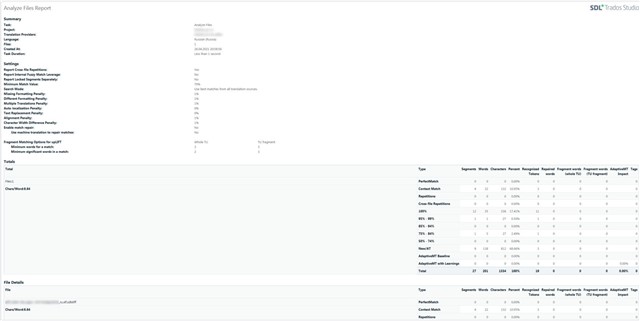
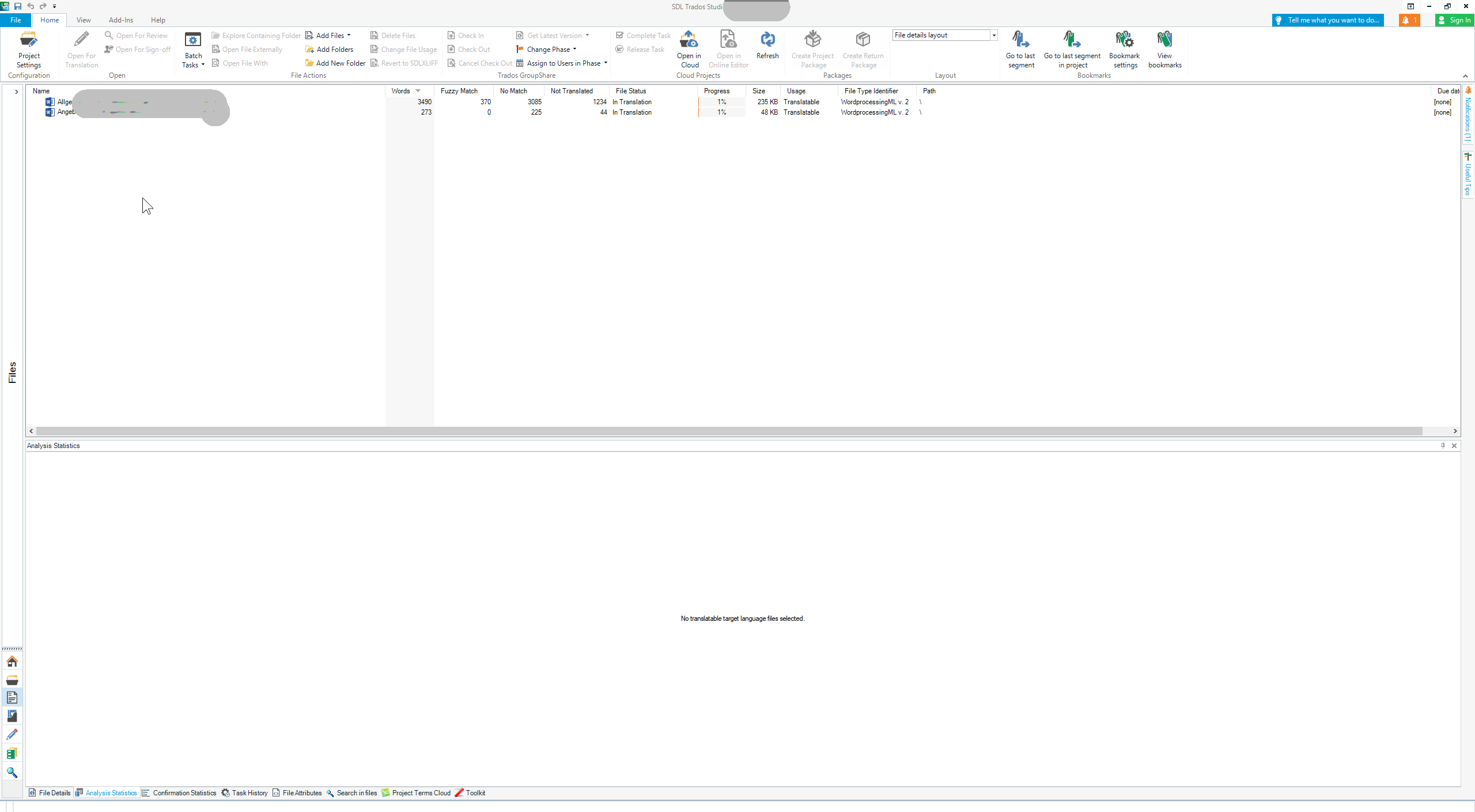
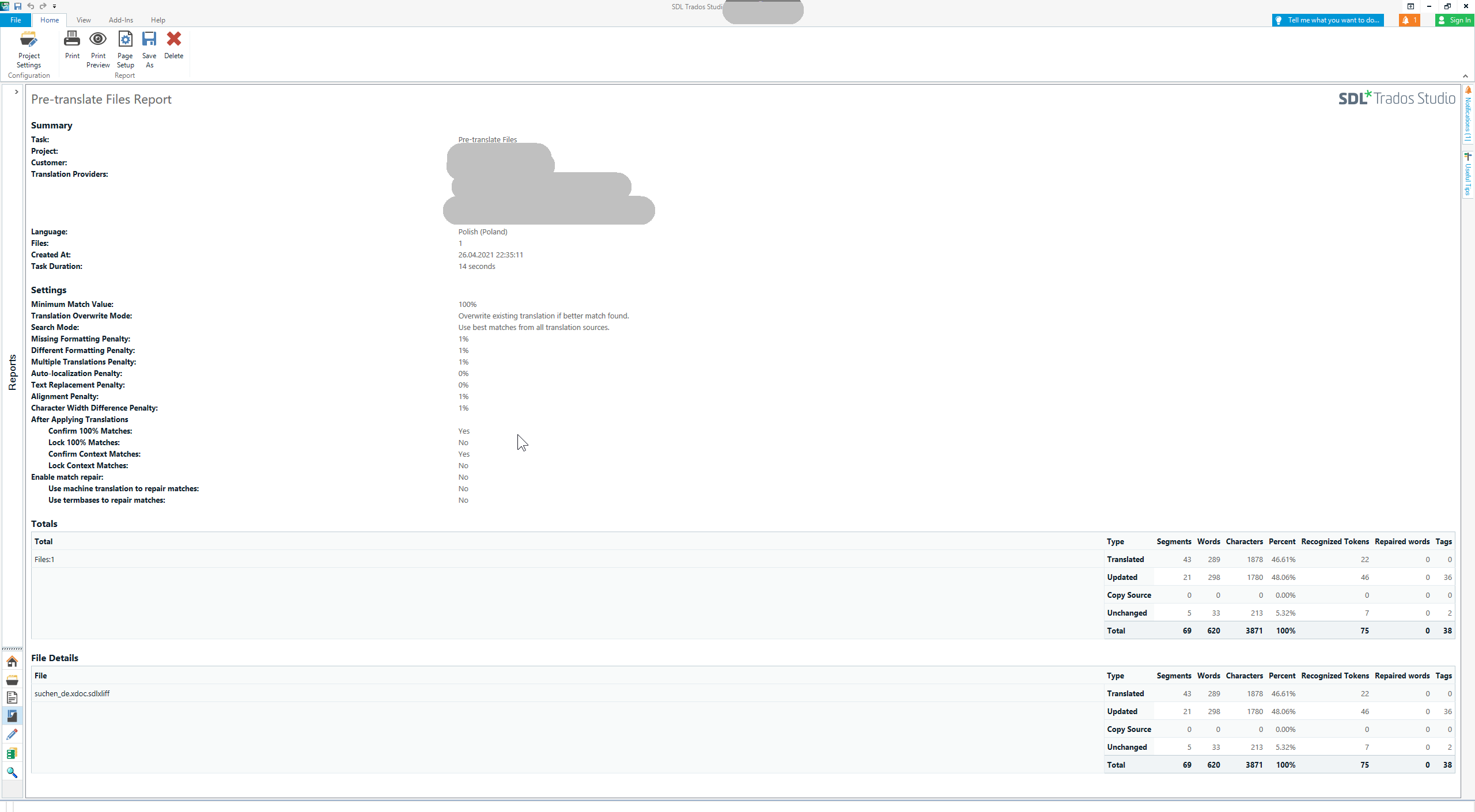
    I also have to scale my screens to use Studio. I tried many times to make myself believe it is not a big deal. But it obviously is for me. Even 125% scaling is not enough for comfortable work. With 100% scaling on my 22" displays, 1920×1080, I always get microscopic text with plenty of empty space I can't use.
    Trados Studio Analysis File Report with microscopic text and empty space due to 100% scaling on a 22-inch display.

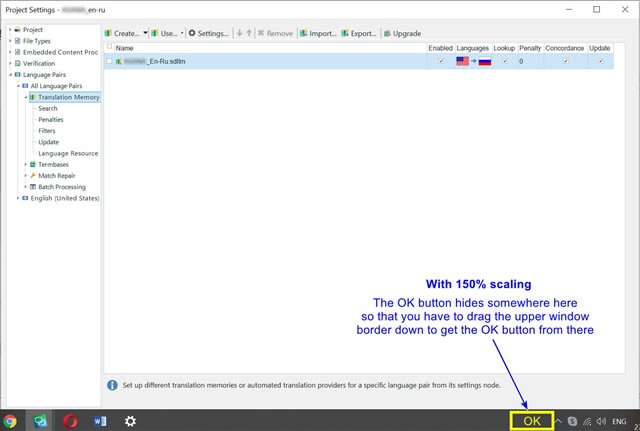
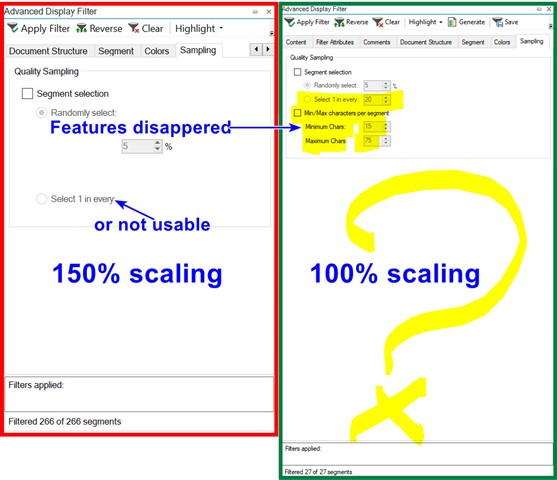
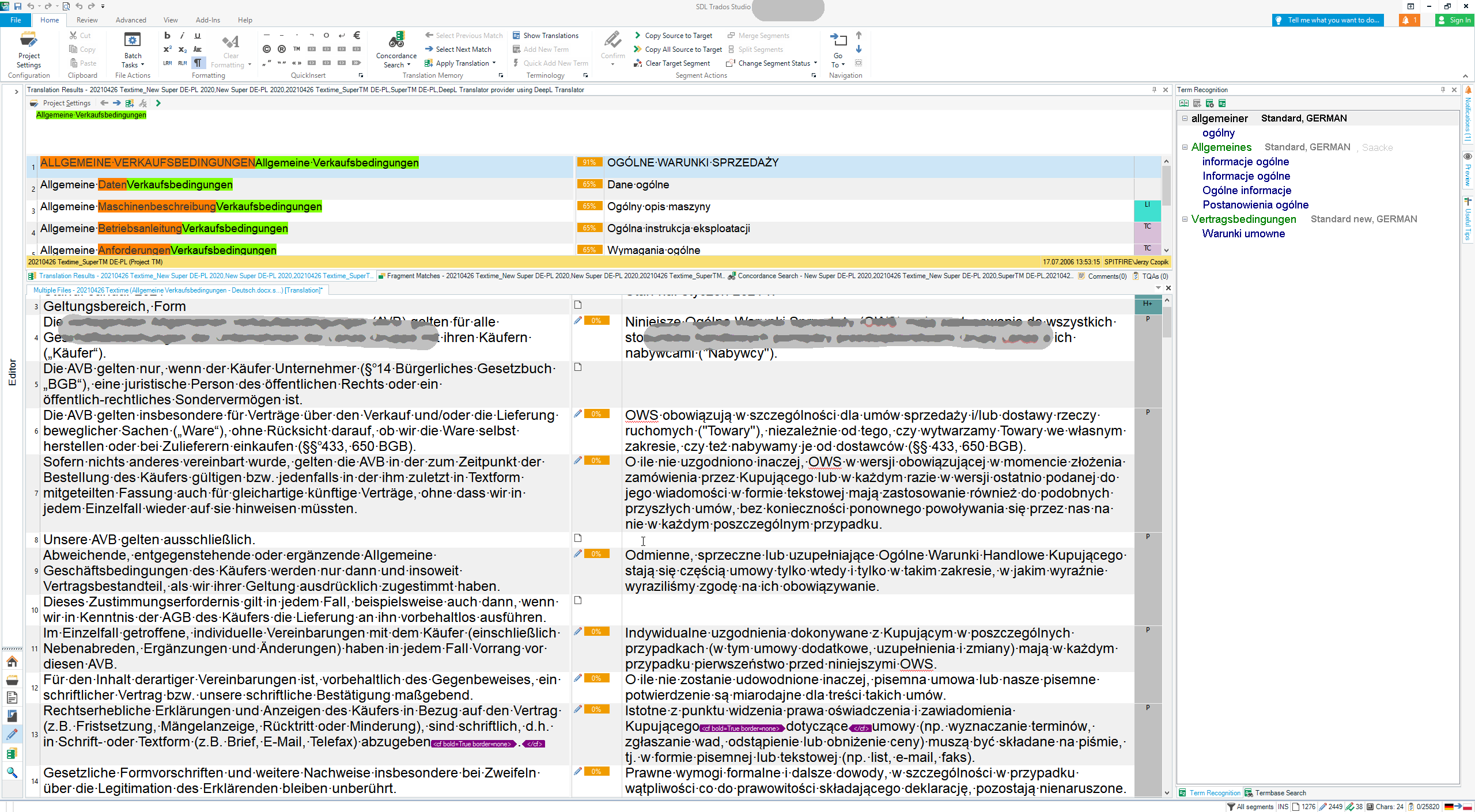
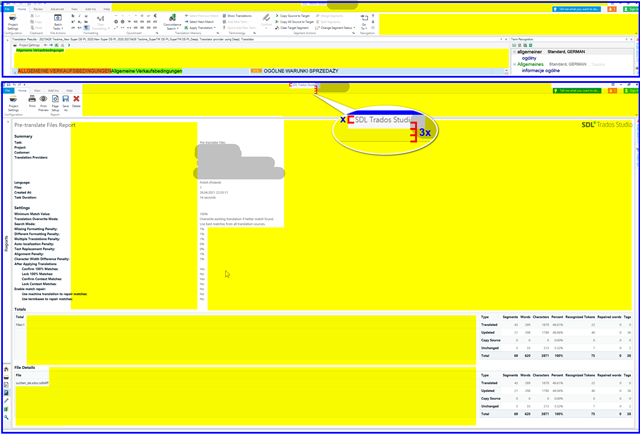
    Only 150% scaling gives an acceptable result. However, this approach has its drawbacks: scaling affects most other applications, plus scaling affects Studio itself too. Once you apply scaling, you may find some features/buttons disappeared or still visible but non-functional.
    Trados Studio Project Settings window with the OK button hidden due to 150% scaling, requiring window adjustment to access.
    Trados Studio Advanced Display Filter showing features disappeared or not usable at 150% scaling, compared to 100% scaling with a question mark.
    This is just for your information. Scaling is still a better choice [at least for me] but you have to be prepared to compromise.
    You may try 125%. This will keep some (but not all) features in their place. However 125% is still not enough for me though.

    emoji


    Generated Image Alt-Text
    [edited by: Trados AI at 2:13 AM (GMT 0) on 29 Feb 2024]
  • I am not too sure why the latest version of SDL would not be addressing these problems associated with installing SDL Professional in newer versions of laptops.

    You are of course quite right that this needs to be addressed.  It's not acceptable for users, especially those who are not familiar with the software and need to be able to see everything on the screen properly, or if they have some sight difficulties.

    The work to resolve this has been ongoing for some time and with each release a little more of the application has been rewritten using a more appropriate technology that will support resizing with more modern screen displays.  If you were to compare Trados Studio 2017 with 2019 and now 2021 you can see the improvements.

    It's also good that you share your experiences in here because an Enterprise like RWS (fSDL) don't get all the latest hardware improvements which are more accessible to a freelance translator for example (upgrading thousands of computers every time there is something "better" on the market doesn't happen!).  So when we see them in here it's a good prompt to see if we need to at least invest in one or two of the latest machines for the development teams to ensure we are keeping on top of our users likely requirements, and so we can try to support them as best we can.

    In the meantime thank you for your patience, and for reporting your findings in here.

    Paul Filkin | RWS

    Design your own training!
    You've done the courses and still need to go a little further, or still not clear? 
    Tell us what you need in our Community Solutions Hub

Reply
  • I am not too sure why the latest version of SDL would not be addressing these problems associated with installing SDL Professional in newer versions of laptops.

    You are of course quite right that this needs to be addressed.  It's not acceptable for users, especially those who are not familiar with the software and need to be able to see everything on the screen properly, or if they have some sight difficulties.

    The work to resolve this has been ongoing for some time and with each release a little more of the application has been rewritten using a more appropriate technology that will support resizing with more modern screen displays.  If you were to compare Trados Studio 2017 with 2019 and now 2021 you can see the improvements.

    It's also good that you share your experiences in here because an Enterprise like RWS (fSDL) don't get all the latest hardware improvements which are more accessible to a freelance translator for example (upgrading thousands of computers every time there is something "better" on the market doesn't happen!).  So when we see them in here it's a good prompt to see if we need to at least invest in one or two of the latest machines for the development teams to ensure we are keeping on top of our users likely requirements, and so we can try to support them as best we can.

    In the meantime thank you for your patience, and for reporting your findings in here.

    Paul Filkin | RWS

    Design your own training!
    You've done the courses and still need to go a little further, or still not clear? 
    Tell us what you need in our Community Solutions Hub

Children