Find & Replace don't work, most of the time

Hi there. Since I upgraded to Studio 2024, I noticed an issue I never had with previous versions. Shortcuts Ctrl+F or Ctrl+H don't work most of the time, and I don't even see these functions on the ribbon. I checked my shortcut list and these two are both assigned. What could possibly be the problem?

emoji
  • Hello,

    I understand that you're having trouble with the Find & Replace function in Trados Studio 2024. This could be due to a few reasons, but let's try to troubleshoot this issue step by step:

    Step 1: Check if the Find & Replace functions are enabled in your Trados Studio. You can do this by going to the "Edit" menu and see if the "Find" and "Replace" options are available.

    Step 2: If the functions are not available, it might be due to a software glitch. Try restarting Trados Studio and see if the issue persists.

    Step 3: If the issue still persists, you might want to check if there are any updates available for Trados Studio. You can do this by going to the "Help" menu and selecting "Check for Updates".

    Step 4: If the functions are available but the shortcuts are not working, it could be due to your keyboard settings. As mentioned in the context, you can try disabling the function keys on your Windows 10. For Dell laptops, this can be done by pressing the combination of keys Ctrl+Fn+Esc simultaneously. Alternatively, the combination of keys Fn+Esc can work.

    Please note that the process might vary depending on the make and model of your laptop. You can refer to your laptop's user manual or the manufacturer's website for more specific instructions.

    I hope this helps! If you're still having trouble, please let me know and I'll do my best to assist you further.

    Best regards,

    RWS Community AI

    emoji
  •  

    The AI reply is misleading you somewhat.  They should actually be in the Home -> Editing group:

    Screenshot of Trados Studio interface showing the Home tab with Editing group partially hidden behind a vertical bar with a right-facing triangle.

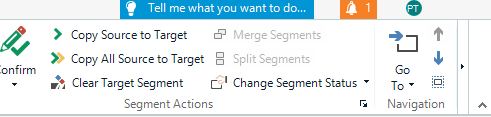
    Maybe you have a small screen or the resolution set so you see something like this and missed it?

    Close-up of Trados Studio's Home tab highlighting the 'Tell me what you want to do...' search bar and a notification icon with a number 1.

    The Editing Group is behind the vertical bar with the little right facing triangle on the right.

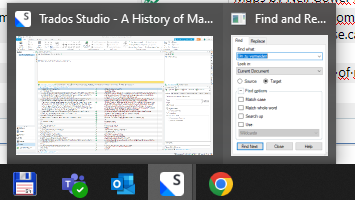
    As to why it's not working sometimes I'm not sure.  Can you see if it's in your task bar after using the shortcut?

    Partial view of Trados Studio window in the taskbar with a 'Find and Replace' dialog box open on the desktop.

    Paul Filkin | RWS

    Design your own training!
    You've done the courses and still need to go a little further, or still not clear? 
    Tell us what you need in our Community Solutions Hub

    emoji


    Generated Image Alt-Text
    [edited by: RWS Community AI at 7:06 PM (GMT 1) on 14 Aug 2024]
  • Thanks Paul. As I said, the problem comes and goes. Right now, there's no Editing menu as you can see below, but I just rebooted, and prior to that, it was there. So when the Editing menu isn't there, I can't do Ctrl+F or Ctrl+H


    Screenshot of Trados Studio interface showing the toolbar with options like Show Translations, Add New Term, Copy Source to Target, but the Editing menu is missing.

    emoji


    Generated Image Alt-Text
    [edited by: RWS Community AI at 7:18 PM (GMT 1) on 15 Aug 2024]
  • I have a similar issue, from time to time, the find and replace function (e.g find next, find previous) is disabled and greys out, and opening and closing trados 2024 does nothing to fix the issue. When I attempt to do a find/replace, the "clear formatting", "confirm" and "paste" functions on the menu bar grey out too, as does some other randoms functions in the bar, as well as the name of the file (at the top middle). Upon clicking in the target segment again, everything ungreys again. It seems to happen why I'm working on my MacBook Pro (windows running on parallels) directly, rather than when it's connected via a monitor (but it may be the problem happens when connected to the monitor too, I can't remember).

    emoji
  • I managed a workout, thanks to info from chatgpt. Here's some info for the developers:

    Product / version:

    SDL Trados Studio 2024 (latest update)

    Environment:

    • macOS (latest)

    • Apple Silicon Mac (M-series)

    • Windows 11 ARM running in Parallels Desktop (latest)

    • Trados running in full screen or windowed mode (not Coherence)

    Description of issue:

    When invoking Find or Find and Replace (Ctrl+F / Ctrl+H), the command is triggered but the dialog window sometimes opens off-screen or renders as a blank window.

    Symptoms include:

    • Find / Replace ribbon buttons become disabled (greyed out)

    • Paste, Confirm, Clear formatting and other editor commands are disabled

    • The document title temporarily greys out

    • Windows task switcher shows a Find window, but it appears blank or not visible

    • Reopening Trados does not resolve the issue

    Clicking back into a target segment sometimes restores toolbar state, but the Find dialog remains inaccessible until its window position is reset.

    Workaround (confirms root cause):

    Using the Windows system menu to move the hidden dialog brings it back immediately:

    Alt + Space → Move → Arrow key → move mouse

    This confirms the dialog is opening but being positioned outside the visible desktop area or rendered at invalid DPI/scale.

    Additional observations:

    • Issue occurs more frequently on the MacBook’s internal display than on an external monitor

    • Strongly correlated with HiDPI / scaling behaviour under Parallels on Apple Silicon

    • Disabling “Best for Retina” and locking display refresh rate to 60 Hz significantly reduces frequency

    • Behaviour is consistent with a DPI / window positioning bug rather than a Trados editor logic issue

    Expected behaviour:

    Find / Replace dialog should always open within the visible desktop area and retain correct focus, regardless of DPI scaling or virtualised display environment.

    Request:

    Please investigate window positioning and DPI handling for modal dialogs (specifically Find / Replace) in Trados Studio 2024 under virtualised HiDPI environments, particularly Parallels on Apple Silicon.

    emoji
  •   

    Thanks for sharing that workaround.  I have not checked to see if this is something we already have in a KB somewhere, but it's worth checking -  &  fyi.

    Also worth noting that working on a macOS is not supported by Trados, so I don't know how much attention this will get.  Trados does not support macOS or Windows running under virtualisation on macOS.  As such, issues that only occur under Parallels on Apple Silicon fall outside the supported scope.  The observed behaviour is consistent with a DPI and virtual display mapping issue in the virtualisation layer.  Trados is behaving as expected given the display information provided by Windows.

    We can, and do, try to make sure we document solutions for users determined to work in this environment despite the lack of support, but it's unlikely resourcing solutions to this in Trados over and above other priorities will take place.

    Paul Filkin | RWS

    Design your own training!
    You've done the courses and still need to go a little further, or still not clear? 
    Tell us what you need in our Community Solutions Hub

    emoji
  • Thanks for your reply Paul. I work mostly using a monitor, which seems to prevent this bug happening, and I have a workaround now when not using the monitor, so it's not the end of the world. If you techies have a spare minute to sort it, that'll would be great Pray.

    emoji