Quick place for terms - How to access? Studio 2024

I am currently using Trados Studio 2024 SR1 - 18.1.2.6370

In the Editor, the shortcut Alt-Down opens the QuickPlace function, showing a list of placeable elements (Numbers, Tags etc.) to choose and place in the target segment.

The same used to be true for Ctrl-Down, which opened the list of terms found in the active termbases. 

I am no longer able to access this function after upgrading to Studio 2024, since the shortcut Ctrl-Down is now assigned to changing the focus to the next segment.

Under Options --> Keyboard Shortcuts --> Editor,  I was not able to find the now lost  function.

Now the only way to insert a term in the Editor is to start typing it, which requires looking through the term recognition window to find out how it starts.

Is the function of opening the list of found terms been removed? If not, how can I assign a shortcut to it?


Removed AI Suggestion
[edited by: Alexander Heyne at 10:19 AM (GMT 0) on 9 Dec 2025]

emoji
Parents
  •  

    Usually the CTRL+, triggers QuickPlace.

    You can change nearly all shortcuts, so it should also be possible to change what you need.  However, I fail to remember using CTRL+Down for the QuickPlace function. List of termbase items is and was always CTRL+SHIFT+L. This works perfectly now as is did since I can remember. CTRL+Down is a logical shortcut to go to the next row, similar to CTRL+PgDn, which moves several rows down.

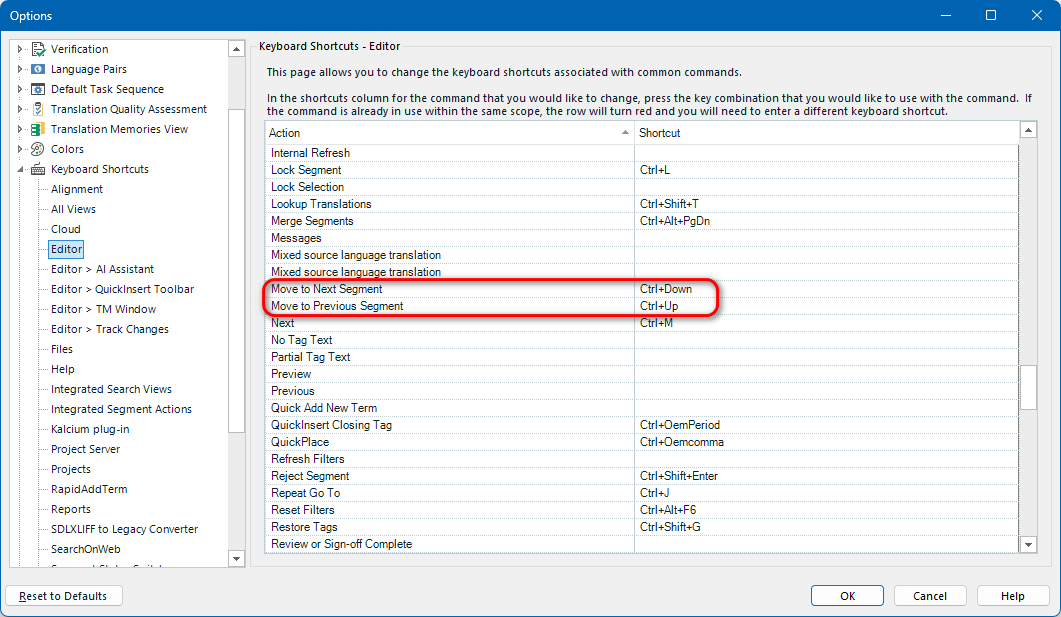
    These are the shortcuts in your question:

    Trados Studio options window showing the Keyboard Shortcuts Editor. The shortcuts for 'Move to Next Segment' (Ctrl+Down) and 'Move to Previous Segment' (Ctrl+Up) are highlighted in red.

    _________________________________________________________

    When asking for help here, please be as accurate as possible. Please always remember to give the exact version of product used and all possible error messages received. The better you describe your problem, the better help you will get.

    Want to learn more about Trados Studio? Visit the Community Hub. Have a good idea to make Trados Studio better? Publish it here.

    emoji


    Generated Image Alt-Text
    [edited by: RWS Community AI at 11:26 AM (GMT 0) on 9 Dec 2025]
Reply
  •  

    Usually the CTRL+, triggers QuickPlace.

    You can change nearly all shortcuts, so it should also be possible to change what you need.  However, I fail to remember using CTRL+Down for the QuickPlace function. List of termbase items is and was always CTRL+SHIFT+L. This works perfectly now as is did since I can remember. CTRL+Down is a logical shortcut to go to the next row, similar to CTRL+PgDn, which moves several rows down.

    These are the shortcuts in your question:

    Trados Studio options window showing the Keyboard Shortcuts Editor. The shortcuts for 'Move to Next Segment' (Ctrl+Down) and 'Move to Previous Segment' (Ctrl+Up) are highlighted in red.

    _________________________________________________________

    When asking for help here, please be as accurate as possible. Please always remember to give the exact version of product used and all possible error messages received. The better you describe your problem, the better help you will get.

    Want to learn more about Trados Studio? Visit the Community Hub. Have a good idea to make Trados Studio better? Publish it here.

    emoji


    Generated Image Alt-Text
    [edited by: RWS Community AI at 11:26 AM (GMT 0) on 9 Dec 2025]
Children
  • Thanks Jerzy,

    I have used my own shortcuts for so long, since the very first Trados Studio, that it's impossible to tell which shortcuts are the default ones and which ones I assigned myself. 

    The main problem for me was to identify the name of the function in the Shortcuts menu so I could assign my usual key. Thanks to your info I was able to find out it is called "Übersetzungen anzeigen" in my German version, which I had thought to refer searching for matches in the TM.

    So now everything is as I want it to be: Alt-Down for QuickPlace, Ctrl-Down for the terms list. Personally I have no use for going to the next row as I use Auto Focus anyway.

    So thank you for the help!

    emoji
  •  

    Dear Alexander, same here. I got used to some shortcuts which may be default, but many are changed. The most important part here is to be able to adapt the shortcuts as needed. To save you work in the future, should anything change in Studio due to updates, please store your settings in an user profile. Do so via File -> Setup -> Manage user profiles. You can export the current user profile, which will contain the GUI adaptations like window layout or font sizes, but also the shortcuts. This profile can be used within the same major Studio version without any limitations. It does even work (with some possible risk) between the previous and current major version.

    _________________________________________________________

    When asking for help here, please be as accurate as possible. Please always remember to give the exact version of product used and all possible error messages received. The better you describe your problem, the better help you will get.

    Want to learn more about Trados Studio? Visit the Community Hub. Have a good idea to make Trados Studio better? Publish it here.

    emoji