


Incomplete import into TM?

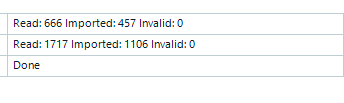
Screenshot showing Trados Studio import summary with 'Read: 666 Imported: 457 Invalid: 0' and 'Read: 1717 Imported: 1106 Invalid: 0' followed by 'Done'.

This screenshot was taken after I imported 2 sdlxliff files into an empty TM. How should this be interpreted? Why is the number of TUs imported not the same as the number of TUs read? If none are invalid, what happened to those that were read but not imported? How do I make all of the TUs go into the TM?

Many thanks in advance,

Charlotte


Removed AI Suggestion
[edited by: Charlotte Sjögren at 12:51 PM (GMT 0) on 9 Dec 2025]
emoji
Parents
  • Probability score: 0.8  

    Question improvement suggestion: Provide specific details about the version of Trados Studio you are using and any error messages encountered during the import process.  

    In the meantime, based on the information you have provided, here is a suggested answer to your question:  

    Hello Charlotte,  

    Thank you for your question regarding the import of SDLXLIFF files into your Translation Memory (TM). Here’s a step-by-step approach to help you understand the situation and resolve the issue:  

    **Step 1: Understand the Import Process**  

    When you import SDLXLIFF files into a TM, the number of Translation Units (TUs) read may differ from the number of TUs imported due to several factors, such as confirmation levels, invalid TUs, or existing TUs in the TM.  

    **Step 2: Check Confirmation Levels**  

    Ensure that the confirmation levels for the TUs you want to import are correctly set. If you have Draft TUs, make sure to select the appropriate confirmation level during the import process.  

    **Step 3: Review the Import Options**  

    During the import, check the options selected in the General Import Options window. If you have the option to "Export invalid translation units" selected, any TUs that do not meet the criteria will not be imported but saved to a TMX file.  

    **Step 4: Analyze the TMX File**  

    If you suspect that some TUs were not imported, you can open the TMX file in a text editor to check for any corrupt entries or missing target segments. Look for translation units that have source segments but no corresponding target segments, as these will be skipped during the import.  

    **Step 5: Clean Up the TMX File**  

    If you find any problematic entries, you can remove them from the TMX file. Make sure to delete entire translation units that are causing issues, and then save the file before attempting to import it again.  

    **Step 6: Re-import the TMX File**  

    After cleaning up the TMX file, try importing it again into your TM. Ensure that you select the correct TM and confirm that the language pairs match.  

    By following these steps, you should be able to identify why some TUs were not imported and ensure that all valid TUs are successfully added to your TM.  

    I hope this answer addressed your question. If not, please reject the answer, add the question improvement suggestion information, and click the RWS Community AI checkbox on the right to try again.  

    RWS Community AI

    emoji
Reply
  • Probability score: 0.8  

    Question improvement suggestion: Provide specific details about the version of Trados Studio you are using and any error messages encountered during the import process.  

    In the meantime, based on the information you have provided, here is a suggested answer to your question:  

    Hello Charlotte,  

    Thank you for your question regarding the import of SDLXLIFF files into your Translation Memory (TM). Here’s a step-by-step approach to help you understand the situation and resolve the issue:  

    **Step 1: Understand the Import Process**  

    When you import SDLXLIFF files into a TM, the number of Translation Units (TUs) read may differ from the number of TUs imported due to several factors, such as confirmation levels, invalid TUs, or existing TUs in the TM.  

    **Step 2: Check Confirmation Levels**  

    Ensure that the confirmation levels for the TUs you want to import are correctly set. If you have Draft TUs, make sure to select the appropriate confirmation level during the import process.  

    **Step 3: Review the Import Options**  

    During the import, check the options selected in the General Import Options window. If you have the option to "Export invalid translation units" selected, any TUs that do not meet the criteria will not be imported but saved to a TMX file.  

    **Step 4: Analyze the TMX File**  

    If you suspect that some TUs were not imported, you can open the TMX file in a text editor to check for any corrupt entries or missing target segments. Look for translation units that have source segments but no corresponding target segments, as these will be skipped during the import.  

    **Step 5: Clean Up the TMX File**  

    If you find any problematic entries, you can remove them from the TMX file. Make sure to delete entire translation units that are causing issues, and then save the file before attempting to import it again.  

    **Step 6: Re-import the TMX File**  

    After cleaning up the TMX file, try importing it again into your TM. Ensure that you select the correct TM and confirm that the language pairs match.  

    By following these steps, you should be able to identify why some TUs were not imported and ensure that all valid TUs are successfully added to your TM.  

    I hope this answer addressed your question. If not, please reject the answer, add the question improvement suggestion information, and click the RWS Community AI checkbox on the right to try again.  

    RWS Community AI

    emoji
Children
No Data
