Is it possible to create a project template after the fact (i.e.) from a project settings?

Hi everybody,

Studio allows to create a project template at the last step of the project wizard:
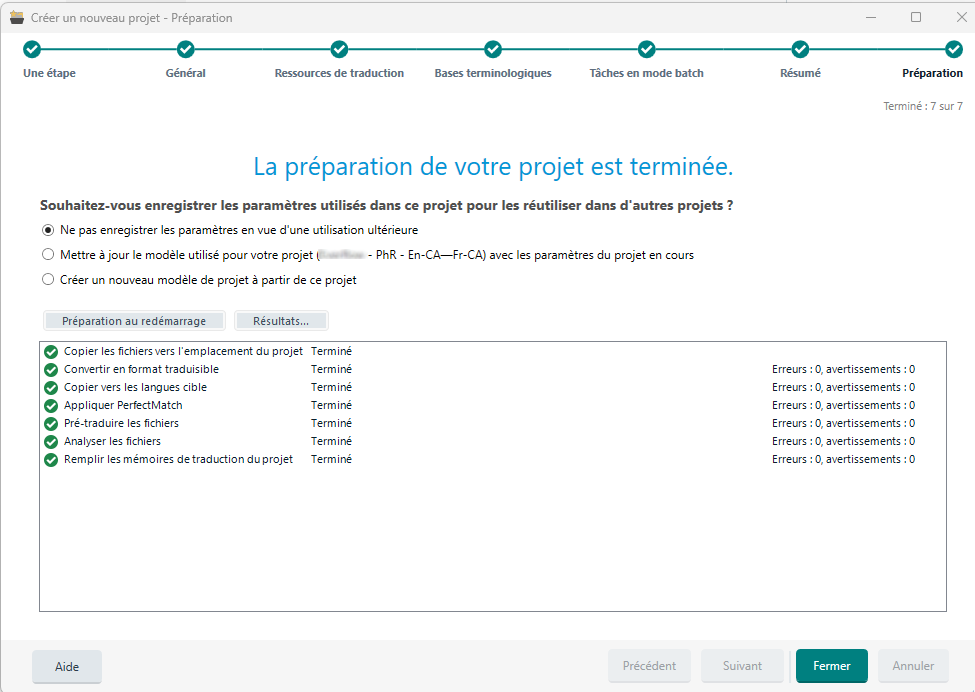
Trados Studio project wizard showing the final step with options to save project settings for reuse, a progress summary, and no errors or warnings displayed.

But it can happen we need to change some project settings (e.g., some verifier settings) in the course of a translation.

Is it then possible to create a template or update the existing template from the project settings after the fact, to keep the changes for future projects?

Thanks in advance


Removed AI Suggestion
[edited by: Philippe Riondel at 5:11 PM (GMT 0) on 20 Jan 2026]

emoji
  • Probability score: 0.8  

    Question improvement suggestion: Provide specific details about the project settings you wish to change and clarify if you want to create a new template or update an existing one.  

    In the meantime, based on the information you have provided, here is a suggested answer to your question:  

    Hello!  

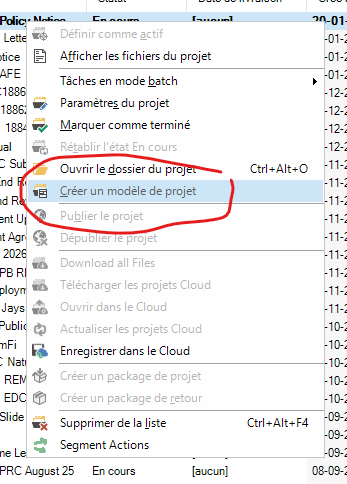
    Yes, it is indeed possible to create a project template from an existing project in Trados Studio after the fact. Here’s how you can do it step-by-step:

    **Step 1:** Open the project for which you want to create or update a template.

    **Step 2:** Once you have made the necessary changes to the project settings (like verifier settings), go to the Projects view.

    **Step 3:** Right-click on the project you want to base the template on.

    **Step 4:** Select "Create Project Template" from the context menu. This will allow you to save the current settings as a new template.

    **Step 5:** If you want to update an existing template instead, you can do this by selecting the project and then choosing the option to update the template during the project creation process. You will have the opportunity to select the template you want to update with the new settings.

    **Step 6:** Follow the prompts to save the template with a specific name or overwrite the existing one.

    By following these steps, you can ensure that your updated settings are saved for future projects, making your workflow more efficient.  

    I hope this answer addressed your question. If not, please reject the answer, add the question improvement suggestion information, and click the RWS Community AI checkbox on the right to try again.  

    RWS Community AI

    emoji
  • Thank you, I've got my answer:

    Screenshot of a dropdown menu in Trados Studio with the 'Publier le projet' option circled in red.

    emoji


    Generated Image Alt-Text
    [edited by: RWS Community AI at 5:13 PM (GMT 0) on 20 Jan 2026]