Deleting multiple translation units from translation memory

Greetings!

Some years ago an employee of mine aligned an Icelandic law with its official English translation and imported the result into our main translation memory. This translation is now obsolete and I want to search for and delete all the imported translation units.

I have gone through a long and convoluted session with Chat GPT, which returned lots of suggestions but no results. All the translation units are identified by a "field value" (in this case "act no. xx/yyyy") but I cannot seem to search the memory using this field

Can anyone point me in the direction of an article or video that explains this process of cleaning a translation memory?

I am using Trados Studio 2021 Freelance.

Thank you in advance for any advice.

Jon Skaptason


Removed AI Suggestion
[edited by: Jon Skaptason at 2:24 PM (GMT 0) on 21 Jan 2026]
emoji
  • Probability score: 0.7  

    Question improvement suggestion: Provide specific details about the filter criteria you are trying to use to search for the translation units, as well as any error messages or issues encountered during the process.  

    In the meantime, based on the information you have provided, here is a suggested answer to your question:  

    Hello Jon,  

    To delete multiple translation units (TUs) from your translation memory (TM) in Trados Studio 2021 Freelance, you can follow these steps:

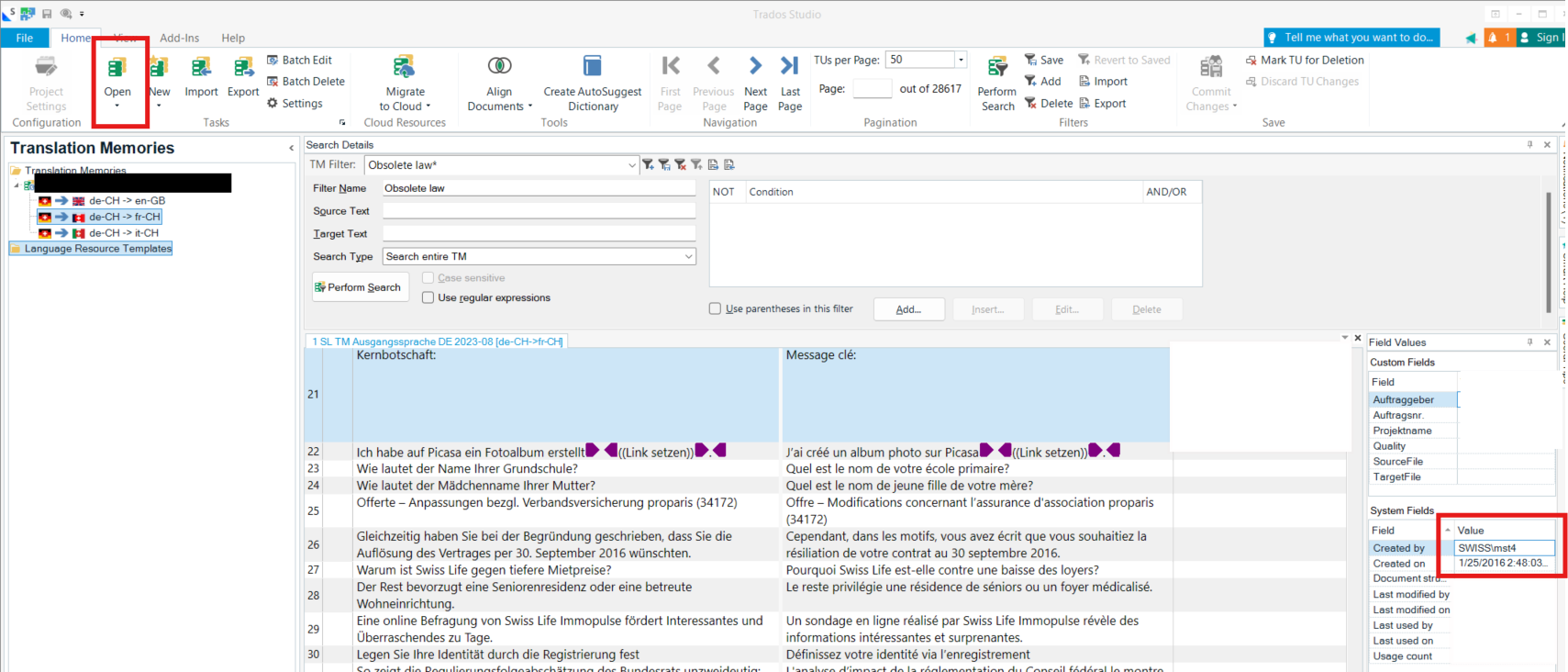
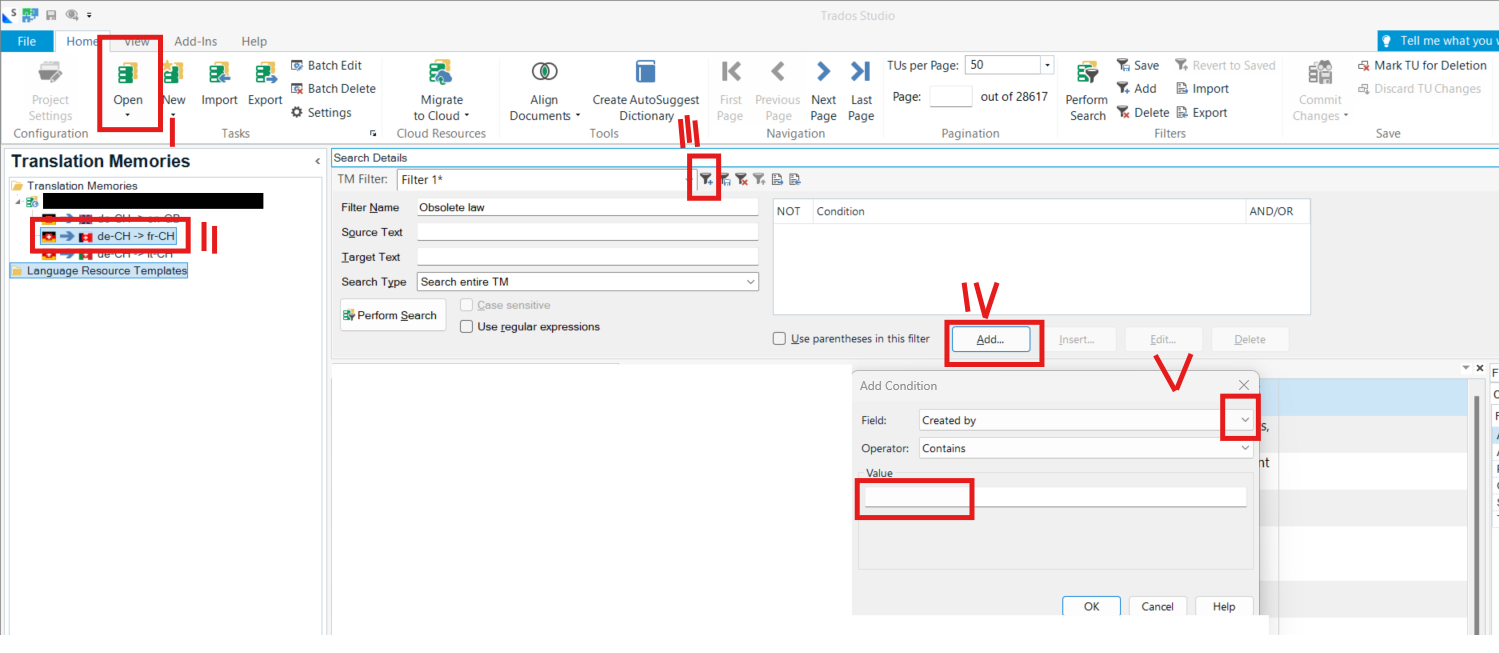
    **Step 1:** Open the Translation Memories view in Trados Studio.  

    **Step 2:** Select the TM that contains the translation units you want to delete.  

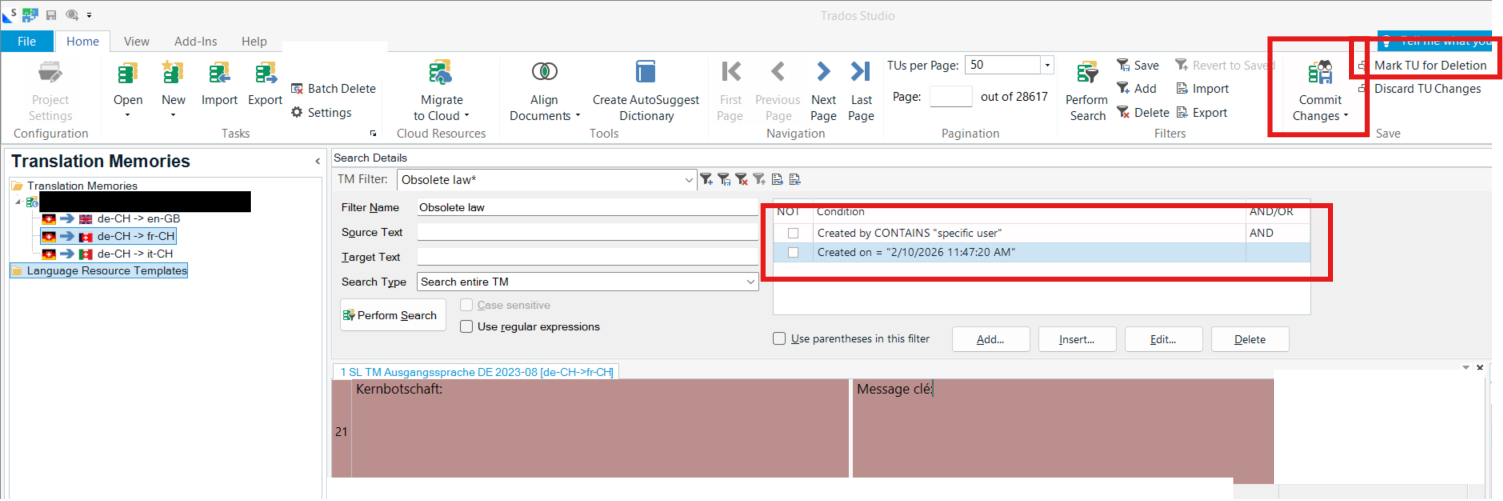
    **Step 3:** Create a filter to identify the TUs you wish to delete. Since you mentioned that the TUs are identified by a "field value" (e.g., "act no. xx/yyyy"), ensure that you set up this filter correctly.  

    **Step 4:** Go to the Home tab and select **Batch Delete**.  

    **Step 5:** In the Batch Delete wizard, select the filter you created that identifies the TUs to be deleted. If you want to delete all TUs in the TM, you can select <no filter>.  

    **Step 6:** Click **Finish** to start the deletion process. You will see a progress page indicating the status of the deletion.  

    If you encounter any issues with the filter or the deletion process, please provide more details about the specific criteria you are using and any error messages you receive. This will help in providing more targeted assistance.  

    I hope this answer addressed your question. If not, please reject the answer, add the question improvement suggestion information, and click the RWS Community AI checkbox on the right to try again.  

    RWS Community AI

    emoji