


Deleting sheet name in Excel bilingual file

Hi everyone, 

I want to delete the spreadsheet title of my bilingual excel file, and don't know how to do that? please see the screenshot below. 


Does anyone know how to do that? 

Thanks and regards, 

Ali
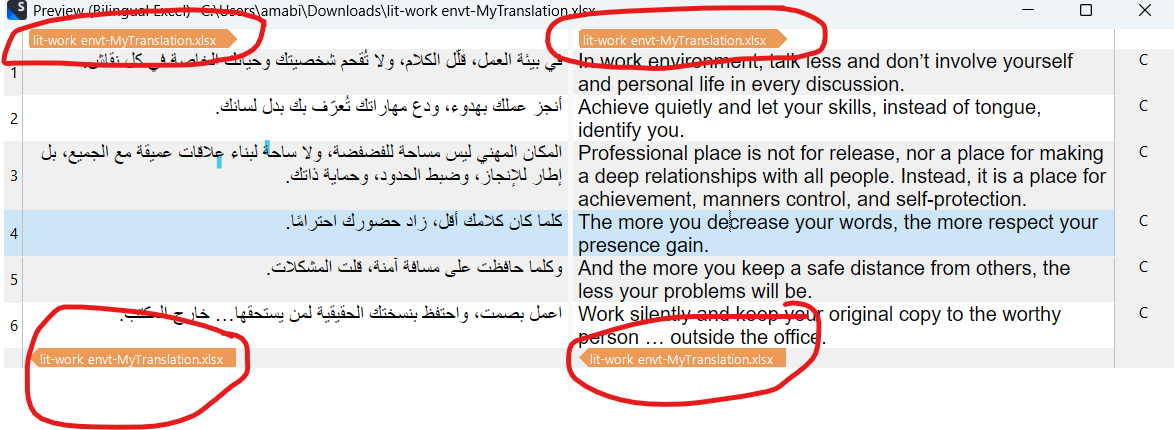
Screenshot of a bilingual Excel file preview in Trados Studio. The file name 'lit-work envt-MyTranslation.xlsx' is highlighted multiple times in orange at the top and bottom of the file.


Removed AI Suggestion
[edited by: Ali Asiri at 8:55 AM (GMT 0) on 30 Jan 2026]
emoji
  • Probability score: 0.4  

    Question improvement suggestion: Please provide specific steps you have already taken to try to delete the spreadsheet title, and clarify if you are looking to remove the title from the Excel file itself or from the Trados Studio processing.  

    In the meantime, based on the information you have provided, here is a suggested answer to your question:  

    Hello Ali,  

    To delete the spreadsheet title in your bilingual Excel file, you can follow these steps:  

    **Step 1:** Open your bilingual Excel file in Microsoft Excel.  

    **Step 2:** Locate the title you want to delete. This is usually found in the first row or as a header in the sheet.  

    **Step 3:** Click on the cell containing the title.  

    **Step 4:** Press the 'Delete' key on your keyboard to remove the content of that cell.  

    **Step 5:** If the title is part of a header, you can go to the "Page Layout" tab, click on "Print Titles," and clear any titles set in the "Rows to repeat at top" section.  

    **Step 6:** Save your changes.  

    If you are looking to remove the title from the processing in Trados Studio, ensure that the file type settings are correctly configured to not include the title in the translation process. You can do this by adjusting the settings in the "File Types" section under "Options" in Trados Studio.  

    I hope this answer addressed your question. If not, please reject the answer, add the question improvement suggestion information, and click the RWS Community AI checkbox on the right to try again.  

    RWS Community AI

    emoji
  •   

    In the View ribbon, select any of the tag icons highlighted here:

    Screenshot showing tag icons in the View ribbon, with a red box highlighting a purple diamond and a purple hexagon with an X inside.

    This will hide the file name and replace it with Screenshot showing an orange arrow pointing to the right, partially visible on the right side.  or Screenshot showing an orange label with the text 'Bilingual Excel v 1.0.0.0'..

    emoji


    Generated Image Alt-Text
    [edited by: RWS Community AI at 10:31 AM (GMT 0) on 30 Jan 2026]
