


SDL XLIFF validation error during the Finalize process

Hi Team, 

I am a Trados Studio 2022 user for KR > EN translation. 

I am experiencing failure during the file export process with SDL XLIFF validation error as shown below. 
It looks like it has a structural issue and I tried to figure out the problematic segments in the Edit window without any success. 

Please let me know what I have to do to fix this issue. FYI, I tried it on Trados Studio 2024 creating a new project with the same TM, but it still happens.

I can send you the report if necessary. 
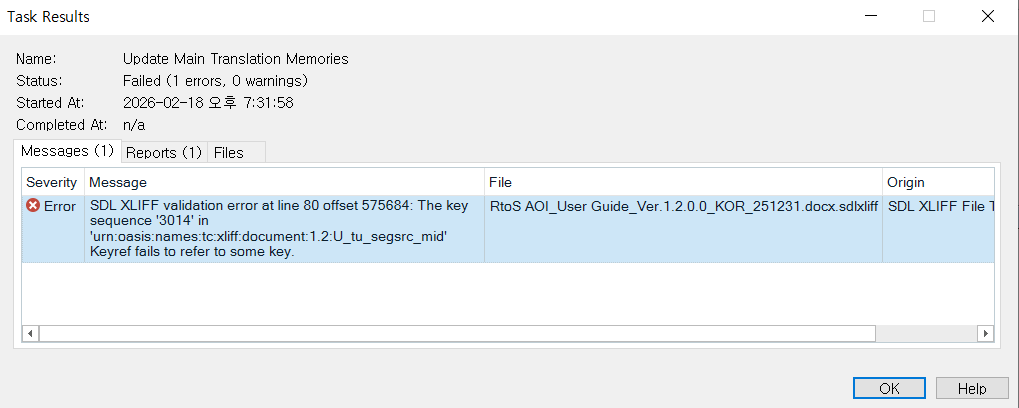
Task Results window showing an error for SDL XLIFF validation at line 80, offset 575684. The error message indicates a key sequence '3014' fails to refer to some key in the file.

Thank you for your help. 


Removed AI Suggestion
[edited by: Daewon Shin at 10:42 AM (GMT 0) on 18 Feb 2026]
emoji
Parents
  • Hi 

    The error message "SDL XLIFF validation error at line 80" in Trados Studio typically indicates a problem with the SDLXLIFF file. This error can arise from various reasons, including:


    Merging segments: If segments are merged across paragraph breaks, it can lead to validation errors. This is a common cause of the error message.

    File corruption: The error may also occur if the SDLXLIFF file is corrupted, possibly due to improper saving or closing of the file.

    File format issues: If the file is not in the correct format or has inconsistencies, it can cause validation errors.

    To resolve this error, you can try the following steps:


    1. Check for merging segments: Ensure that segments are not merged across paragraph breaks.

    2. Repair the file: Use the Repair File function in Microsoft Word or another compatible application to fix any potential issues with the file or follow these steps Trados Studio - How to troubleshoot problematic files

    3. Validate the file: Open the file in its native application and check for any inconsistencies or error messages.


    If the error persists, consider recreating the file or project to ensure that the translation memory is updated correctly.

    Hope this helps.

    Kind regards,

    Ana Sabo | RWS Group

    ___________________
    Design your own training!

    You've done the courses and still need to go a little further, or still not clear? 
    Tell us what you need in our Community Solutions Hub

    emoji
  • Hi  

    Thank you for the answer. I've tried your resolutions and follows are what I figured out on the process. 

    1. I opened the same file both on the Trados 2022 and 2024, and the same Validation error occurs at each application.

    2. I also opened it with and without TM, and the same issue occurred regardless of the presence of TM.

    3. Above process were also repeated on the new project created. 

    4. In the error message, the offset number and the line numbers change each time I newly open it on a different project and Trados version. 

    5. The original file (docx) itself does not have any issue when I open it on the MS Word. 

    6. I tried the first draft and the latter draft of the file with which Trados shows an error, and the first draft added on Trados did not show any error, whereas the latter draft shows the same error.

    According to these facts, the issue is likely to be happening during the matching process between this specific file and the Trados application. What would you suggest for the next countermeasures I can take?

    Thank you for your help!

    emoji
  •  

    3. Above process were also repeated on the new project created. 

    Did you save the original document without any translation and got the same error message? If so, this means that there is an error in the original Word document.

    6. I tried the first draft and the latter draft of the file with which Trados shows an error, and the first draft added on Trados did not show any error, whereas the latter draft shows the same error.

    If the first part doesn't show an error, but the second half does, then there is an issue in that part of the Word document. Split that 2nd part again, and halving as needed to see something wrong in Word itself, probably a weird character or a blank square (□). Even if the document is long, you will quickly find out the cuplrit. Correct that offending character in Word (hopelly there is only one issue in that document) and you'll be able to open it in Trados Studio and save the target.

    emoji
  • Hi   ,

    Thank you for the feedback.

    I also have my colleague add those two files (1st draft and the later draft), and it shows the same results, the former without the error and the latter with the error.

    As you mentioned, the Word document of the first draft should have an issue itself, but the file is too long and heavy (with A LOT of images), it doesn't seem that simple to detect an issue.

    To find out the problematic part,

    1. is it the only way that I split the document and check them one by one? 

    2. What are the potential issue that causes the error other than a weird character or a blank square?

    3. How can I verify if the suspicious part is what causes an error? Change it, upload it, and see if it still shows the error? Or there should be a simpler way?

    Thank you!

    emoji
  •   

    it doesn't seem that simple to detect an issue.

    I've followed this procedures for long documents, well over 100 pages, and halving the document sequentially didn't take me more than 15 minutes to find out the cuplrit.

    with A LOT of images

    Images won't make it more complex. It may take longer to open parts in Trados Studio, that's true.

    1. is it the only way that I split the document and check them one by one? 

    You can try copying everything into a new blank document or saving it as (Save as… menu option). I gues we can skip the possibility of asking the client for a non-corrupted document. :-)

    2. What are the potential issue that causes the error other than a weird character or a blank square?

    I just know those 2.

    3. How can I verify if the suspicious part is what causes an error? Change it, upload it, and see if it still shows the error? Or there should be a simpler way?

    Every time you halve a part of the document, open each new part in Trados Studio, and generate the target (without translation). Does it generate correctly? The issue is not there. Does Trados Studio fail to generate the target? The issue is in this part. Go on until there is just a few lines where you can spot the wird characters. Halving is a quick way to find out the issue. Halving means dividing by half (approx.), for example, half of the pages. On the other way, splitting by paragraphs may take forever. That's how you verify if the issue is there or not.

    emoji
Reply
  •   

    it doesn't seem that simple to detect an issue.

    I've followed this procedures for long documents, well over 100 pages, and halving the document sequentially didn't take me more than 15 minutes to find out the cuplrit.

    with A LOT of images

    Images won't make it more complex. It may take longer to open parts in Trados Studio, that's true.

    1. is it the only way that I split the document and check them one by one? 

    You can try copying everything into a new blank document or saving it as (Save as… menu option). I gues we can skip the possibility of asking the client for a non-corrupted document. :-)

    2. What are the potential issue that causes the error other than a weird character or a blank square?

    I just know those 2.

    3. How can I verify if the suspicious part is what causes an error? Change it, upload it, and see if it still shows the error? Or there should be a simpler way?

    Every time you halve a part of the document, open each new part in Trados Studio, and generate the target (without translation). Does it generate correctly? The issue is not there. Does Trados Studio fail to generate the target? The issue is in this part. Go on until there is just a few lines where you can spot the wird characters. Halving is a quick way to find out the issue. Halving means dividing by half (approx.), for example, half of the pages. On the other way, splitting by paragraphs may take forever. That's how you verify if the issue is there or not.

    emoji
Children
No Data
