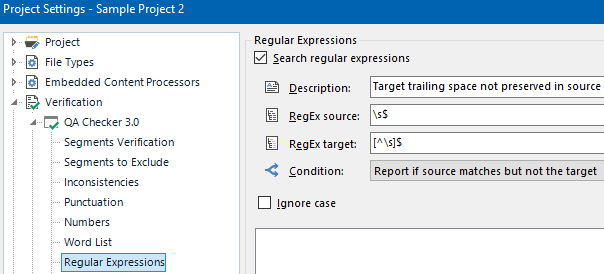
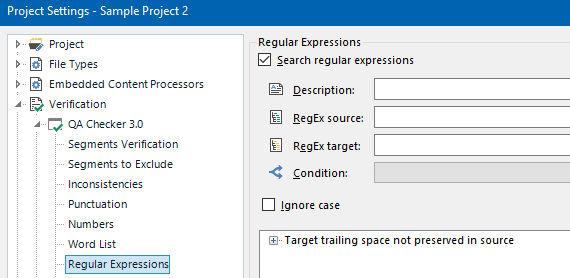
How to detect inconsistency in segment end-space between source and target using QA?

The client wants to preserve end-space of the segment (after a text or after any punctuation, or tag) in the target if it is present in the source or remove it if it is not present in the source.

I can't find QA option that would notify about end-spacing inconsistencies between source and target. How do I set it up?


Removed AI Suggestion
[edited by: Vilius Butiskis at 5:51 AM (GMT 0) on 19 Mar 2026]

emoji
  • Probability score: 0.7  

    Question improvement suggestion: Provide specific examples of the source and target segments you are working with, including any relevant settings you have already configured in the QA Checker.  

    In the meantime, based on the information you have provided, here is a suggested answer to your question:  

    Hello! To detect inconsistencies in segment end-space between source and target using the QA Checker in Trados Studio, you can follow these steps:

    **Step 1:** Open Trados Studio and go to **File > Options**.  

    **Step 2:** Navigate to **Verification > QA Checker 3.0 > Punctuation**.  

    **Step 3:** Ensure that you have included all necessary punctuation marks that may affect end-spacing, such as colons, exclamation points, question marks, semicolons, closing parentheses, and commas.  

    **Step 4:** Check the box for **Check for intentional spaces before:** to ensure that the QA Checker flags any discrepancies in spacing.  

    **Step 5:** If you want these settings to apply to all future projects, make sure to set them at the global level. For existing projects, go to **Project Settings > Verification > QA Checker 3.0 > Punctuation** and apply the same settings.  

    **Step 6:** After setting this up, run the QA Checker on your document. It should notify you of any unintentional spaces in the target segments compared to the source segments.

    If you find that the QA Checker is not flagging the inconsistencies as expected, consider reviewing the specific settings for **Inconsistencies** under the **Verification** section to ensure that the 'Check for inconsistent translations' option is enabled.

    I hope this answer addressed your question. If not, please reject the answer, add the question improvement suggestion information, and click the RWS Community AI checkbox on the right to try again.  

    RWS Community AI

    emoji