Cannot open Powerpoint file with embedded Excel files

I'm trying to create a project with a Powerpoint file containing embedded Excel files. I'm using Studio 2024 and the file cannot be converted. I get an out-of-memory error. It is a big file (145 kb). Any help with this? 
Thanks in advance

Martha


Removed AI Suggestion
[edited by: Martha Fillastre at 8:02 AM (GMT 1) on 16 Apr 2026]

emoji
Parents
  • Hi  

    Do you have to translate the embedded excel files, too?

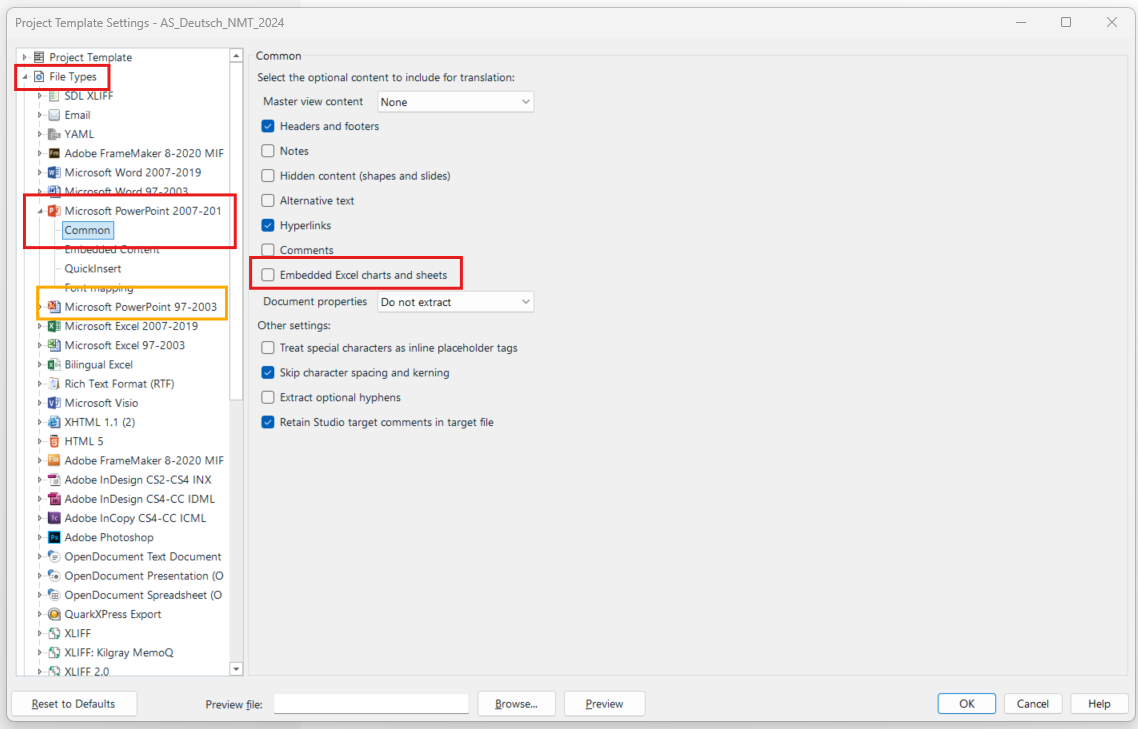
    If no, you could exclude them from your project? To do so, untick the following box in your project template (red if newer pptx version, orange if older pptx version):
    Project Template Settings window showing file types, with 'Microsoft PowerPoint 2007-2013' and 'Microsoft PowerPoint 97-2003' highlighted, and 'Embedded Excel charts and sheets' checkbox unticked.

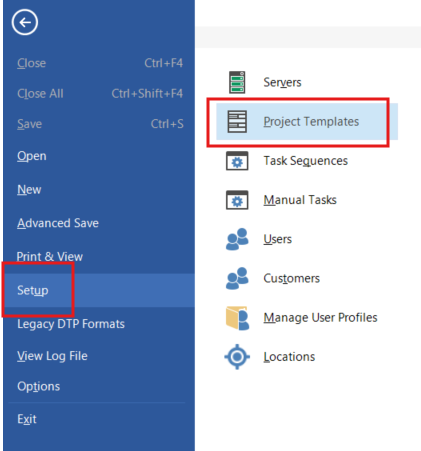
    To change the above setting, go to File > Setup > Project Templates

    Setup menu in Trados Studio with 'Project Templates' option highlighted under the 'Setup' section.

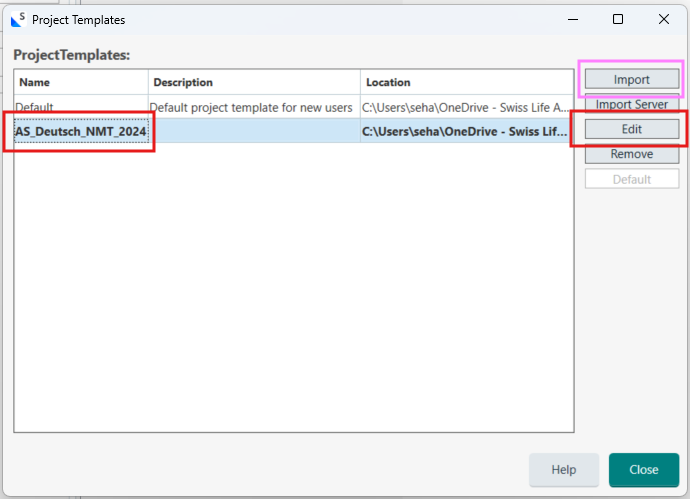
    • If the template is already in the list, click on it > click on Edit > navigate to the settings from the first print screen in this post> change setting > confirm with OK > try to recreate the project
    • If the template is not in the list, click on Import > search for the template where you store them > double click on the template you want to import or select the template and click on open --> the template appears in the list > click on the template in the list > click on Edit > navigate to the settings from the first print screen in this post > change setting > confirm with OK > try to recreate the project

    Project Templates window showing a list of templates, with 'AS_Deutsch_NMT_2024' highlighted and 'Edit' button outlined.

    Hope this helps.

    Good luck,
    Seraina

    emoji


    Generated Image Alt-Text
    [edited by: RWS Community AI at 6:41 AM (GMT 1) on 23 Apr 2026]
Reply
  • Hi  

    Do you have to translate the embedded excel files, too?

    If no, you could exclude them from your project? To do so, untick the following box in your project template (red if newer pptx version, orange if older pptx version):
    Project Template Settings window showing file types, with 'Microsoft PowerPoint 2007-2013' and 'Microsoft PowerPoint 97-2003' highlighted, and 'Embedded Excel charts and sheets' checkbox unticked.

    To change the above setting, go to File > Setup > Project Templates

    Setup menu in Trados Studio with 'Project Templates' option highlighted under the 'Setup' section.

    • If the template is already in the list, click on it > click on Edit > navigate to the settings from the first print screen in this post> change setting > confirm with OK > try to recreate the project
    • If the template is not in the list, click on Import > search for the template where you store them > double click on the template you want to import or select the template and click on open --> the template appears in the list > click on the template in the list > click on Edit > navigate to the settings from the first print screen in this post > change setting > confirm with OK > try to recreate the project

    Project Templates window showing a list of templates, with 'AS_Deutsch_NMT_2024' highlighted and 'Edit' button outlined.

    Hope this helps.

    Good luck,
    Seraina

    emoji


    Generated Image Alt-Text
    [edited by: RWS Community AI at 6:41 AM (GMT 1) on 23 Apr 2026]
Children
No Data