Height of row(s) becomes too much higher then ever.

I'm with version 2017, Win10.

Trying to review a Ko>En project(single sdlxliff file).

I have never seen this kind of strange row height ever.

Actually it works but, looks quite ugly.

How can I make it to normal ?
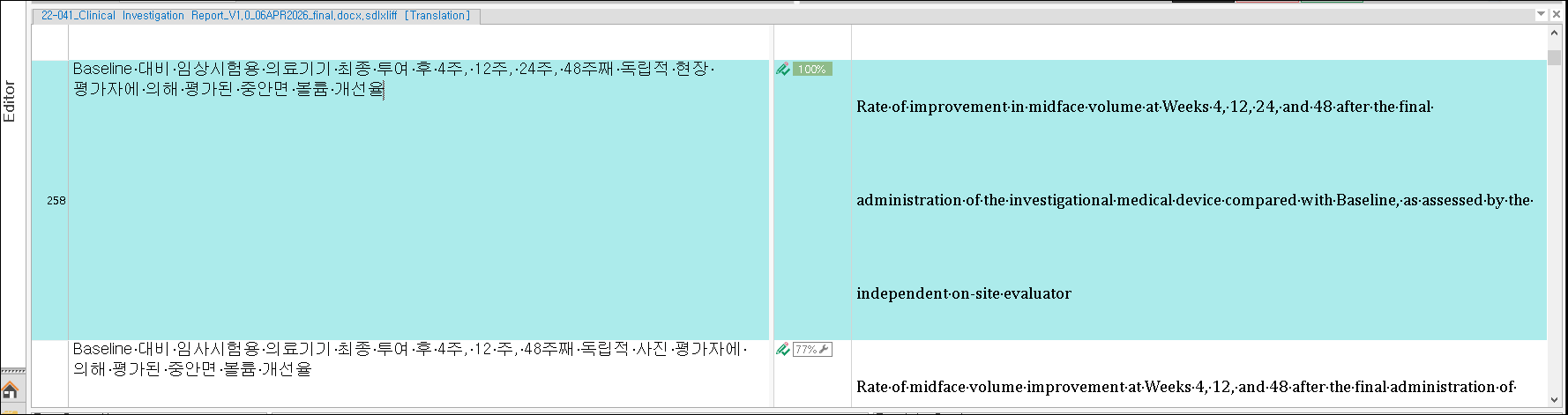
Trados Studio editor view showing a translation project with mismatched row heights. Source text in Korean and target text in English are displayed in a light blue background.

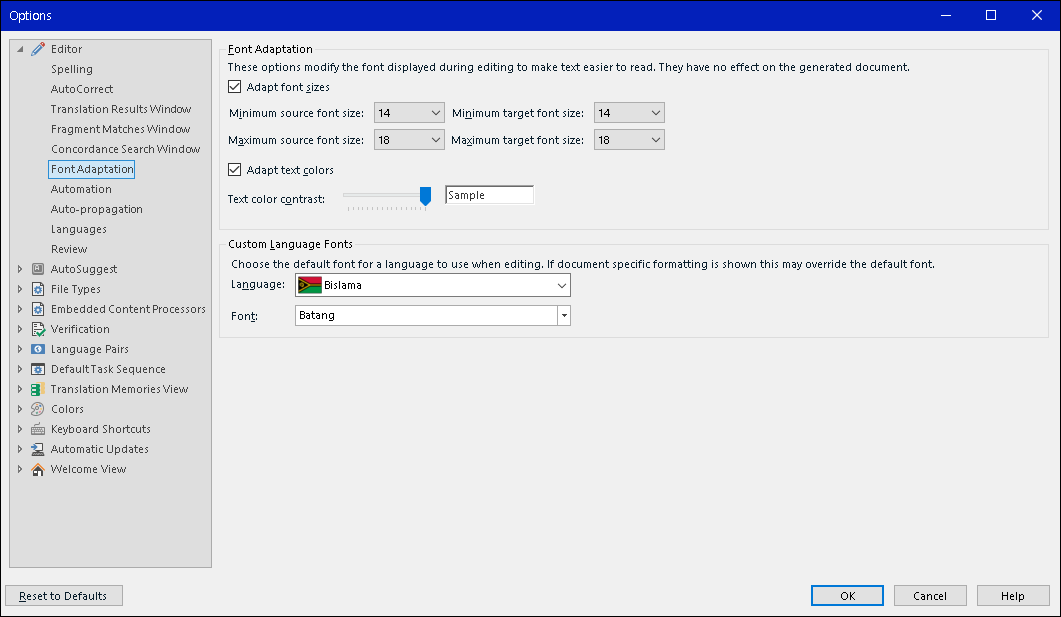
Trados Studio options menu under 'Font Adaptation' settings. Font size and color adaptation options are shown, with 'Bislama' language selected and 'Batang' font applied.

- Oh, segment 54 looks good though.

Thanks..


I'd like to make the others looks like segment 54.
[edited by: Jaesang Park at 2:37 AM (GMT 1) on 30 Apr 2026]

emoji
Parents
  • Probability score: 0.6  

    Question improvement suggestion: Provide a clear description of the steps to reproduce the issue and specify any error messages or unusual behavior observed.  

    In the meantime, based on the information you have provided, here is a suggested answer to your question:  

    Hello,  

    It seems you're experiencing an issue with the row height in Trados Studio 2017 while reviewing a project. Here are some steps you can take to address this problem:  

    **Step 1:** **Disable Display Scaling**  

    1. Right-click the Trados Studio icon on your desktop or Start menu.  

    2. Select **Properties**.  

    3. Click on the **Compatibility** tab.  

    4. Under **Compatibility mode**, select **Windows 7/8** from the dropdown menu.  

    5. Check the box for **Disable display scaling on high DPI settings**.  

    6. Click **OK** to confirm the changes.  

    **Step 2:** **Adjust Windows Scaling Settings**  

    1. Go to **Control Panel** > **Appearance and Personalization**.  

    2. Click on **Make text and other items larger or smaller**.  

    3. Set the scaling to **125%** or customize it according to your preference.  

    4. Apply the changes and sign out of your profile, then sign back in to see the effects.  

    **Step 3:** **Check for Hidden Characters**  

    Sometimes, hidden characters in the SDLXLIFF file can cause display issues. Consider removing any hidden characters and reprocessing the file.  

    **Step 4:** **Recreate the Project**  

    If the issue persists, you might want to recreate the project using a newer file type, such as XML V2, which has improved handling of files.  

    If these steps do not resolve the issue, consider upgrading to a later version of Trados Studio, as newer versions may have addressed this problem.  

    I hope this answer addressed your question. If not, please reject the answer, add the question improvement suggestion information, and click the RWS Community AI checkbox on the right to try again.  

    RWS Community AI

    emoji
Reply
  • Probability score: 0.6  

    Question improvement suggestion: Provide a clear description of the steps to reproduce the issue and specify any error messages or unusual behavior observed.  

    In the meantime, based on the information you have provided, here is a suggested answer to your question:  

    Hello,  

    It seems you're experiencing an issue with the row height in Trados Studio 2017 while reviewing a project. Here are some steps you can take to address this problem:  

    **Step 1:** **Disable Display Scaling**  

    1. Right-click the Trados Studio icon on your desktop or Start menu.  

    2. Select **Properties**.  

    3. Click on the **Compatibility** tab.  

    4. Under **Compatibility mode**, select **Windows 7/8** from the dropdown menu.  

    5. Check the box for **Disable display scaling on high DPI settings**.  

    6. Click **OK** to confirm the changes.  

    **Step 2:** **Adjust Windows Scaling Settings**  

    1. Go to **Control Panel** > **Appearance and Personalization**.  

    2. Click on **Make text and other items larger or smaller**.  

    3. Set the scaling to **125%** or customize it according to your preference.  

    4. Apply the changes and sign out of your profile, then sign back in to see the effects.  

    **Step 3:** **Check for Hidden Characters**  

    Sometimes, hidden characters in the SDLXLIFF file can cause display issues. Consider removing any hidden characters and reprocessing the file.  

    **Step 4:** **Recreate the Project**  

    If the issue persists, you might want to recreate the project using a newer file type, such as XML V2, which has improved handling of files.  

    If these steps do not resolve the issue, consider upgrading to a later version of Trados Studio, as newer versions may have addressed this problem.  

    I hope this answer addressed your question. If not, please reject the answer, add the question improvement suggestion information, and click the RWS Community AI checkbox on the right to try again.  

    RWS Community AI

    emoji
Children
No Data