PSD Export Font Error

Hello!

I'm having a hard time working with PSD files. I used to get some odd errors, but I figured that could be because I didn't have the right font. Now, I got the fonts that are used in the original PSD (and installed them to my Windows). I tried in Krita, and the font works on my system: I can edit and type using it on my machine.

However, something odd still happens when I take one of these PSDs through Trados: the font that is in the import file gets mapped into some default font, like Times New Roman or similar, i.e., the input font does not get preserved. I no longer get any errors in the PSD import/translation/export process, just the font in the target file has been changed. 

Insofar as I can see, there are no settings to force mapping of any font using the PSD file. 

To be clear, I want my exported file to use exactly the same font with the translated text as in the source file. How can I achieve this? 

This is using Trados Studio 2024 SR1 - 18.1.3.6657.

Cheers


Added information that I no longer get any errors, it's the output that's not correct.
[edited by: Koit Rikson at 10:53 AM (GMT 1) on 3 May 2026]

emoji
Parents
  • Probability score: 0.6  

    Question improvement suggestion: Provide specific details about the error messages you encounter during the export process, if any, and clarify if you have tried any troubleshooting steps beyond installing the fonts.  

    In the meantime, based on the information you have provided, here is a suggested answer to your question:  

    Hello!  

    To ensure that the fonts in your exported PSD files from Trados Studio match those in the source files, please follow these steps:  

    **Step 1:** **Update Software**  

    Make sure you are using the latest versions of both Trados Studio and Adobe Photoshop. The issues you are experiencing may be related to known defects that have been fixed in later versions. You can check for updates in Trados Studio by going to the 'Help' menu and selecting 'Check for Updates'. For Photoshop, check for updates through the Creative Cloud application.  

    **Step 2:** **Verify Font Installation**  

    Confirm that the fonts used in the original PSD files are correctly installed on your Windows system. Since you mentioned that the fonts work in Krita, this step may already be completed, but it's good to double-check.  

    **Step 3:** **Check Trados Studio Settings**  

    In Trados Studio, ensure that there are no settings that might be overriding the font mapping. Unfortunately, there may not be a direct setting to force font mapping from the PSD file, but ensuring that your project settings are correct can help.  

    **Step 4:** **Use Workarounds**  

    If the font still does not appear correctly, consider using the workaround of showing all tags but not showing formatting. This can be done by going to 'File' > 'Options' > 'Editor' and selecting 'Show all tags but do not show formatting'. This will not affect the target document's font formatting but may help with display issues in the editor.  

    **Step 5:** **Export and Test**  

    After making these adjustments, try exporting the file again. If the issue persists, please provide any specific error messages you encounter during the export process, as this information can help in diagnosing the problem further.  

    I hope this answer addressed your question. If not, please reject the answer, add the question improvement suggestion information, and click the RWS Community AI checkbox on the right to try again.  

    RWS Community AI

    emoji
Reply
  • Probability score: 0.6  

    Question improvement suggestion: Provide specific details about the error messages you encounter during the export process, if any, and clarify if you have tried any troubleshooting steps beyond installing the fonts.  

    In the meantime, based on the information you have provided, here is a suggested answer to your question:  

    Hello!  

    To ensure that the fonts in your exported PSD files from Trados Studio match those in the source files, please follow these steps:  

    **Step 1:** **Update Software**  

    Make sure you are using the latest versions of both Trados Studio and Adobe Photoshop. The issues you are experiencing may be related to known defects that have been fixed in later versions. You can check for updates in Trados Studio by going to the 'Help' menu and selecting 'Check for Updates'. For Photoshop, check for updates through the Creative Cloud application.  

    **Step 2:** **Verify Font Installation**  

    Confirm that the fonts used in the original PSD files are correctly installed on your Windows system. Since you mentioned that the fonts work in Krita, this step may already be completed, but it's good to double-check.  

    **Step 3:** **Check Trados Studio Settings**  

    In Trados Studio, ensure that there are no settings that might be overriding the font mapping. Unfortunately, there may not be a direct setting to force font mapping from the PSD file, but ensuring that your project settings are correct can help.  

    **Step 4:** **Use Workarounds**  

    If the font still does not appear correctly, consider using the workaround of showing all tags but not showing formatting. This can be done by going to 'File' > 'Options' > 'Editor' and selecting 'Show all tags but do not show formatting'. This will not affect the target document's font formatting but may help with display issues in the editor.  

    **Step 5:** **Export and Test**  

    After making these adjustments, try exporting the file again. If the issue persists, please provide any specific error messages you encounter during the export process, as this information can help in diagnosing the problem further.  

    I hope this answer addressed your question. If not, please reject the answer, add the question improvement suggestion information, and click the RWS Community AI checkbox on the right to try again.  

    RWS Community AI

    emoji
Children
  • The software is updated, the fonts are installed, it does not specify which Studio settings to verify, and the workarounds specifically say that they do not have any effect on the problem that I have.

    emoji
  • Probability score: 0.7  

    Question improvement suggestion: Specify any error messages you encounter during the export process and clarify if you have tried any specific troubleshooting steps beyond what has been mentioned.  

    In the meantime, based on the information you have provided, here is a suggested answer to your question:  

    Hello!  

    I understand that you're still facing issues with font mapping in your PSD files when exporting from Trados Studio. Let's go through some steps to help you resolve this:

    **Step 1:** **Confirm Software Versions**  

    Ensure that you are using Trados Studio 2024 SR1 and that your Adobe Photoshop is updated to at least version 22.2.0, as previous defects related to font mapping have been fixed in these versions. You can check for updates in Trados Studio by going to the 'Help' menu and selecting 'Check for Updates'.

    **Step 2:** **Verify Font Installation**  

    Since you mentioned that the fonts are installed and working in Krita, please double-check that they are also correctly installed in Windows. Sometimes, a font may appear installed but not be fully functional.

    **Step 3:** **Check Trados Studio Settings**  

    While there may not be a specific setting to force font mapping, ensure that your project settings are configured correctly. You can check the following:

    - Go to 'File' > 'Options' > 'Editor' and review any font-related settings.

    - Ensure that the 'Font Adaptation' settings are not overriding your desired font settings.

    **Step 4:** **Registry Refresh**  

    If the issue persists, you might want to refresh the font list in Windows by following these steps:

    1. Press [Win]+[R] to open the Run dialog.

    2. Type `regedit` and press OK.

    3. Navigate to `HKEY_LOCAL_MACHINE\SOFTWARE\Microsoft\Windows NT\Current Version\Fonts`.

    4. Locate the font name from the error message (if applicable) and rename it as described in the previous conversation.

    5. Restart your computer and then rename the font back to its original name.

    **Step 5:** **Export and Test**  

    After making these adjustments, try exporting the PSD file again. If the font still does not appear correctly, please provide any specific error messages you encounter during the export process, as this information can help in diagnosing the problem further.

    I hope this answer addressed your question. If not, please reject the answer, add the question improvement suggestion information, and click the RWS Community AI checkbox on the right to try again.  

    RWS Community AI

    emoji
  • Most of this is what I tried already. I've checked the 'File' - 'Editor' - 'Font Adaptation' options, but these say specifically that they 'have no effect on the generated document'. I can type in the font I need in other software, such as Microsoft Word, as well, so it is installed properly. And because I can see the font in Word, the list is refreshed., 

    emoji
  •  

    This is most probably due to some limitations in the font view in Trados Editor. To solve the problem and have the font not rendered to something strange, stop showing formatting in the editor. Go to File -> Options -> Editor and chose "Show all tags but do not show formatting". In this case all text will be shown in Arial or Aptos and the font in the target file will be preserved, even if you do not have it on your machine.

    _________________________________________________________

    When asking for help here, please be as accurate as possible. Please always remember to give the exact version of product used and all possible error messages received. The better you describe your problem, the better help you will get.

    Want to learn more about Trados Studio? Visit the Community Hub. Have a good idea to make Trados Studio better? Publish it here.

    emoji
  • Hi  

    Thanks for the suggestion! I tried this, and it doesn't have any effect. The font in the editor is absolutely fine; it's the font in the target file after export that's the issue. 

    I changed this setting, imported a new PSD file, translated it, exported it, and Trados still modified the font. See below:

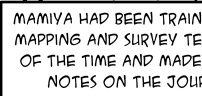
    Source File:

    Screenshot showing text in English: 'Mamiya had been trained in mapping and survey techniques of the time and made notes on the journey.'

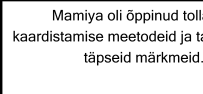
    Export File:

    Screenshot showing text in Estonian: 'Mamiya oli  ppinud tollaseid kaardistamise meetodeid ja tegi t pseid m rkmeid.'

    Any other recommendations?

    Cheers

    emoji


    Generated Image Alt-Text
    [edited by: RWS Community AI at 11:32 AM (GMT 1) on 3 May 2026]
  •  

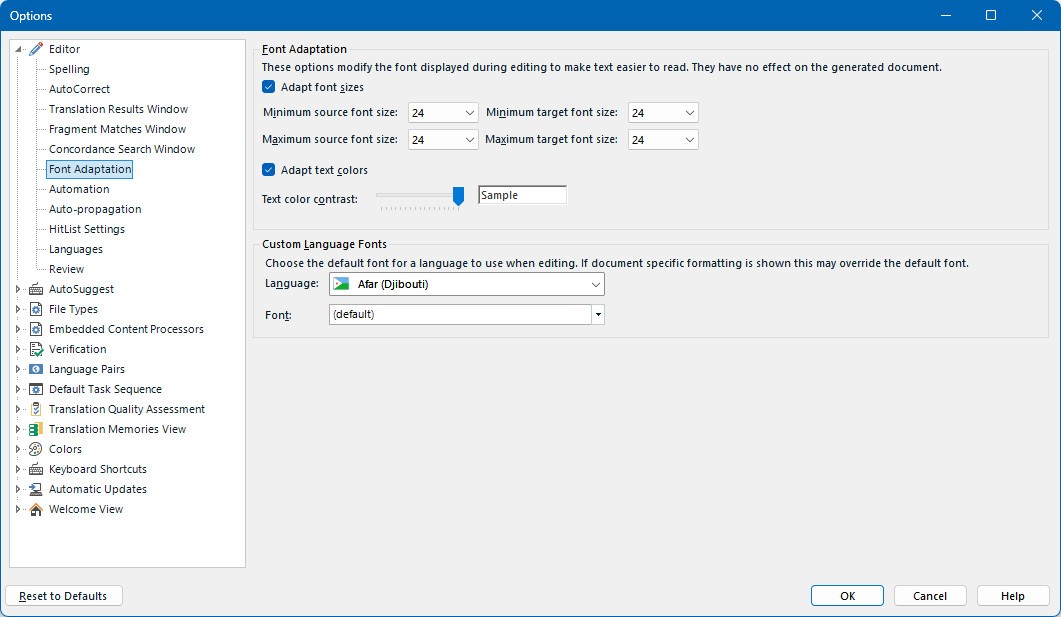
    Please check the settings in File -> Options -> Font Adaptation -> Custom Language Fonts

    And does the font support your target language? When you open the file in Photoshop, do you see any font substitution dialogue? Which font is used by Photoshop in the target file?

    _________________________________________________________

    When asking for help here, please be as accurate as possible. Please always remember to give the exact version of product used and all possible error messages received. The better you describe your problem, the better help you will get.

    Want to learn more about Trados Studio? Visit the Community Hub. Have a good idea to make Trados Studio better? Publish it here.

    emoji
  •   

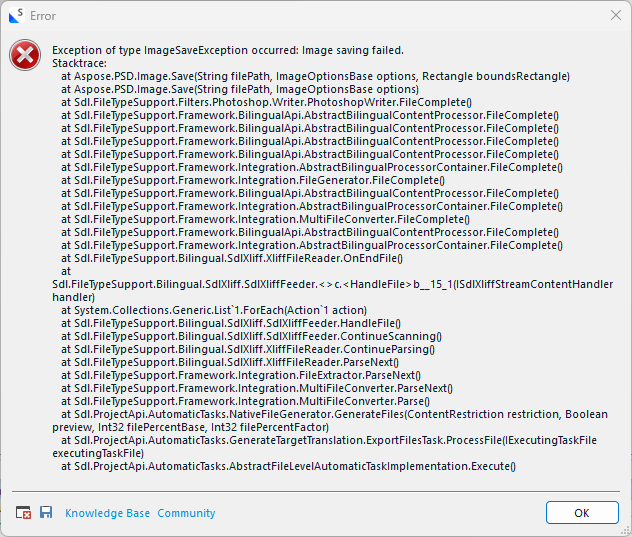
    When I tried to 'force' Trados to use the right font (changed it in File -> Options -> Font Adaptation -> Custom Language Fonts from 'Default' to the specific font used on this one page), the export failed:

    Error message window showing 'Exception of type ImageSaveException occurred: Image saving failed' with a detailed stack trace and options for Knowledge Base and Community.

    I'm not sure what the significance of this is (?).

    emoji


    Generated Image Alt-Text
    [edited by: RWS Community AI at 11:56 AM (GMT 1) on 3 May 2026]