cannot start my first translation, click on OK does not work

Hello, I've just purchased SDL Trados 2019. I am trying to translate my first document but I can't.

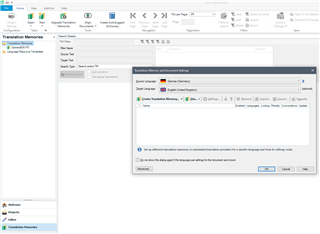
I open the software, I click File then Translate a single document, I choose a docx file, I choose the target language (French) and then when I click OK nothing happens (see attached file) and there is no error message or warning. If I click on Cancel I exit this window but my docx file is not opened, of course. Why the OK button does not work?Screenshot of SDL Trados Studio 2019 showing the 'Translate Single Document' dialog box with a selected DOCX file and target language set to French. The OK button is visible but not functioning.DOCX Thanks


Generated Image Alt-Text
[edited by: Trados AI at 9:21 PM (GMT 0) on 28 Feb 2024]
emoji
Parents
  • Hello @PascalGoux ,

    Thanks for the screenshot- these are always really useful.

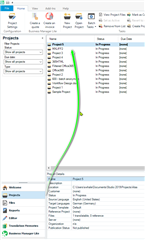
    The image is showing you are in the translation memories view- you need to click on Projects- then select the project you wish to open

    Screenshot of Trados Studio showing the Translation Memories view with an arrow pointing towards the Projects tab indicating where to click to select a project and open it in EDITOR mode.

    This will then open in EDITOR mode and you can begin translating.

    If you haven't already done so you can add the TM via the project settings.

    You might find this tutorial useful.

    https://www.youtube.com/watch?v=-QxkyjtP5zM

    Oana Nagy | QA Engineer | RWS Group

    emoji


    Generated Image Alt-Text
    [edited by: Trados AI at 9:22 PM (GMT 0) on 28 Feb 2024]
  • Hi , hi ,

    It is possible to translate a single file from any View, via File > Translate single document. The dialog opens successfully while the Translate single document Wizard opens, you then select the individual file and this is how it should then look:

    Trados Studio screenshot showing the Translate Single Document dialog with Translation Memory and Automated Translation providers listed.

    As you see, my screenshot contains a TM dialog window but Pascal's doesn't. Could this mean it has frozen before completing the content of the dialog...

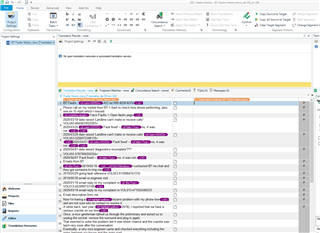
    Here, after I clicked OK, despite the TM View being active, the next action Studio performs is to successfully create an sdlxliff of the file and open it directly in the Editor mode:

    Trados Studio screenshot of the Editor mode with an open sdlxliff file displaying source and target segments for translation.

    However, it certainly might be a good way around Studio failing to open a single file to try setting up a project and opening that instead. Unless there's a problem with the file itself.

    If it's Studio at fault, a Windows Repair of Studio might be the answer?

    Windows Repair of Studio

    All the best,

    Ali

    emoji


    Generated Image Alt-Text
    [edited by: Trados AI at 9:22 PM (GMT 0) on 28 Feb 2024]
  • Thanks Steven and Ali,

    If I first click on Projects and try to open my single file to translate, I encounter the same problem.

    As Ali noticed, in my case, the Translate single document Wizard does NOT include the part with the TM.

    I have chosen my file to be translated BEFORE the Translate single document Wizard is displayed.

    I just went through the Repair option for Studio and this did not solve my problem.

    When I wrote that this was my first test of the software, it is not completely exact. Yesterday I briefly ‘played’ with the software, I created a project, managed to include a file and managed to start translating that Word file. But today I still can’t start the translation of a single document. Your further help will be appreciated.

  • Hi Pascal,

    What happens if you click on the reverse language direction arrow? 

  • Hi Nora, If I reverse, I get the same problem and the TM part is still not displayed. But, if I click on the double arrow on the far right side of the Source language field, then the TM part is displayed and I can start the translation. I can now use the software to translate a single document but I'd be happy if I did not have to click on this double arrow each time I want to start a new translation. Cheers,

  • Hi ,

    Is this happening with any file or just this particular one?

    I would suggest that the software is freezing at the point of checking the source language of the document and that clicking on the double arrow reactivates the process.

    Clicking on the double arrow should not be necessary.

    Try opening the source document (in Word if it's a word document), then highlighting all the text in it and making absolutely sure the whole document is standardised to the correct source language. Then see if the process works.

    There may be sections in the document that have language content that isn't one of your five languages (if you're working with the Freelance version of Studio). That might bring things to a halt maybe...

    Just one possible cause...

    If that doesn't help, create your own new test document and ensure it's set to the source language that you're going to translate from. If that works correctly on 'File > Translate...' then it's the source document you were trying to work with that's triggering the problem.

    If it doesn't work then try reinstalling SDL Trados Studio...

    All the best,

    Ali Slight smile

  • Hi ,

    I also should have said that there could be other content in the original source file that is causing Studio to fail to process the file.

    If it has any interactive content, a complex image or table or some 3rd party content that Studio would not expect, then that could cause a problem. Normally these sort of things trigger an error but if Studio can't identify what the problem is, it could just freeze though normally the whole thing freezes so you can't do anything but close down via Ctrl+Alt+Del.

    If you do manage to get this file past the OK button correctly, before translating it, try saving a target file - do this with the file open in the Editor window, via File > Save Target as. Don't do it via Batch tasks or you'll have to revert the file to sdlxliff in order to be able to work on it. Not impossible but an added irritation.

    If 'File > Save Target as' works then you're safe to proceed with your translation. If it doesn't then you will need to open the source file again, save it to a new copy and remove items of complex content from that copy until it works. Then once you've translated and saved Target as successfully on completion of your project, you can add the complex content back in from the old original source file.

    Alternatively you can ask the client for a cleaner version of the source file that you can work with, if they understand how to do that Wink

    I hope some of the above works for you...

    All the best,

    Ali Slight smile

  • The language of my source file was French instead of English (but it should have worked as the 2 languages are part of the 5). Still, I tried something else, I created a brand new Word file (very simple one with just 2 very small sentences, and no other content), I selected the whole text and chose English as the language. When I opened that file in Trados, the same problem happens: I have to click on the double arrow. By the way, I have also uninstalled and reinstalled the software.

Reply Children