I can't install SDL Trados Studio 2017 Freelance Plus again

Hello,

I have removed Trados Studio from my computer without deactivating a licence.
Now I can't install it again. I get the following error message: "Setup did not complete. The error is: Setup has detected a higher version of this product already installed. If you still wish to install this version, you must remove the other version first.".
There is no other version on my computer...

Can you help me, please?

Parents Reply Children
  • Sorry for my late answer.
    I can't still solve the problem.

    In relation to your solution suggestions:

    1 manual installation - I don't see the folder path after enabling the view of hidden files and folders.
    2. automatic installation - Hmm... what's that? 
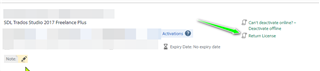
    3. reset the licence -  I have performed a Force Return due to a changed hard drive. The following error message has been displayed: "An error has occured. An email has been sent to support to inform them of the error.".

    Is there really no easy solution to solve the problem?

  • Hello @ ,

    This really is the simplest and easiest way to resolve this.

     I don't see the folder path after enabling the view of hidden files and folders.

    If you are unable to see the 'AppData' folder, this will be because its hidden (by default)

    Simply open File Explorer - go to VIEW and tick the Hidden Items

    File Explorer window with 'Hidden items' checkbox ticked under the View tab.

    Now you can navigate to the relevant installers- double click and manually run the install.

    The last error may have simply been down to a connection error.

    Please let me know if this happens again.

    Trados Studio forum post highlighting how to correctly mention a user with '@username' for email notifications.


    Oana Nagy | Developer Experience | QA Engineer | RWS Group

    emoji


    Generated Image Alt-Text
    [edited by: Trados AI at 12:09 AM (GMT 0) on 29 Feb 2024]

  • I don't have File Explorer on my computer (Windows 8).

    I have followed the instructions below but my computer still don't see the folder path.

    Windows 8 / 7 / Vista

    1. Open the Control Panel:
      • Windows 7 / Vista: Click on the START button (this is the small round button with the Windows flag in the lower left corner) and click on Control Panel .
      • Windows 8: Hold the Windows Key and press the [X] key, then select Control Panel.
    2. Open Folder Options:
      • Type Folder Options in the Search Control Panel text box and click the Folder Options icon that appears.
    3. Activate the View tab.
    4. Then:
      • To show hidden folders, select the radio button Show hidden files and folders in the Hidden files and folders section.
      • To show all file name extensions, remove the check mark from the check box Hide extensions for known file types.
      • To show protected operation system files, remove the check mark from the check box Hide protected operating system files.
    5. Press the Apply button and then the OK button and close all dialogs.
  • All windows computers have "File Explorer"... perhaps the name is confusing you.  Try pressing the Windows key and the letter E at the same time.  This will open it for you.

    To see the folder path, once you are in "File Explorer" enable this:

    Screenshot of File Explorer with the 'View' tab active and an arrow pointing to the 'File name extensions' and 'Hidden items' checkboxes, both are checked.

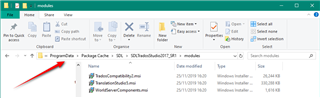
    Now you should be able to navigate to and see the files in question.  One thing though, as the KB article is old.  The path is this:

    C:\ProgramData\Package Cache\SDL\SDLTradosStudio2017_SR1\modules

    Looks like this in File Explorer:

    Screenshot of File Explorer showing the folder path 'C:ProgramDataPackage CacheSDLSDLTradosStudio2017_SR1modules' with files listed below.

    Let me know if this still doesn't help you?

    Paul Filkin | RWS Group

    ________________________
    Design your own training!

    You've done the courses and still need to go a little further, or still not clear? 
    Tell us what you need in our Community Solutions Hub

    emoji


    Generated Image Alt-Text
    [edited by: Trados AI at 12:09 AM (GMT 0) on 29 Feb 2024]
  • @Paul

    thanks for your quick answer.
    I have found and installed them but I can't activate the license. It appears the message: Activation failed. Please provide quantity less than or equal to the remaining quantity 0.
    I can't also deactive the license offline or reset it. I get the error message.