 Translate



I am unable to update my version of studio 2019. I am receiving the below update error:
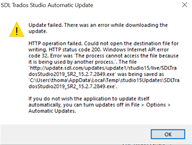
Generated Image Alt-Text
[edited by: Trados AI at 10:30 PM (GMT 0) on 28 Feb 2024]


I am unable to update my version of studio 2019. I am receiving the below update error:
If you are having problems with autoupdate not being able to connect there is a log that may be useful in c:\ProgramData\SDL\SDL Trados Studio\Studio16\Updates\UpdateLog.txt
If you can share the log it might help identify the problem.
You could also simply take the latest build from here.
Paul Filkin | RWS
Design your own training!
You've done the courses and still need to go a little further, or still not clear?
Tell us what you need in our Community Solutions Hub
If you are having problems with autoupdate not being able to connect there is a log that may be useful in c:\ProgramData\SDL\SDL Trados Studio\Studio16\Updates\UpdateLog.txt
If you can share the log it might help identify the problem.
You could also simply take the latest build from here.
Paul Filkin | RWS
Design your own training!
You've done the courses and still need to go a little further, or still not clear?
Tell us what you need in our Community Solutions Hub

Thanks and @paul for your suggestions
I tried Paul's suggestion of downloading the latest update.
Unfortunately, the download was incredibly slow - I believe this has something to do with me accessing the download from China.
As my inability to update was causing compatibility issues across MultiTerm and Studio I decided to try and re-install the entire package via my original download link (I am using a temporary student licence given to me by my lecturer). I have now run into problems with this download as well! I have started a new thread for this.
Thanks again for your help
