The Trados cloud platform will be undergoing maintenance on Saturday, 9th May 2026 between 05:00 to 17:00 UTC. During this time, you will not be able to log in to the Trados platform.

Running Studio 2021 alongside Studio 2019

Hello @Paul Filkin and all those skilled in the SDL art,

It is nice to be able and allowed to run our brand new CAT tool while keeping Studio 2019 up and running: you never know what might happen while Studio 2021 is being broken in and its bugs corrected. But this cohabitation may result in confusing situations. I explain myself.

  • In the Windows (10, v. 2004) list of apps, alles in Ordnung, every Studio (or Multiterm) appears with its separate identity.
  • In Windows Explorer, in the right-click scrolling list, under "Open with" you have only one SDL Trados Studio, not better identified (In my case it is 2019: I can guess it from the icon).
  • And in the Windows settings page where theoretically you can marry file types and apps, it is worse, it's a complete mess: .sdlalign, .sdlretrofit, .sdlrpx, .sdltm are associated with a SDL Trados Studio which -- guessing from the icon --, must be 2021, .sdlppx, .sdlproj, .sdlxliff are associated with (always guessing) Studio 2019 and .sdlfiletype, .sdltpl are left orphans. And though I am not totally IT-dumb, I cannot see how to rationalize all this mess (With Windows 7, I would have known how to!).

So I am open to all suggestions. Anticipated thanks.

G. LAMBERT

Parents Reply
  • And you should know better, as I remember it being mentioned at least once or twice in other threads: one might hope of repairing Studio in the Windows control panel through "Modify", but the button is greyed and the only option left is "Uninstall".

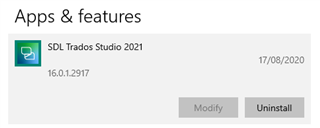
    I wonder if you are thinking that "Windows Control Panel" is the same as "Add/Remove Programs" which it is not.  So perhaps you are looking at this:

    Screenshot showing SDL Trados Studio 2021 in Apps & features with version number 16.0.1.2917 and options to Modify or Uninstall.

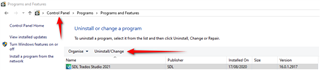
    Where it is greyed out.  Instead of using the "Windows Control Panel" where it is not:

    Screenshot of Control Panel's Programs and Features with an arrow pointing to the greyed out 'Modify' option for SDL Trados Studio 2021.

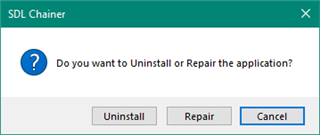
    If you click on this, after the warning about allowing a change to take place, you will get this:

    Screenshot of SDL Chainer dialog box asking if the user wants to Uninstall or Repair the application with three options: Uninstall, Repair, Cancel.

    Choose "Repair".

    Press your Windows key and type "Control Panel" without the quotes.  You will find it.

    Paul Filkin | RWS

    Design your own training!
    You've done the courses and still need to go a little further, or still not clear? 
    Tell us what you need in our Community Solutions Hub

    emoji


    Generated Image Alt-Text
    [edited by: Trados AI at 10:40 PM (GMT 0) on 28 Feb 2024]
Children