What is the best way to translate an updated user guide with Studio 2019?

Hello everyone!

I work in a software company. Each year, our team must translate the updated user guide. I've aligned the previous versions of the user guide and pretranslated the 2020 version. I thought that Studio would pretranslated the guide and only let empty the segments concerning the new features i.e. the text to be translated. But the match rate isn't as high as I expected, because of the tags. 

Trados Studio segment with a 93-99% match rate highlighted, showing tags and text to be confirmed manually.

I have to confirm a lot of 93-99 % match segments manually. It's really time consuming. How could I avoid that?

Precision : the format of the source file has not been changed, since the previous version, so I don't understand why the tags aren't the same.

Thanks for your help!


Generated Image Alt-Text
[edited by: Trados AI at 11:35 PM (GMT 0) on 28 Feb 2024]
emoji
Parents Reply
  • This is then indeed strange, as the translation memory from the manually confirmed segments in last run should have same tags. Or were the font settings/layout of FM files adapted/changed?

    If you set the tag view to full tag text instead of tag ID, what do the tags say? Can you post a screenshot of the same segment as above, but with full tag text?

    _________________________________________________________

    When asking for help here, please be as accurate as possible. Please always remember to give the exact version of product used and all possible error messages received. The better you describe your problem, the better help you will get.

    Want to learn more about Trados Studio? Visit the Community Hub. Have a good idea to make Trados Studio better? Publish it here.

Children
  • No, the font settings/layout of FM files weren't changed/adapted.

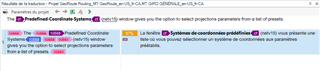
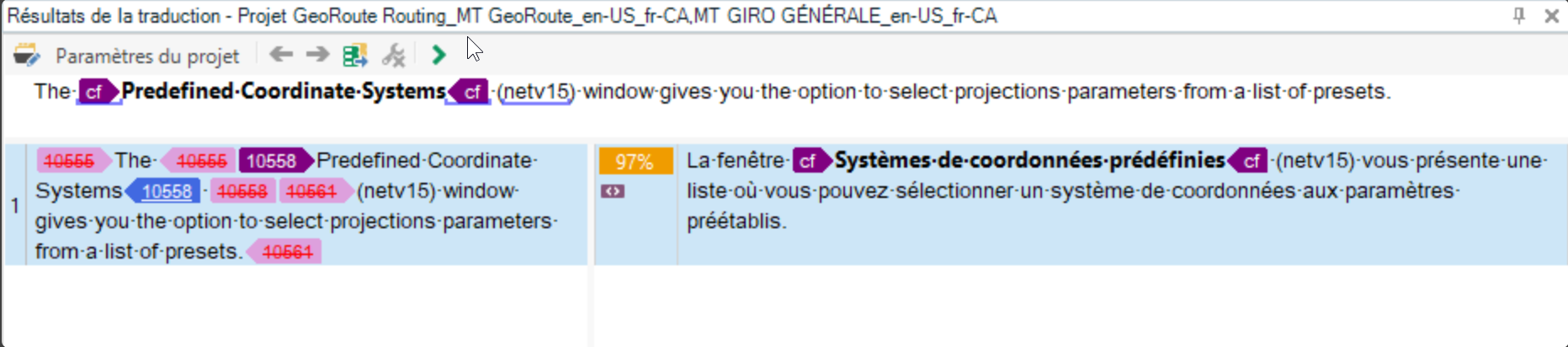
    The tags don't say much: 

    Trados Studio error message indicating 'The DTP (Desktop Publishing) Professional Certificate System' with red error icons and options to select projection parameters from a list of presets. 

    emoji


    Generated Image Alt-Text
    [edited by: Trados AI at 11:35 PM (GMT 0) on 28 Feb 2024]
  • Well, the tags would say much more, if you would create a screenshot from the actual segment in the editor and not in the Translation memory view. Here you are showing tag id on the left and partial tag text on the right. This is not enough to find out, why the change occurred.

    Full tag text view:

    Screenshot of Trados Studio editor showing a segment with tag id 'ParagraphDestinationAnker 9' and partial tag text 'hochgestellt' in German.

    You can clearly read, what the tags do.

    _________________________________________________________

    When asking for help here, please be as accurate as possible. Please always remember to give the exact version of product used and all possible error messages received. The better you describe your problem, the better help you will get.

    Want to learn more about Trados Studio? Visit the Community Hub. Have a good idea to make Trados Studio better? Publish it here.

    emoji


    Generated Image Alt-Text
    [edited by: Trados AI at 11:35 PM (GMT 0) on 28 Feb 2024]
  • Trados Studio screenshot showing a translation segment with manual formatting and style tags applied, with a 97% match on the right pane.

    Looking at your screenshot I see, that on the left (previously translated segment) the complete segment has been manually formatted, while the current segment has just some internal formatting, while the whole segment has a style assigned.

    Which tool has been used for the alignment?

    In any case: I would confirm all the segments manually again. Then I would create a completely NEW TM and update it ONLY with the newly translated files to make sure, that no tags are enclosing the whole segment, as you see on the left. The view on the right is the view I would expect from any properly formatted file.

    Also I would change the view setting in File -> Options -> Editor from "Show formating" to "Show only tags, do not show formatting". This way you have the best possible control over tags. Viewing formatting makes many people think, that they can use the formatting buttons in Studio, what leads to many formatting problems. In FM like in InDesign text will most probably not be made simply "BOLD", but a different font will be used here. However, when you just press "BOLD" from the ribbon or use the shortcut for bold, no font change will be applied in Studio. Studio will just apply bold to the main font in the paragraph, but such a font variation will most probably not exist. Such tags will also never be applied automatically next time, as the bold tags on the target side will not correspond with the proper tags in the source.

    _________________________________________________________

    When asking for help here, please be as accurate as possible. Please always remember to give the exact version of product used and all possible error messages received. The better you describe your problem, the better help you will get.

    Want to learn more about Trados Studio? Visit the Community Hub. Have a good idea to make Trados Studio better? Publish it here.

    emoji


    Generated Image Alt-Text
    [edited by: Trados AI at 11:36 PM (GMT 0) on 28 Feb 2024]
  • This is a screen shot of a segment in the editor with the Translation memory view with full tag text and the same with partial tag text. The segment comes from the memory and not from an aligned document. (I've made the alignment with Studio.) So it's supposed to be a properly formatted file. As you can see, the only difference is the last tag.

    Screenshot of Trados Studio editor showing a segment with full tag text in the Translation memory view. No visible errors or warnings.Screenshot of Trados Studio editor displaying a segment with partial tag text in the Translation memory view. Last tag differs from the first screenshot. No visible errors or warnings.

    emoji


    Generated Image Alt-Text
    [edited by: Trados AI at 11:36 PM (GMT 0) on 28 Feb 2024]

  • Thank you. This screens do not show the same text part as your previous screens.

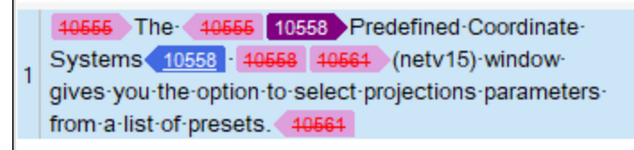
    Screenshot of Trados Studio segment with improper formatting, showing tags 10555 and 10561 around text, indicating extra formatting on top of the paragraph style.

    Here you have tags 10555 and 10561 around text parts, in your new screenshots such tags do not exist.

    Tag 10558 can represent footnote or line break. It's really hard to tell without seeing the files.

    The screenshot above clearly shows, that the segment has not been properly formatted. In a properly formatted segment tags 10555 and 10561 should not appear at all. These show extra formatting, applied on top of the paragraph style here.

    _________________________________________________________

    When asking for help here, please be as accurate as possible. Please always remember to give the exact version of product used and all possible error messages received. The better you describe your problem, the better help you will get.

    Want to learn more about Trados Studio? Visit the Community Hub. Have a good idea to make Trados Studio better? Publish it here.

    emoji


    Generated Image Alt-Text
    [edited by: Trados AI at 11:36 PM (GMT 0) on 28 Feb 2024]
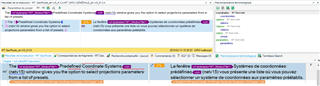
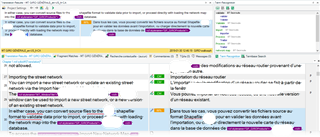
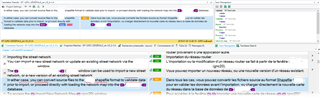
  • Sorry, I wanted to show segments that come from the memory and not from the alignment. Here is a screen shot of the segment in the editor and one of the sentence in FM, if it can help.

    Screenshot of Trados Studio editor showing a segment with text from the translation memory, no visible errors or warnings.Screenshot of Trados Studio with a segment open, displaying highlighted text from the translation memory and a warning about multiple translation units found.

    emoji


    Generated Image Alt-Text
    [edited by: Trados AI at 11:36 PM (GMT 0) on 28 Feb 2024]
  • No need to be sorry, I am trying to find out, what's happening and this is why I have so many questions.

    So, it looks like within the previous translation, showing in your TM view, segments with missing tags have been confirmed. On the left, in source, you see tags surrounding the text, while on the target side these tags are missing.

    There are multiple reasons for that. First: Studio does NOT show tags by default, just formatting. So when the translator seen the segments last time, there was no visible difference between the segment in source and target. Bold was bold and the font looked identical or at least similar. Second: Studio does NOT report missing formatting tags by default. So there were no errors in the process and no one noticed missing tags.

    Solution: confirm all the segments again, create a new TM and import only the last translation there. Next time the process should work as expected.

    Possible solution to make it faster: remove penalty for missing formatting and different formatting within your current project. Use pretranslate, this should insert all segments as 100%, even with different or missing tags. When done, revert these settings to default. Go to verification settings, tag verifier and change the settings to not ignore formatting tags and not to report spacing around tags. Run the verification for tags, repair any possible errors. When done, create a new TM, attach it to this project, remove the old one. Update the new TM with the new project and keep the project for future reference.

    _________________________________________________________

    When asking for help here, please be as accurate as possible. Please always remember to give the exact version of product used and all possible error messages received. The better you describe your problem, the better help you will get.

    Want to learn more about Trados Studio? Visit the Community Hub. Have a good idea to make Trados Studio better? Publish it here.

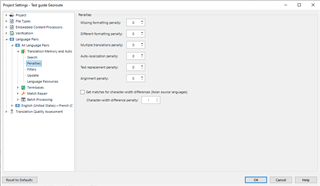
  • I've removed the penalty for missing or different formatting penalty, as you can see in the screen shot :

    Trados Studio Project Settings window showing penalties section with 'Different formatting penalty' set to 0.

    So, why do I still have some 99% segments after the pretranslation with missing tags? Is there another setting that I must adjust?

    Trados Studio translation results with 99% match segments highlighted, indicating missing tags despite penalty adjustments.

    emoji


    Generated Image Alt-Text
    [edited by: Trados AI at 11:36 PM (GMT 0) on 28 Feb 2024]
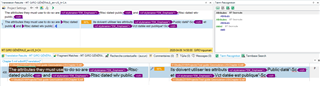
  • Unfortunately not. There is a tag missing, which is not formatting. I'm afraid you will need to manually confirm all segments.

    _________________________________________________________

    When asking for help here, please be as accurate as possible. Please always remember to give the exact version of product used and all possible error messages received. The better you describe your problem, the better help you will get.

    Want to learn more about Trados Studio? Visit the Community Hub. Have a good idea to make Trados Studio better? Publish it here.