How to display text flagged as "no translation" in the Editor?

Hello,

I am working with Trados Studio 2024, and I am searching for a way to display texts in the Editor despite them being flagged as "do not translate":

We have a custom file type with an edit rule in the parser section that sets texts to "do not translate", and it works perfectly (with the following properties set in the "Edit Rule" dialog: "Translate" set to "No", "Tag type" set to "Structure", "Whitespace" to "Inherit from parent").

However, with the current setting, our translators may only be seeing the 1-2 sentences of a full text that are to be translated without any context, while the largest portion of the text will be invisible to them. This is not a good starting position for a good translation, so we would like to adjust the files in a way that all texts are displayed in the Edtor to provide the needed context, terminology, etc., with only the "do not translate" texts remaining untranslateable (maybe as "locked" texts?).

I saw that in the advanced settings of the parser rules, there seems to be a setting that might help, "ShowElementContent", but I have not been able to make it work (maybe because I do not know what to set as "Name", "Code" and "Description", or maybe because that section is not intended for this purpose?).
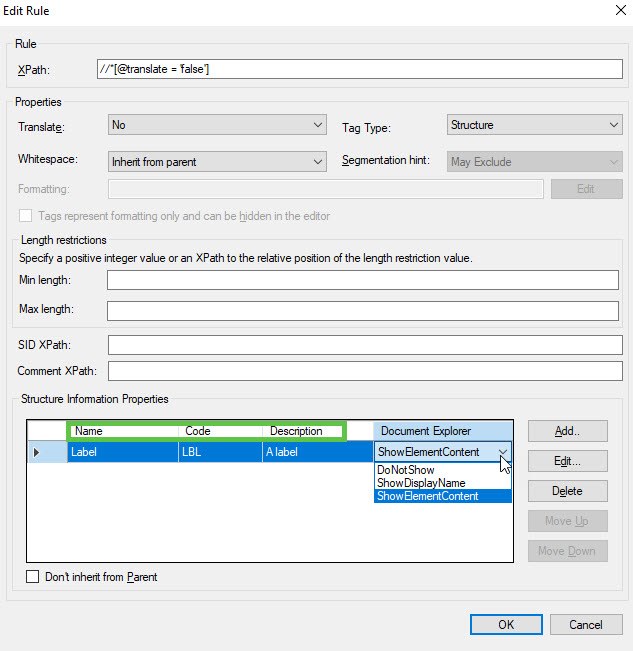
Screenshot of the Edit Rule dialog in Trados Studio. XPath is set to @translate = false. Properties include Translate set to No, Tag Type set to Structure, and Whitespace set to Inherit from parent. The Structure Information Properties section shows a row with Name as Label, Code as LBL, Description as A label, and Document Explorer set to ShowElementContent.

Is there any way to set this in Trados?


Removed AI Suggestion
[edited by: Barbara Dassinger at 10:45 AM (GMT 1) on 28 Apr 2026]

emoji
Parents
  •  

    For it to be in the editor, you'd have to set 'Translate' to 'Yes'. Otherwise it will never show up there, regardless of what you set down below.

    With that in mind, the only solution I can think of is the following:

    1. Set 'Translate' to 'Yes'.

    2. Set the label as you've already defined it.

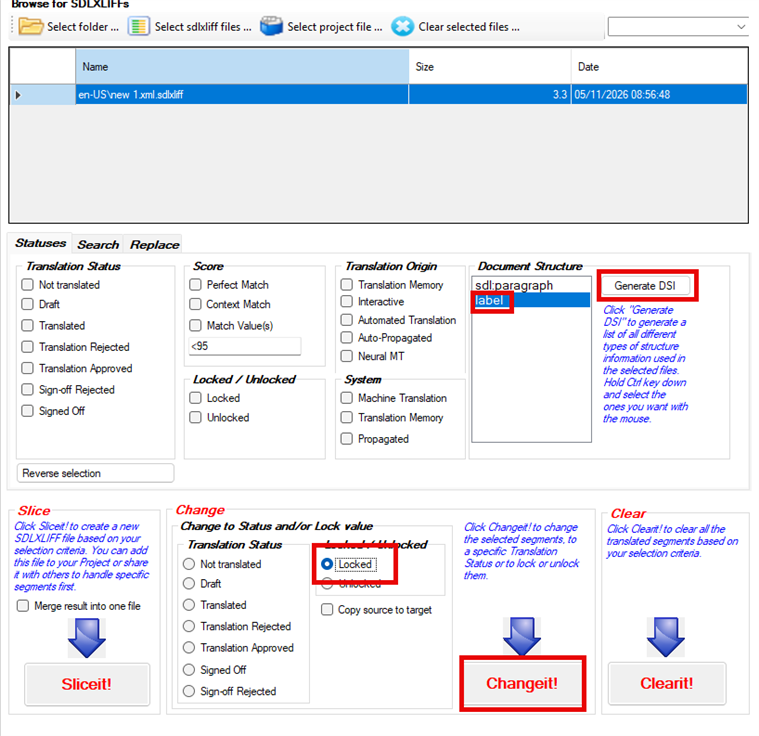
    3. Use the SDLXLIFF Toolkit (RWS AppStore) to lock all segments that have 'Label' as their document structure information.

    A screenshot of the SDLXLIFF Toolkit interface showing options for selecting files, translation statuses, document structures, and actions like 'Sliceit!', 'Changeit!', and 'Clearit!'.

    It would then look like this:

    A screenshot of the Trados Studio editor displaying a file with three segments, one of which is locked and labeled as 'LBL' in the document structure column.

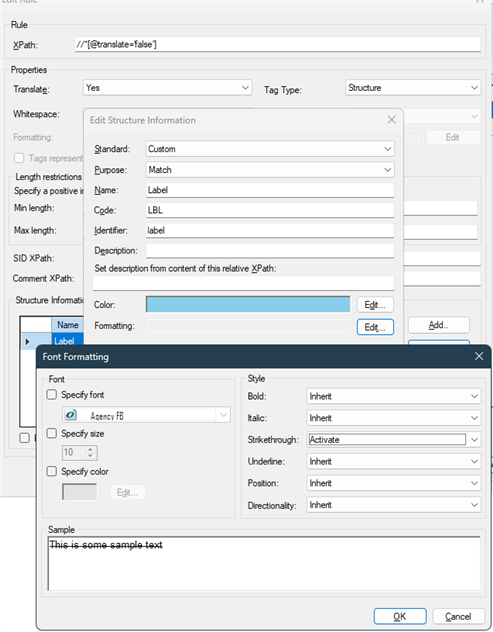
    You could maybe also set 'Strikethrough' to 'Activate' in your label settings, so you can differentiate more easily between informational segments (that are locked) and segments to be translated.

    A screenshot of the Edit Structure Information window in Trados Studio, showing settings for a label with strikethrough formatting activated and font properties displayed.

    Ideally, you would use the toolkit before pretranslation, but if that is not possible in your workflow, you can also use it afterwards and just check 'Copy source to target'. Then whatever match was found for the informational segments would be deleted and replaced by the source text.

    emoji


    Generated Image Alt-Text
    [edited by: RWS Community AI at 7:19 AM (GMT 1) on 11 May 2026]
  •   thanks for your detailed answer! 

    With your infos and the toolkit, I was able to display the texts in the editor,; I have to do it in 2-3 2 steps:

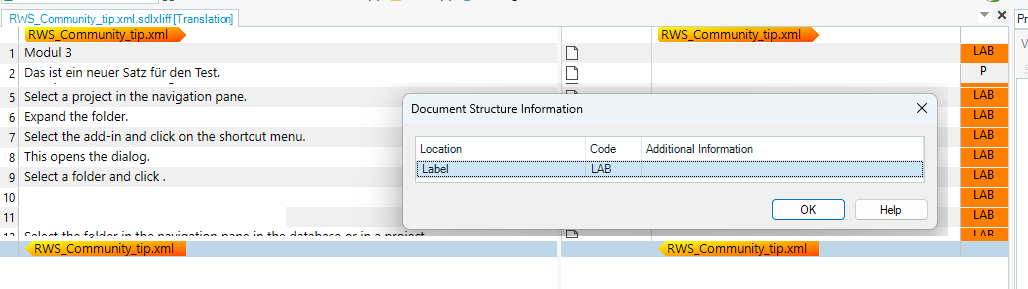
    - run default preparation incl. pre-translation OR just "Analyze only"; result in both cases: source text is correctly displayed in the editor, including the "Label" info, target text is empty: Screenshot of Trados Studio editor showing a document with labeled segments and a 'Document Structure Information' dialog displaying 'Label' with code 'LAB'.

    - use toolkit to copy source to target for labelled segments (if required), then use toolkit to change status and lock labelled segments (I do not know why, but if I check, for instance "Signed Off", "Locked", and "Copy source to target" in the same step in the "Change" section of the toolkit, the target text remains empty; splitting these actions in 2 separate steps works fine)

    Regarding the different formatting, I would have liked that, but it seems that the settings I make in the "Font Formatting" window of the "Edit Structure Information" dialog do not have any effect on the text display in the Editor, irrespective of which setting I make for the "Structure Information properties", "DoNotShow", "ShowDisplayName", or "ShowElementContent"). I have ensured that all "Font Adaptation" options are switched off in the general Editor options, so that should not be the reason.

    In any case, at least I can now see the texts in the Editor, and giving the label a specific color works, too, so that is really good. Thanks again for your help :)

    emoji


    Generated Image Alt-Text
    [edited by: RWS Community AI at 7:45 AM (GMT 1) on 12 May 2026]
  •  

    Glad it works! Slight smile

    Yep, I know of that problem in the Toolkit, the 'Copy source to target' does not seem to work with any other options checked. But since it is quite fast, that should not be too much of a problem, hopefully. Maybe the developers can fix this sometime in the future. ().

    As for the formatting issue, I have no idea why this doesn't work for you. I have Font Adaptation options enabled in the general Editor settings, and it still works for me. I'll attach my filetype settings here, maybe you can find the issue by comparing your settings with mine.

    XML_settings_RWS.zip

    emoji
Reply Children
No Data