 Translate



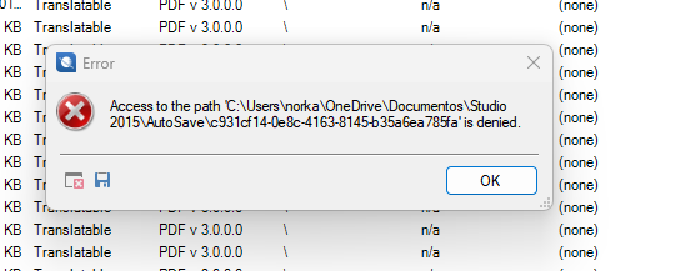
Everytime I try to save the work I receive this error, can you help me?
Thanks,
Norka F.
Removed AI Suggestion
[edited by: Norka Ferreira at 8:29 PM (GMT 1) on 29 Apr 2026]


Everytime I try to save the work I receive this error, can you help me?
Thanks,
Norka F.
Probability score: 0.7
Question improvement suggestion: Please provide the exact version of Trados Studio you are using and any recent changes to your system or software that may have occurred before the error started.
In the meantime, based on the information you have provided, here is a suggested answer to your question:
Hello Norka,
It seems you're encountering an 'Access Denied' error when trying to save your work in Trados Studio. This issue is often related to permissions, especially when using cloud services like OneDrive. Here are some steps you can follow to resolve this issue:
**Step 1:** Run Trados Studio as an administrator. Right-click on the Trados Studio icon and select 'Run as administrator' to ensure it has the necessary permissions.
**Step 2:** Check your OneDrive settings. If your Trados Studio files are saved in OneDrive, consider pausing the sync or moving your project files to a local directory on your computer. This can help avoid conflicts with file access.
**Step 3:** Disable the Auto Save feature. Go to `File > Options > Editor` and uncheck 'Enable Auto Save'. This can prevent the application from trying to save files in a location that may be restricted.
**Step 4:** Verify folder permissions. Navigate to the AutoSave folder (C:\Users\norka\OneDrive\Documentos\Studio2015\AutoSave) and check the folder's properties. Ensure your user account has full control over this folder.
**Step 5:** Close any other applications that might be accessing the file. Sometimes, other programs can lock files, preventing Trados Studio from saving.
**Step 6:** If the issue persists, consider resetting Trados Studio to its default settings. You can do this by renaming the relevant folder in the App Data directory (e.g., C:\Users\%username%\App Data\Roaming\SDL\SDL Trados Studio).
If you continue to experience issues, please provide the exact version of Trados Studio you are using and any recent changes to your system or software. This information will help in offering more specific assistance.
I hope this answer addressed your question. If not, please reject the answer, add the question improvement suggestion information, and click the RWS Community AI checkbox on the right to try again.
RWS Community AI


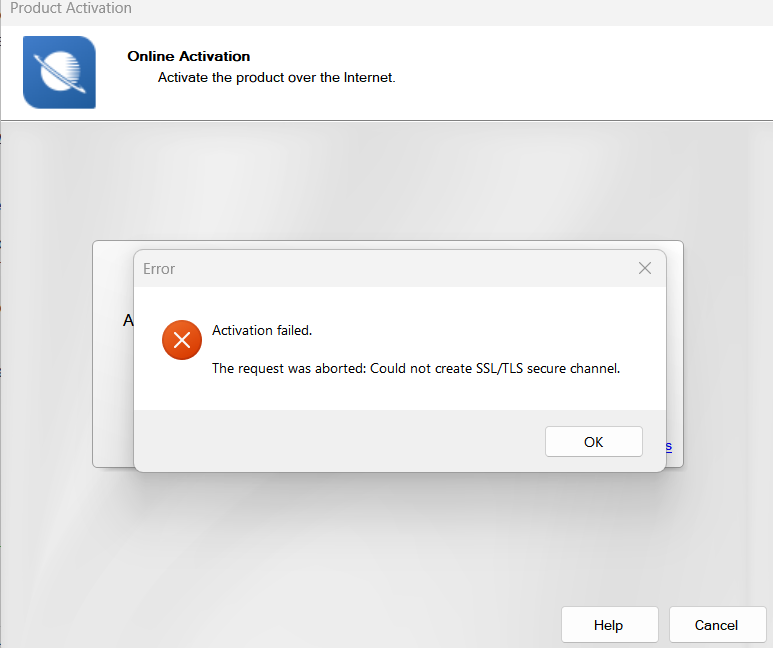
Hi, I have done some of the solutions, but I still receive the error when I want to activate my product. Please, can someone help me?
I need to work on a project and I am stuck.
Hi Norka Ferreira,
Use of the synchronization with OneDrive or Google drive may cause issues with Trados.
We advise that synchronization with OneDrive to be paused while Trados Studio is in use, or all Studio-related information should be saved in a location not synchronized with OneDrive. Or OneDrive can be disabled altogether. For further information, please see: Turn off, disable, or uninstall OneDrive.
And here is an article about the error:
You are using a very old version of Trados, but if you follow the path indicated in the article, you can find the path for your edition of Trados.
As for activating Trados 2015, I have already emailed you from the chat about what to do, but I will write here as well.
If your computer has Windows 11, keep in mind please that Trados 2015 was not tested on it and we cannot guarantee it will work properly on it, Trados 2015 is no longer supported technically and by engineering since February 2019 so no tests were done for it after that date.
However, if you have Windows 11 try the following steps, this is a workaround for older versions of Trados which helps with using them on Win11:
In Windows search bar type "Device Manager" and open it and then go to: Network Adapters - Action - Add Legacy Hardware - Install the hardware that I manually select from a list - Network adapters - Choose a network adapter (Microsoft > Microsoft KM -Test).
Then try offline activation, you can see in this video how to do that: https://www.youtube.com/watch?v=xVQZyX3tbsg&list=PLeCTib6EEYZHfZBaRI2ZsRm3r8bKGq-Qz&index=4
Best regards,
Anca
Anca Stoian | RWS Group
Can you guys help me with this? I stop the one drive, but didn't help me. I lost my whole document because of it.
Can you guys help me whit this. I lost all my document because of it. And nobody in trados is willing to help me. I stopped the sync with one drive, but it didn't work.
Hi Luz Doynel-Thompson ,
Please be more specific and provide more details about your issue.
I have already offered above what to do when one runs into an error because of OneDrive synchronization. I'll post again, in case you missed this information:
Use of the synchronization with OneDrive or Google drive may cause issues with Trados.
We advise that synchronization with OneDrive to be paused while Trados Studio is in use, or all Studio-related information should be saved in a location not synchronized with OneDrive. Or OneDrive can be disabled altogether. For further information, please see: Turn off, disable, or uninstall OneDrive.
And here is an article about the error:
The documents (files, projects, TMs) are not saved in Trados, Trados does not save any document in the software. The documents are saved where you selected them to be saved.
Normally Trados saves them locally, as default path, on Drive C in Windows, in Documents.
But, as mentioned above, OneDrive can cause issues while using Trados because OneDrive needs to connect to the internet constantly to update the files. Trados also has its own AutoUpdate and these two may not always be in synch. Therefore, it is advisable to either pause OneDrive when working in Trados or to move the files in a local folder that is not backed on OneDrive.
Best regards,
Anca
Anca Stoian | RWS Group

