RWS Community
RWS Community
  • Site

Trados Go

Trados Studio

Trados Ignite

Trados Team

Trados Accelerate

Trados Enterprise

Trados GroupShare

Passolo

MultiTerm

RWS AppStore

Connectors

Beta Groups

Managed Translation

MultiTrans

TMS

Trados Enterprise

WorldServer

Language Weaver

Language Weaver Edge

Language Weaver Connectors

Language Weaver in Trados Studio


Content Champions

Tridion Docs

Tridion Sites

Contenta

LiveContent

XPP

Trados Cloud

Trados Studio Ideas

Trados GroupShare Ideas

Trados Team Terminology Ideas

MultiTerm Ideas

Passolo Ideas

RWS Appstore Ideas

Tridion Docs Ideas

Tridion Sites Ideas

Language Weaver Ideas

Language Weaver Edge Ideas

Managed Translation - Enterprise Ideas

TMS Ideas

WorldServer Ideas

Trados Enterprise Ideas

XPP Ideas

GroupShare Developers

Language Cloud Developers

MultiTerm Developers

Passolo Developers

Trados Studio Developers

Managed Translation Developers

TMS Developers

WorldServer Developers

Tridion Docs Developers

XPP Developers

Language Combinations by Language Services

RWS Training & Certification

Style Guides

Content Management Partners

LDE Korean Vendor Support

RWS Campus

Trados Approved Trainers

Nordic Tridion Docs User Group

Recognition & Reward System

RWS Community Platform Related Questions

Community Solutions Hub (Trados)

About RWS

Events

RWS Services: Train AI & others

RWS Training & Certification

To RWS Support

  • Search
  • Translate

    Detecting language please wait for.......


    Powered by
  • User
  • Site
  • Search
  • User
  • Products
  • Trados Portfolio
  • Trados Studio
  • More
  • Cancel
Trados Studio
  • Products
  • Trados Portfolio
  • Trados Studio
  • More
  • Cancel

Trados Studio > Customer Experience

04.1 Installing Trados Studio single user licenses (Freelance and Professional)
  • Home
  • Forums
  • Product Updates
  • Blogs
  • Wiki
  • Training
  • Release info
  • Trados Studio Leaders
  • More
  • Cancel
  • New
Show Translation Options

Detecting language please wait for.......


Powered by
Trados Studio requires membership for participation - click to join
  • -Customer Experience
    • +01. How to start a Trados Freelance or Trados Go subscription
    • +02. Trados Freelance
    • +03. Trados Go
    • -04. Studio perpetual license
      • 04.1 Installing Trados Studio single user licenses (Freelance and Professional)
      • 04.2 Activating the Trados Studio software after downloading and installing
      • 04.3 Setting up your personal profile for Trados Studio
      • 04.4 Deactivating the Trados Studio license
      • 04.5 How to upgrade your Freelance perpetual license
      • 04.6 Installing and activating Trados 2024 and Trados 2022 side by side (upgrades only)
      • 04.7 How to reset a perpetual license
      • 04.8 How to transfer my existing license to a new computer?
    • 05. Trados Support resources
    • +06. Licensing and Installation
    • +07. Trados Studio 2024 (Trados Cloud Capabilities)
    • How to: use Glossary Converter
  • +RWS Support Team wiki
  • +Support & Maintenance
  • +Trados Subject Matter Experts

You are currently reviewing an older revision of this page.

  • History View current version

How to install Studio 2017 for new users (Freelance and Starter versions).

On a regular basis we are approached and asked "is it hard to install SDL Trados Studio 2017?" or "do you have an installation guide?".

The answer is of course-...it depends!

If you are are total IT 'whiz' then you could probably program Studio yourself or, indeed even understand guides that seem to be written for tech geeks by tech geeks.

Therefore I think the following visual guide will be appreciated by many as it takes you through every single step of the process 

So lets get started ....  

Assuming you have purchased your license and have now accessed your SDL ACCOUNT- DOWNLOADS
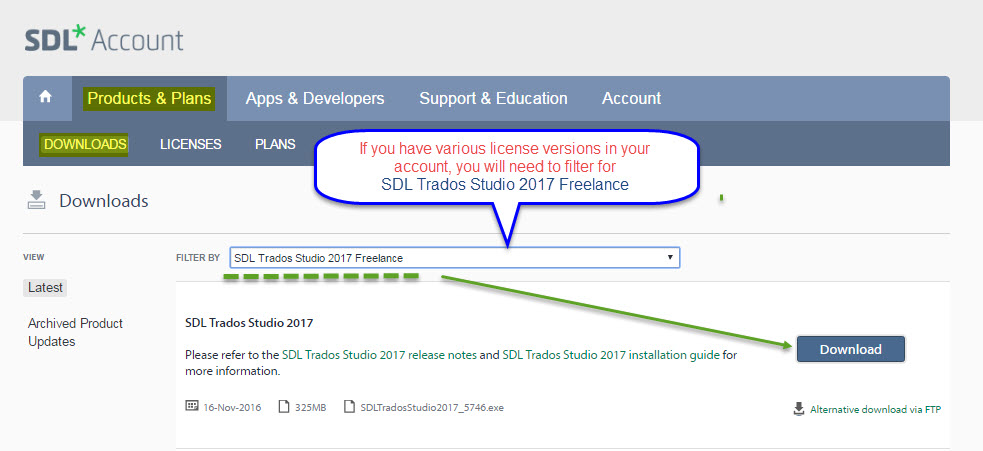
When you download the software this will generally be stored in the DOWNLOADS folder -
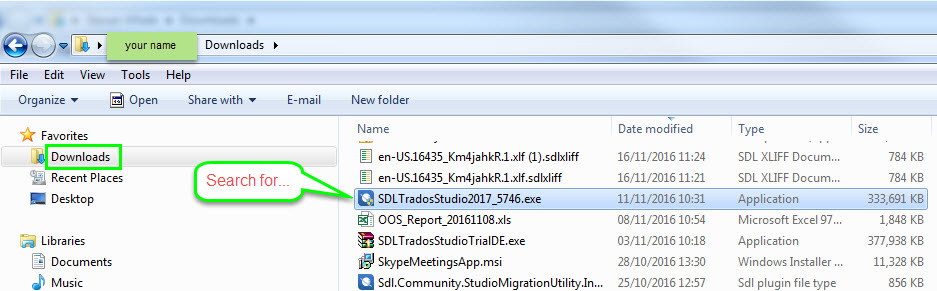
 

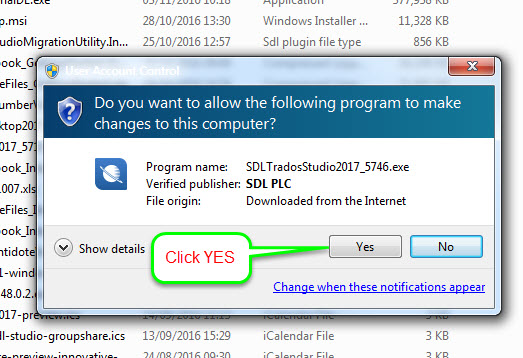
And double click! and you should then see the first message....
 

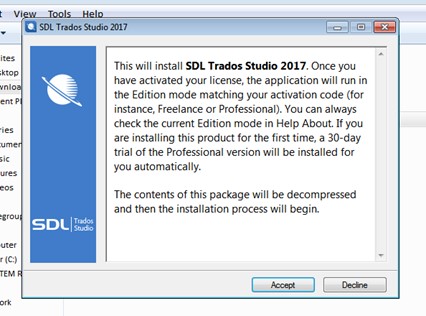
 Now we are ready to start the actual installation process....


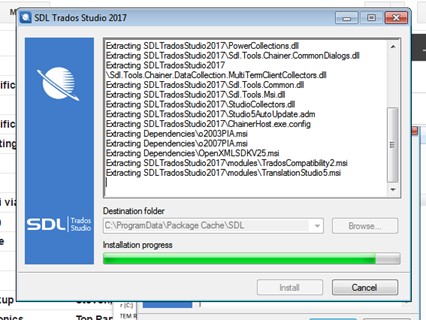
Please NOTE-

DO not try change the extraction path (C:\programdata\....) as Studio can only be installed to the default boot drive (C:/)!

.. files are being extracted
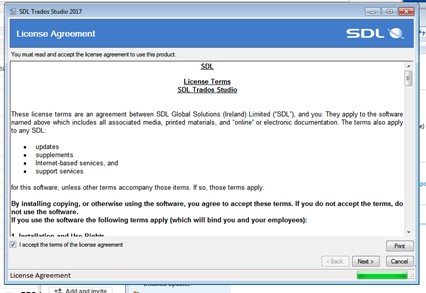
 and the all important Terms and Conditions....don't forget to tick the box.
 

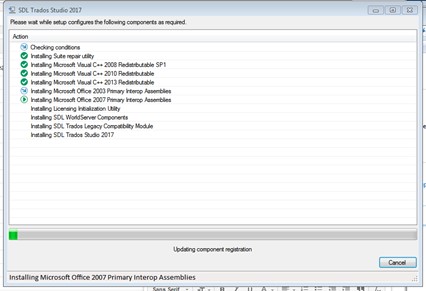
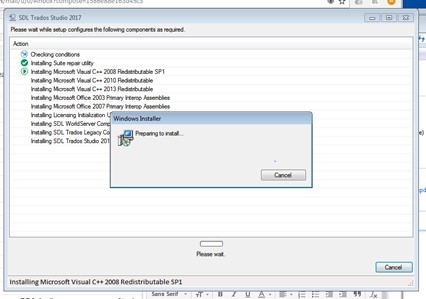
 ...now configuring the software for your system


....And the final message
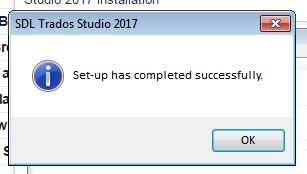
 

Congratulations,

you have now successfully installed Studio 2017 and are ready to activate your software.


  • Our Terms of Use
  • Copyright
  • Privacy
  • Security
  • Anti-slavery Statement
  • Cookie Notice
  • YouTube