
 Translate


Trados Studio is very simple to install and requires just a few clicks. This guide applies to both perpetual licenses and subscription based licenses, the installer for Trados or MultiTerm is a .exe file for both license types.
PLEASE NOTE: You must have ADMINISTRATOR rights to install Trados/MultiTerm
Please note the screenshots are for illustrative purpose only, they are not taken from your RWS account specifically.
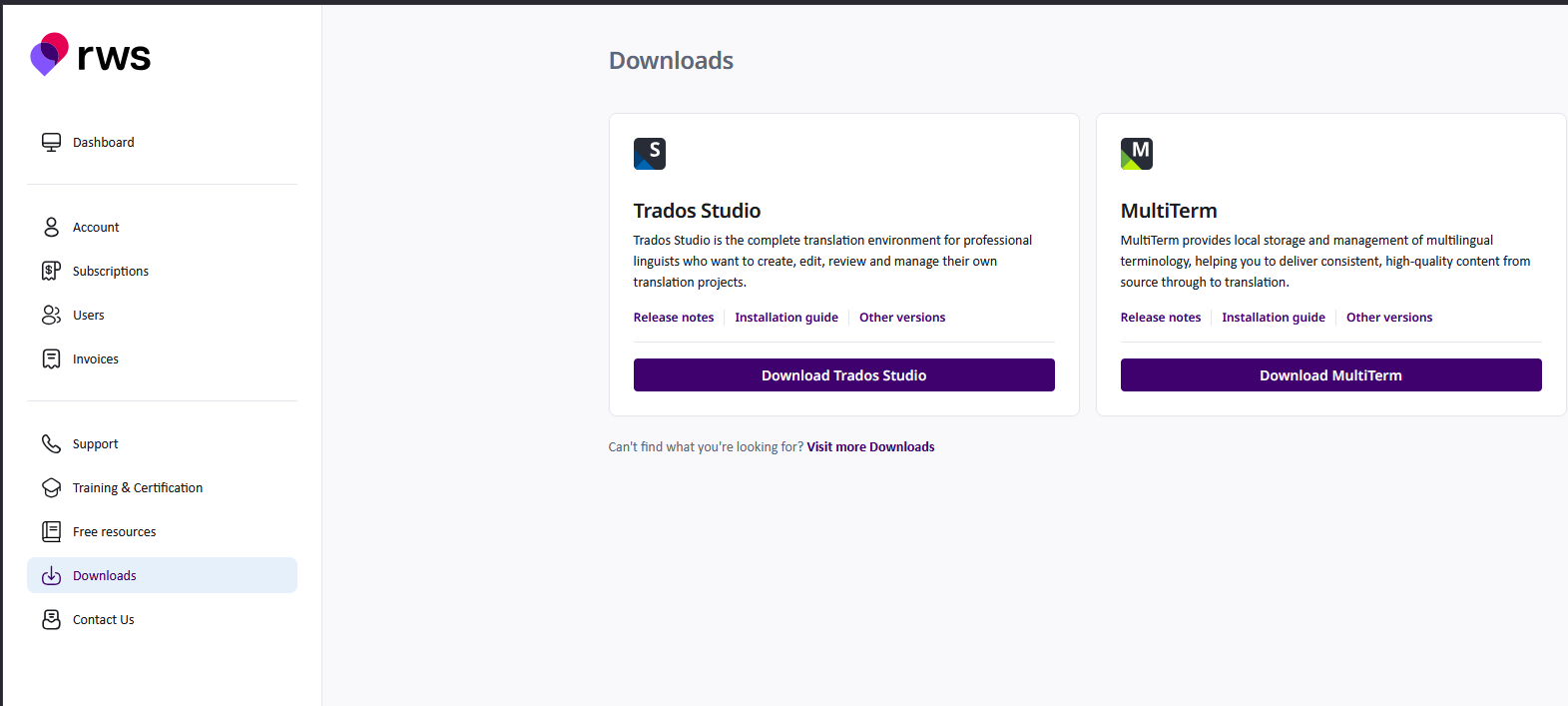
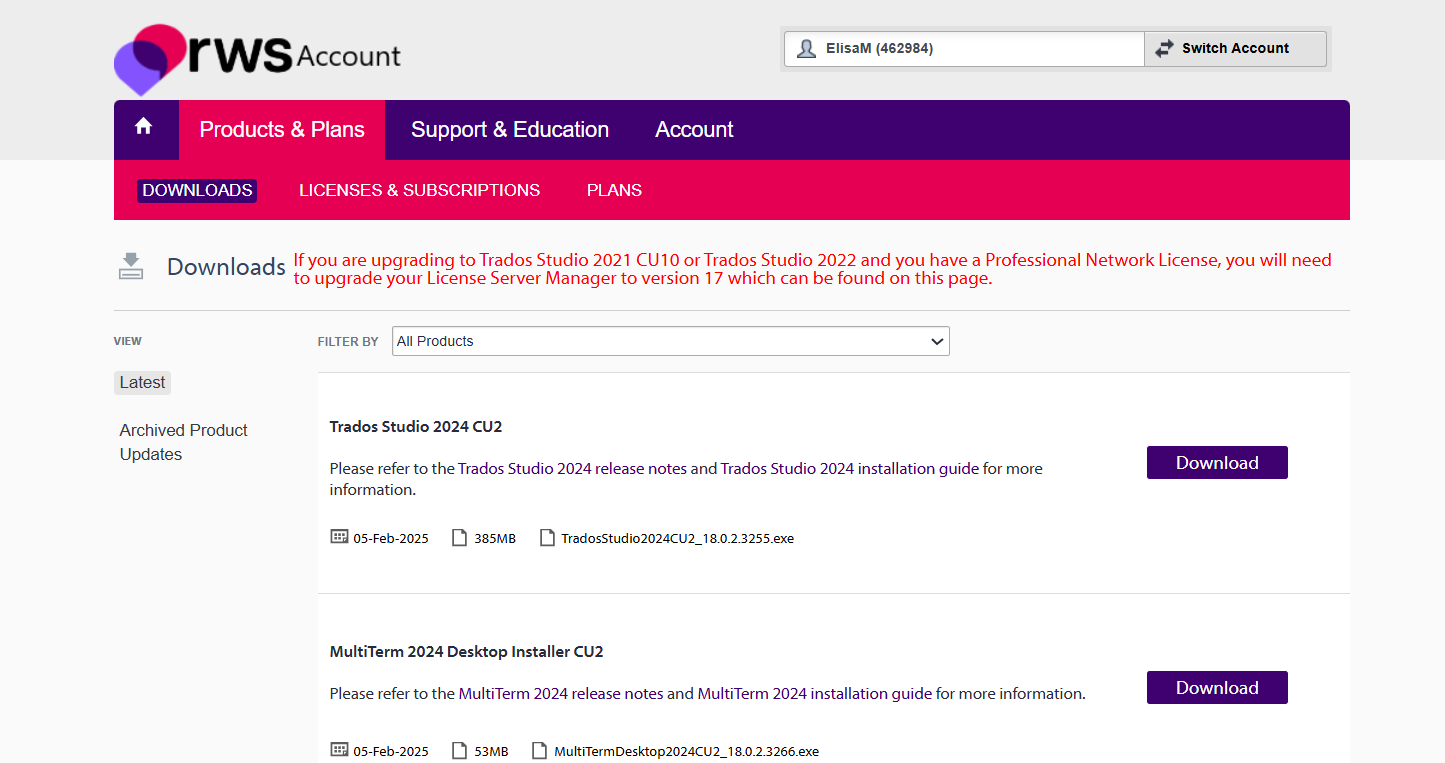
After logging into your RWS Account, go to DOWNLOADS and you will see the installers.
For Subscriptions the RWS Account looks like this:
For perpetual licenses, the RWS Account looks like this:
After clicking 'Download', depending on your administration/organization rights, you might see the following
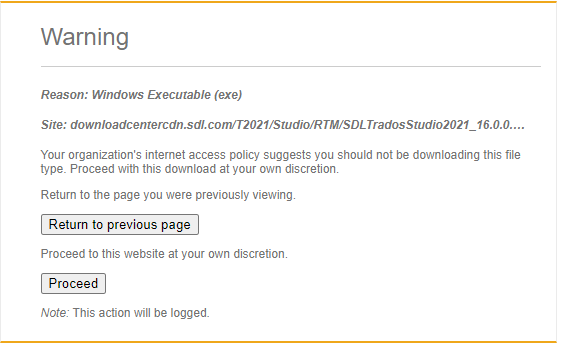
Click 'Proceed'
The executable file will now be downloaded.
Once downloaded, simply double click the installer to begin the installation.
Depending on the browser, you may need to save the installer somewhere else first (perhaps on your desktop).
Some browsers will prevent executable files from running directly from the downloads' folder as an additional security measure.
When requested, if you want the applications to make changes to the computer, click YES and Accept
Accept the License agreement

Trados Studio will automatically install to your default (C:/ drive). The application will now begin the installation (this will take a couple of minutes).

Congratulations, you have now successfully installed Trados 2024.
Useful notes and links
If, at any time, you have difficulties installing and/or (de)activating the software, please post in the correct RWS Community forum:
https://community.rws.com/product-groups/trados-portfolio/f/licensing
See also:
What you need to know - Help and Support
In case of any further questions, you can contact our CX Team via Live Chat: